![Useful Tips to Unlock iPhone without Password [2026]](https://www.computertechreviews.com/wp-content/uploads/2022/05/Unlock-iPhone-without-password-1200x675.webp)

Table of Contents
Introduction
This article is part of our Mobile Phones & Smartphones resource section.
The super-easy feature of unlocking iPhone using face and touch id has become very common. It is the reason why forgetting the passcode is very normal and people start searching for how to unlock disabled iPhone. The same reason might have driven you to this post, and you may be looking into some way to get back to the iPhone again. Apple developers have already sorted out official solutions for this problem.
There are different possible ways to unlock an iPhone without a passcode. In every case, iOS users at the end have to compromise by deleting all the data to unlock the passcode. Perhaps, unlocking is also possible with the help of Dr.Fone-Screen Unlock (iOS) toolkit with a few clicks. Your struggle of searching for how to unlock iPhone without passcode will be over after checking out the below methods of opening a disabled iPhone.
The unlocking process can vary depending on the device generation because Apple’s smartphone lineup has changed considerably over the years. Users with newer devices can compare the iPhone 14, iPhone 15, and iPhone 16 or read our Apple iPhone 15 review. Owners of earlier models can explore some useful facts about the iPhone 12 or compare the iPhone 11, iPhone 11 Pro, and iPhone 11 Pro Max.
Part 1: Get into Locked iPhone via iTunes
It is the official method to unlock an iPhone without a password. In this method, you need to restore your device by enabling the recovery mode on your iPhone. Even if your screen got broken or locked by any means, this method will help to bring your phone to normal. The only thing you need here is a laptop or Pc to connect your iPhone and access the recovery mode to erase all your data.
How to get into a locked iPhone without the password with recovery mode:
Step 1: Download the latest version of iTunes on your Mac or PC. Ignore this step if you already have an updated version.
Step 2: Connect your iPhone to a PC/Laptop with the help of a USB cable. No doubt, even if your screen is broken this step is still going to work.
Step 3: Long press the “Home” button on your iPhone until the logo of iTunes gets displayed on your screen. It will switch your phone to the recovery mode. The method of getting into the recovery mode varies on different iPhone models. So, follow the below mentioned below depending on your current device.
Step 4: iPhone with Face ID feature: Try pressing the “Volume Up” button and release it quickly. Do the same with the “Volume down” button. Now, long-press the “Top button” until your device switches to the recovery mode.
Step 5: iPhone with Home button: Press the “Home” and side buttons simultaneously for 5-10 seconds. Release the button until the screen displays the recovery mode screen.
Step 6: If the above methods doesn’t work, check out the Apple’s guide for recovery mode
When the device switches to the recovery mode, a popup will appear on your laptop screen showing an option to restore your iPhone. Just click on “Restore” to erase all data.
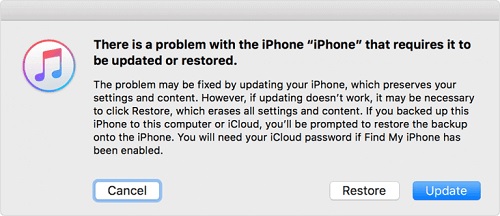
Disconnect your phone from the laptop and restart the phone to normal.
Because restoring a locked iPhone can erase its contents, protecting important files beforehand is valuable whenever possible. Consider maintaining copies with suitable iPhone backup software and using appropriate iPhone data recovery software if important information has already been lost. You can also read our AceThinker iPhone Data Recovery review or explore the best iTunes alternatives for iPhone data management. If the problem is specifically related to Apple’s recovery screen, see our guide to fixing an iPhone stuck in recovery mode.
Part 2: How to Unlock iPhone Passcode with iCloud
Another official alternative way to unlock iPhone without passcode is possible by erasing data from iCloud’s website. To follow this method, the user must remember the Apple ID and password which is already logged into the device. The method will work only if you have enabled the “Find My iPhone” feature with your mobile data turned on at the same time. If the same condition applies to your situation, then go for following the steps below:
Step 1: Open iCloud.com on web browser on your laptop.
Step 2: Sign in to the official iCloud’s website using Apple ID and password which is already logged in to your iPhone.
Step 3: Go to the option of “Find My” after successful login and click on “All devices”. It will then display the list of current devices where your Apple ID is signed in.
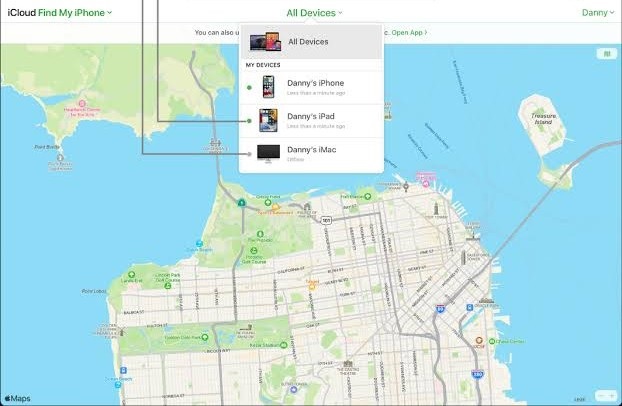
Step 4: Select the device which you want to unlock the iPhone without password.
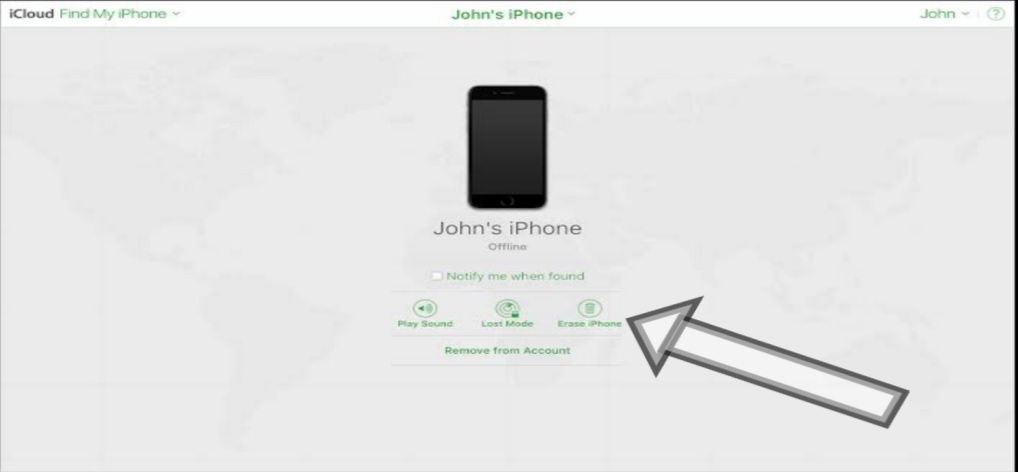
Step 5: You can test the device by clicking on the “Play Sound” option. Just click on the “Erase iPhone” button to erase all the data.
All of your data on your iPhone will be erased and your device will open normally without asking for passcode.
Find My can also be useful when an authorized device is misplaced or lost. You can explore apps that can track an iPhone online, learn about options to track an iPhone location by number, or review appropriate ways to track a child’s iPhone when managing a family device. For broader protection, learn the warning signs that an iPhone might be at risk and how to protect iOS devices through a VPN when connecting through less-trusted networks.
Part 3: Use Unlock Software to unlock iPhone without Passcode
Both of the above steps will work only if you have Apple ID and Password. But, if the case arises where you have forgotten both the credentials and there is no option to unlock, then opening the device is possible by the use Dr.Fone – Screen Unlock (iOS). This tool has the feature of bypassing Apple ID, lock screen passcode, iCloud activation lock, etc.
Before using third-party unlocking or repair tools, it is useful to identify the exact problem affecting the device. For additional guidance, see how to access an iPhone when you forgot the password or learn how to unlock an iPhone passcode without a computer. If the phone repeatedly restarts instead of reaching the lock screen, follow the steps to fix an iPhone stuck in a boot loop. Once the device is accessible again, you can also free up space on your iPhone and keep important applications current by following appropriate app-update steps for iOS.
The software is widely in use because it is secure and trustworthy. The struggle of searching for how to unlock iPhone without password comes to end with this software. iOS users don’t have to worry about remembering Apple ID, password or passcode. The software has the feature to bypass iCloud activation lock, unlock apple ID, remove MDM etc. Follow the steps below to know how to get into a locked iPhone without the password with Dr.Fone – Screen Unlock (iOS).
Step 1: Download and Install Dr.Fone
Download Dr.Fone – Screen Unlock software for windows or Mac version
After following the link a setup file will be downloaded, the toolkit of Dr.Fone will be downloaded from after the installation of setup file.
Step 2: Connect your iPhone/iPad
Connect the iPhone whom you want to unlock without passcode. You can use a USB cable for this purpose. The software will auto verify the device and ask for proceeding to the next step.
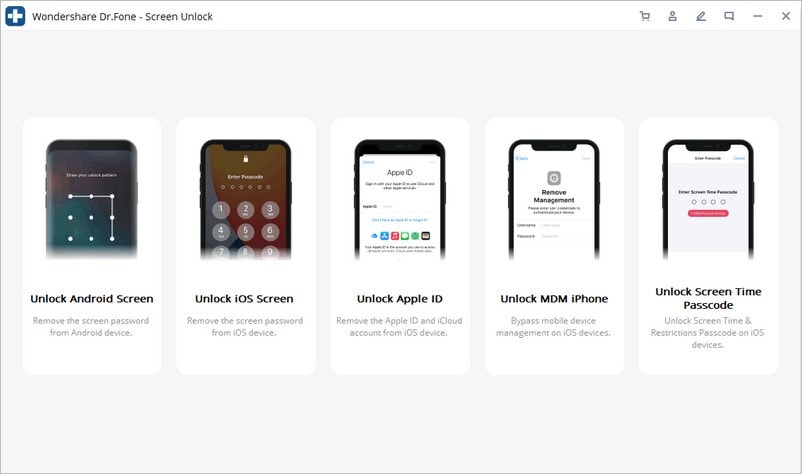
On opening the software, it will display a bunch of screen unlocking tools. Just navigate to the “Screen Unlock” option.
And then, click on “Unlock iOS screen” on the next screen.
Step 3: Switch to the recovery mode
The screen unlock process won’t work without switching on the recovery mode. Follow the displayed on-screen instructions of Dr.Fone-Screen Unlock (iOS) to activate the DFU or recovery mode. In most cases, it works by long pressing and releasing either the volume up or down button.
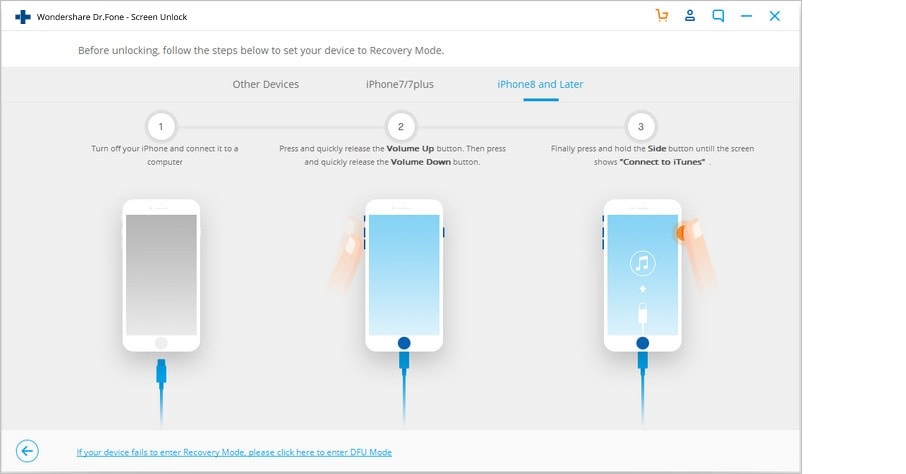
The above step of switching the device to recovery mode may vary based on different iPhone models.
Step 4: Confirm your device information
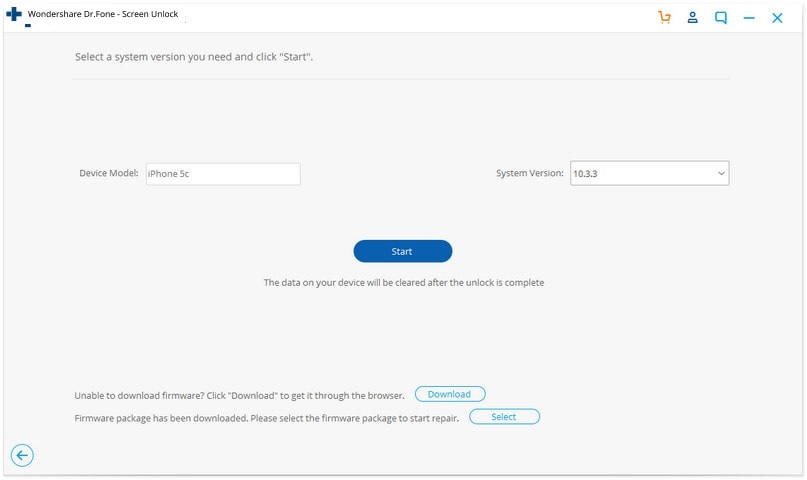
After the phone gets switched to the recovery mode, the software will ask to confirm the device identity like Model and System version. By default, it automatically detects the device model. In case, if it is displayed a wrong selection then change the correct model and click on download firmware.
Step 5: Unlock your locked iPhone screen
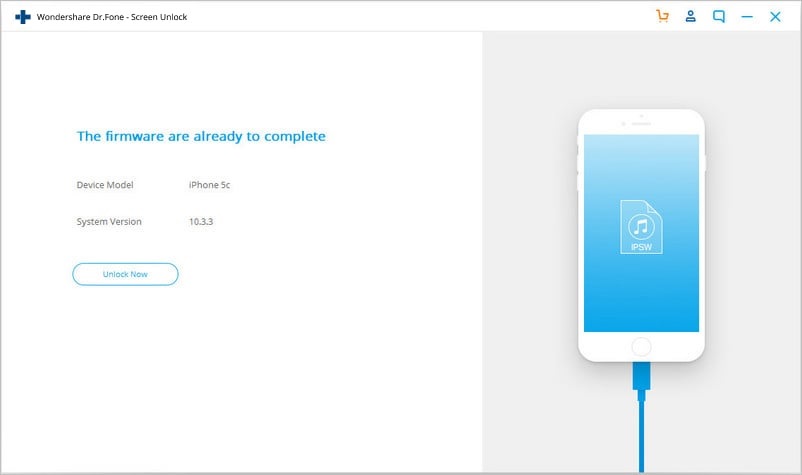
After downloading the firmware, click on the “Unlock Now” button on the computer screen to unlock the device. Note that, unlocking the phone even by this method will wipe out all the data present on your iPhone.
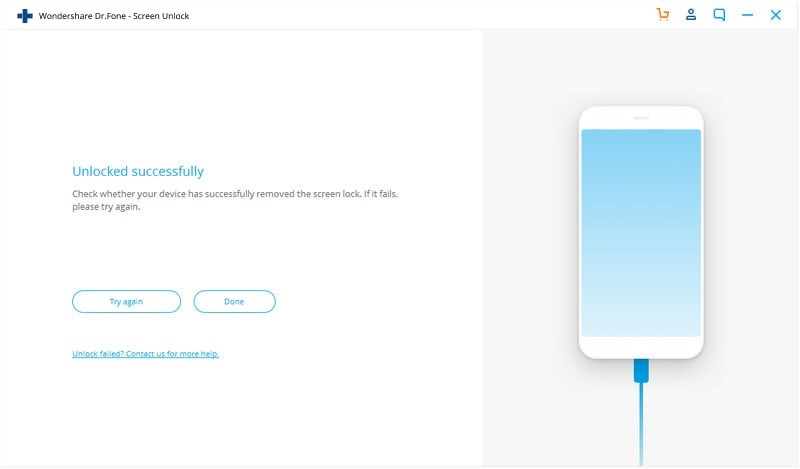
Finally, your iPhone will be unlocked.
After regaining access to an iPhone, you may also need to move important conversations when changing devices. If you are switching platforms, explore these methods to transfer WhatsApp from Android to iPhone, learn how to transfer WhatsApp from Android to iPhone without resetting, or follow the steps to transfer WhatsApp messages to a new iPhone 13. For migration in the opposite direction, see our guide to Backuptrans iPhone WhatsApp to Android Transfer, while standard conversations can be moved by learning how to transfer messages from Android to iPhone.
Closing Words
Once access has been restored, several other iPhone features can help with everyday use and device management. You can learn how to forward a text message on iPhone, explore how to mirror an iPhone to a PC, or discover ways to learn new skills using your iPhone. Parents managing a family device can also learn how to block apps on a child’s iOS device, while users considering a compact Apple model can read our iPhone SE 3rd Generation review.
Apple phones are always at the top in terms of providing data security. For them, the priority to customers’ privacy has always been higher in comparison to the phone’s password. Most people don’t turn on their internet connection all the time. So, recovery by the method of Cloud verification also doesn’t work for their device.
But, all these identity verification can be bypassed with the help of Dr.Fone-Screen Unlock (iOS) feature. The software is very easy to use and don’t need any professional help to unlock the device. People struggling for the answers of how to get into a locked iPhone without the password come to end with this software.
If you are exploring other iPhone options, our earlier iPhone SE review provides additional information about Apple’s compact model. Device security should also include physical protection: owners of larger premium models can learn how to choose the right iPhone 15 Pro Max cover, while newer Pro users can explore why an iPhone 16 Pro case can be useful for everyday protection.