
Helpful Methods to Transfer WhatsApp from Android to iPhone
This article is part of our Mobile Phones & Smartphones resource section.
Table of Contents
Introduction
There was a time when owning an Android phone seemed to be a wonderful experience for the users. But now the time has changed and people are switching to iPhone. Replacing an Android phone with an iPhone is an exciting phase for the users. The only thing people remain worried about is the fear of losing the old phone’s data. WhatsApp Plus these days contains a huge bunch of memories and crucial information too which people don’t want to lose. For this reason, it becomes important to transfer WhatsApp from Android to iPhone, while switching to an iPhone. In this article, we will guide you on how to restore WhatsApp from Android to iPhone. Here, you can browse down the best 2 ways to make the process of transferring suitable, convenient, and easy.
There are several approaches to WhatsApp migration depending on the devices involved and whether you want to reset the destination phone. In addition to the methods below, you can learn how to transfer WhatsApp from Android to iPhone without resetting or follow a dedicated guide to transfer WhatsApp messages to a new iPhone 13. For migration in the opposite direction, our Backuptrans iPhone WhatsApp to Android transfer guide covers another approach.
Moving between different types of smartphone often involves transferring personal files, apps, contacts, and conversations. If you are switching to a newer Apple device, you can compare the iPhone 14, iPhone 15, and iPhone 16, explore some useful facts about the iPhone 12, or review the differences between the iPhone 11, iPhone 11 Pro, and iPhone 11 Pro Max before deciding which iPhone will receive your WhatsApp data.
Way 1: Use MobileTrans – WhatsApp Transfer to Transfer WhatsApp from Android to iPhone
The most common method for Android WhatsApp transfer backup & restore to iPhone is via email. The migration process is very easy with this approach. MobileTrans – WhatsApp Transfer is an effective tool that enables WhatsApp transfer from Android to iPhone in just minutes of time. You can easily transfer the data without worrying about losing any crucial information. There are many features that the tool lets you access while doing the process, such as:
Even when a transfer tool is designed to preserve your information, creating a separate backup before migration provides another layer of protection. Consider using iPhone backup software to safeguard important files, and learn about iPhone data recovery software in case photos, messages, contacts, or other information becomes inaccessible during the migration process.
If data has already been lost or deleted, specialized recovery utilities may provide additional options depending on the circumstances. Our AceThinker iPhone Data Recovery review examines one such solution, while users who prefer alternatives to Apple’s traditional desktop software can explore the best iTunes alternatives for iPhone data management.
- It will keep the backup of all the WhatsApp personal messages and group chats on the computer.
- The tool allows you to export the whole chat history including profile pictures, photos, and stickers.
- It also transfers all the videos to the phone and also takes its backup to the computer.
- MobileTrans – WhatsApp Transfer enables the transfer without losing any data.
Step by Step Guide to Transfer Whatsapp From Android to iPhone Using MobileTrans – WhatsApp Transfer
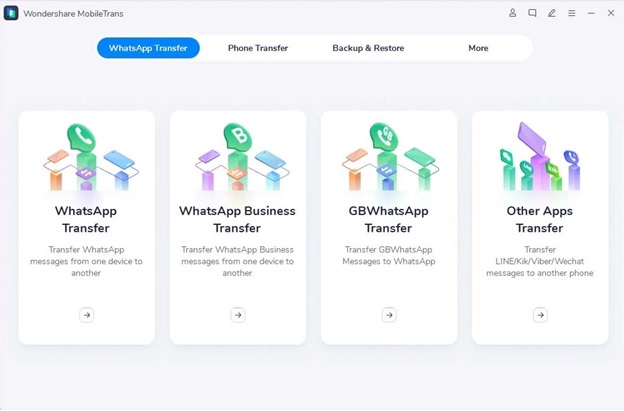
Step 1: Launch MobileTrans – WhatsApp Transfer on your Computer
The very first step is to launch the MobileTrans – WhatsApp Transfer software on your computer. Then click on the “WhatsApp transfer” module.
Step 2: Connect Both The Phones to The Computer
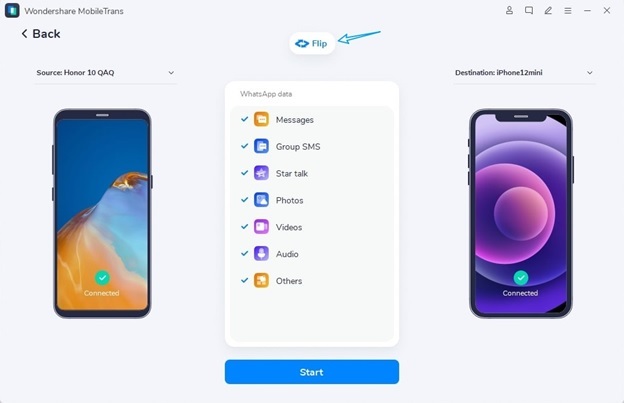
Connect both your Android and iPhone devices to the computer. Before initiating the transfer process, you will find the messages and media attachments loaded by the software on the computer’s screen.
Before starting a large WhatsApp migration, make sure the destination iPhone has sufficient storage for chats, photos, videos, voice messages, and other attachments. If storage is limited, follow these methods to free up space on your iPhone. After the migration, you can also use iPhone-to-PC mirroring when you want to display supported content from the phone on a larger computer screen.
Step 3: Start Transferring WhatsApp Messages
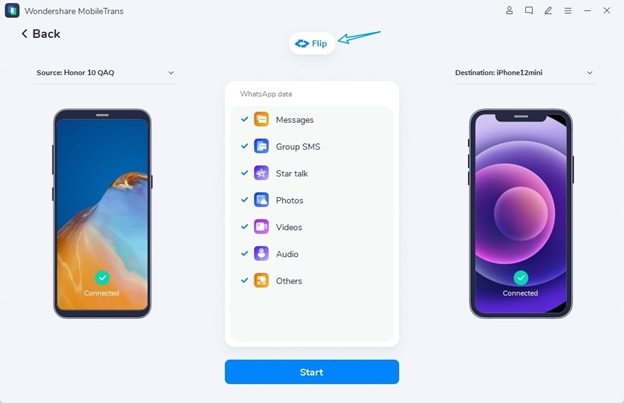
To initiate the transfer process, tap on the “Start” button. Now, just sit back and relax until the transfer process finishes.
The “Flip” button will help you to exchange the source and destination devices. This process will merge the chats on WhatsApp on both phones.
WhatsApp conversations are only one type of information users may want to preserve when changing phones. If you also need to move regular SMS content, see how to transfer messages from Android to iPhone. Once the migration is complete, you can also learn how to forward a text message on iPhone when you need to share SMS or iMessage content with another contact.
Step 4: Transfer Completed
It is advised, not to touch any of your phones as the transfer is taking place. You can freely disconnect the devices, as the transfer process completes and the screen like the below image appears. Lastly, check on your iPhone, if you can access the transferred WhatsApp chat.
If you cannot access the destination iPhone after completing the migration, the issue may involve the device credentials rather than WhatsApp itself. In that situation, see how to access your iPhone when you forgot the password, review additional tips to unlock an iPhone, or learn how to unlock an iPhone passcode without a computer.
Way 2: MobileTrans App
MobileTrans app is an efficient app that enables the transfer of data between 2 devices such as Android and iPhone. The most crucial benefit of using the app is that it provides the fastest cross-platform transfer speed. With this app, you can transfer the WhatsApp data including messages, audio, videos, emojis, attachments, etc. It is very easy to use this app to do WhatsApp transfer.
When installing and using mobile apps, keeping both the application and operating system updated can help maintain compatibility and security. As another example of managing app updates across mobile platforms, see these steps to update the Crazy Time app on Android and iOS. iPhone users should also recognize signs that their iPhone might be at risk when unusual app or device behavior occurs.
Step by Step Guide to Move Whatsapp From Android to iPhone Using MobileTrans App
Step 1: The first step is download MobileTrans app on Google Store and choose the new and old devices. In this case, the iPhone is the new device and Android is the old device.
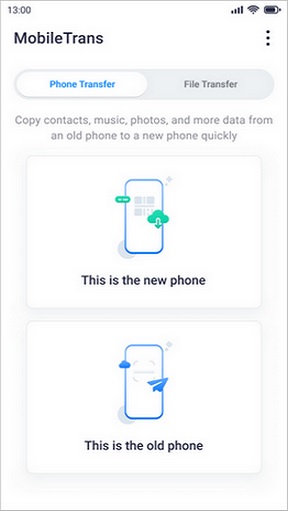
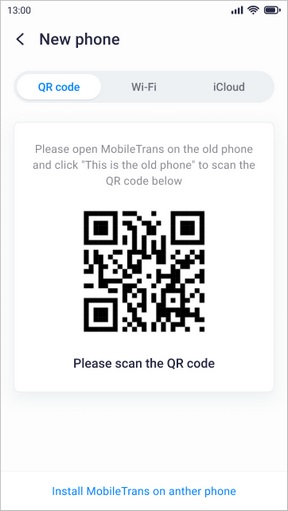
Step 2: Choose any of the 3 methods as shown in the image below. It will help to connect both of your phones.
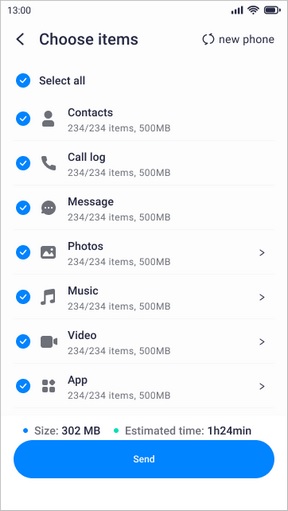
Step 3: After the successful connection between both devices, choose the items which you want to transfer. Click on “Apps” and then “WhatsApp” to move all the WhatsApp data from Android to iPhone.
After moving your apps and personal information to the new device, take time to review its privacy and security settings. Using a trusted network and learning how to protect iOS devices through a VPN can add protection when accessing online services, particularly when connecting through public networks.
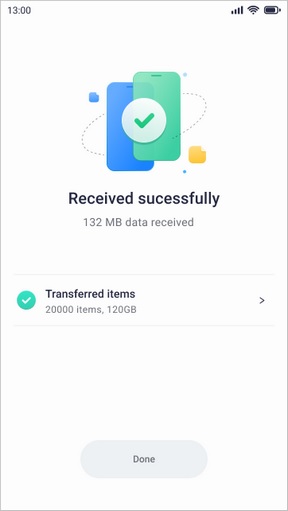
Step 4: Wait for just seconds of time to get the “Received Successfully” screen.
This process will transfer all your WhatsApp data along with the attachments to your iPhone device.
After the transfer is finished, make sure the iPhone operates normally before deleting data from the old Android device. If the new phone repeatedly restarts, see how to fix an iPhone stuck in a boot loop. If it instead becomes trapped on Apple’s recovery screen, follow the steps for fixing an iPhone stuck in recovery mode.
Once your new iPhone is set up and working correctly, you may also want to explore its additional features and everyday uses. For example, your device can be used for communication, productivity, education, and entertainment, and there are many ways to learn new skills using your iPhone after completing the migration.
Families setting up an iPhone for a child may also want to configure monitoring and parental-control features after transferring the necessary data. You can explore apps that can track an iPhone online, learn about ways to track your child’s iPhone, or see how to block apps on your child’s iOS device.
Device-location features can also be useful when trying to locate a missing phone. Our guide explains options to track an iPhone location by number. Any tracking or monitoring method should be used responsibly and with the appropriate authorization when the device belongs to another person.
Conclusion
Though there are many available ways when it comes to migrating WhatsApp from Android to iPhone. But, here we have shared the best 2 ways according to their effectiveness. MobileTrans is the handiest tool that enables you to transfer your WhatsApp chat in the most trouble-free manner. You can either use its software version or the app. The tool allows you to access many useful features that help to make the process even more smooth.
If your WhatsApp migration is also part of an upgrade to a newer iPhone, you may want to learn more about the device itself. Read our Apple iPhone 15 review, explore the iPhone SE 3rd Generation review, or take a look at our earlier iPhone SE review for more information about different Apple smartphone models.