
How To Forward a Text Message On iPhone?
This article is part of our Mobile Phones & Smartphones resource section.
While messaging multiple people at a time, that too with the same message, it can often be taxing to rewrite the whole text separately for everyone. For this reason, we can use the forwarding feature that is readily available in the iPhone.
Accordingly, if you are looking for How to forward a text message on iphone, checkout this post till the very end for not just one but two facile ways to do it.
The iPhone is a popular smartphone with built-in messaging features that make it easy to share texts, photos, and other content. Although the basic process is similar across recent models, users comparing devices can explore the differences between the iPhone 14, iPhone 15, and iPhone 16, learn some interesting facts about the iPhone 12, or compare the iPhone 11, iPhone 11 Pro, and iPhone 11 Pro Max.
Table of Contents
[Method 1] How to forward a text message on iPhone
If you wrote a message to one person and want to forward the text only then you may choose to copy it and paste it in whatever chat you want to forward it effortlessly. This simple process can opt anytime, and you may need to check out the following steps to know how is this done:
Before forwarding private conversations, consider whether the message contains sensitive or personal information and whether it is appropriate to share it with another recipient. Users concerned about device security can also review signs that an iPhone might be at risk and learn how to protect iOS devices through a VPN when connecting through public or untrusted networks.
Step 1: Navigate to the Messages app on your phone.
Step 2: Scroll and go to the conversations that consist of the desired message.
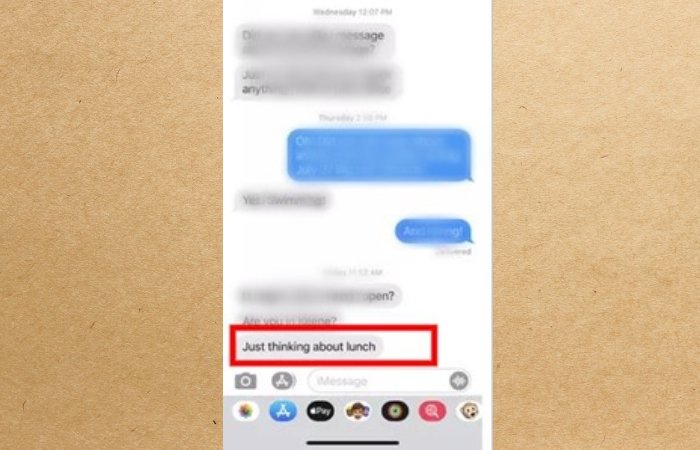
Step 3: Once the chat is opened, check out the message that you want to forward.
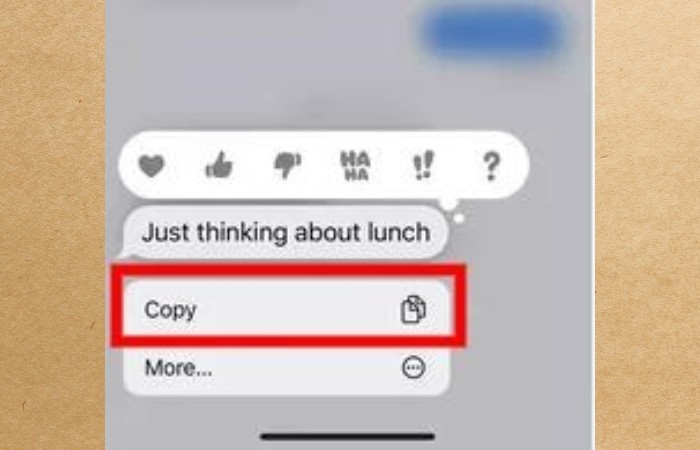
Step 4: Now, long press on it to see a couple of options appearing on your screen; choose Copy from these options.
Step 5: you have just now copied the text to your clipboard to paste anywhere you need. Now, go to the chat where you want to send this message.
Step 6: On the typing area, long press to paste the text you have copied and choose paste
Step 7: Now, you can send this message painlessly.
If the Messages app or other applications are not working as expected, check whether your apps and iOS software are up to date. App-update procedures can vary between platforms, and our guide showing the steps to update the Crazy Time app on Android and iOS provides an example of managing mobile app updates.
Note that this hack can be applicable for text messages only. If you want to forward multimedia messages like images, you may need to check out the next method.
Messages, photos, videos, and other media can gradually consume significant storage, especially on devices that have been used for several years. If limited storage starts affecting everyday use, consider removing unnecessary files and following these methods to free up space on your iPhone.
[Method 2] How to forward a text message on iPhone ?
The above steps are all good to go for text messages. However, this may not be the case with multimedia files. The clipboard may not be able to retain heavy multimedia files to paste somewhere else. In such cases, you can choose the forwarding option in the messaging app.
If the messages or multimedia files are particularly important, maintaining a separate backup can provide additional protection against accidental deletion or device problems. Our guide to the best iPhone backup software covers options for preserving important iPhone data.
Here is how you can do it:
Step 1: Navigate to the Messages app on your phone.
Step 2: Scroll and go to the conversations that consist of the desired message.
Step 3: Once the chat is opened, check out the message that you want to forward.
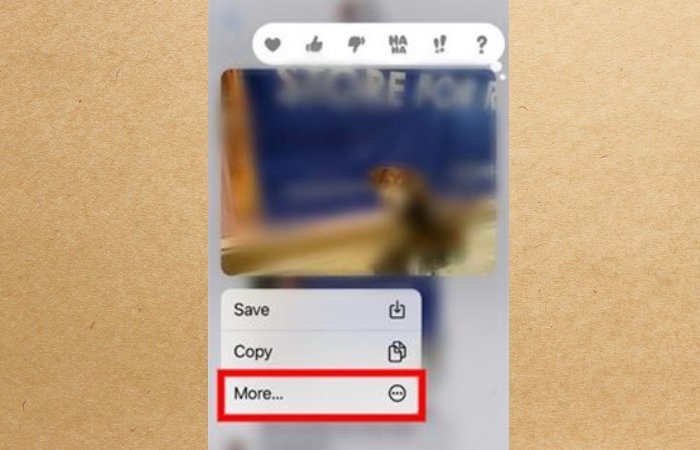
Step 4: Long Press on the message to see a few options; choose More instead of Copy.
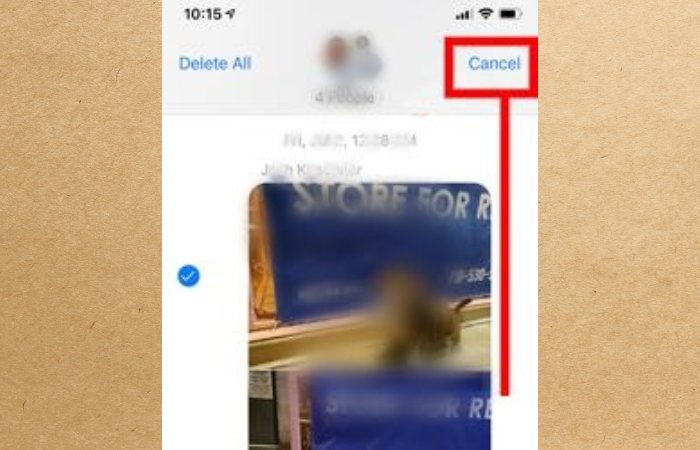
Step 5: Now, you can see a tick mark beside the message implying it is ready to be forwarded. You can also choose multiple messages by tapping on them.
Parents managing messaging and app access on a child’s device may want additional controls beyond the standard Messages features. Our guide explains how to block apps on your child’s iOS device, while parents who need location-management options can explore different ways to track a child’s iPhone.

Step 6: Once the Messages are selected, choose the forward option on the lower-right side of the screen.
Step 7: In the space on the upper screen, search the contact(s) to share this message at a stretch. Then tap on Send.
Step 8: Once the forwarding is done, you will be taken back to the previous chat. To exit, press on Done on the top-right side of the screen.
Apple also provides location features that can be useful when managing or locating an authorized device. You can explore apps that can track an iPhone online or learn about options to track an iPhone location by number. Location tools should always be used responsibly and with appropriate authorization.
By this process, you can evidently send any message to any user you want. However, the receiver may not see the reaction of the previous sender. The receiver of these messages sees you sending these messages freshly.
If you need to manage iPhone content from a computer rather than simply forward individual messages, additional tools are available. You can explore the best iTunes alternatives for iPhone data management or learn about mirroring an iPhone to a PC when you want to display supported mobile content on a larger screen.
Concluding Thoughts
By now, we hope you have understood How to forward a text message on an iPhone. While there can be two methods to forward text messages, both are almost equally facile to operate. Nonetheless, the latter can be applied to multiple media as well. Moreover, using the second method, you can send the message to multiple with one click itself. Check out the above steps with demonstration to know how easy it is. If you have already learned from the article, grab your phone now and forward messages to your loved ones.
If you cannot get to the Messages app because the device is locked, address the access problem first. See how to access an iPhone when you forgot the password, review additional tips to unlock an iPhone, or learn how to unlock an iPhone passcode without a computer.
If the iPhone itself is malfunctioning rather than simply locked, different troubleshooting may be required. Follow our guide to fix an iPhone stuck in a boot loop if it repeatedly restarts, or see how to fix an iPhone stuck in recovery mode when the device remains on the recovery screen.
If important messages, photos, or other files have already become inaccessible, recovery software may provide additional options depending on the situation. You can explore iPhone data recovery software or read our AceThinker iPhone Data Recovery review for another recovery solution.
Forwarding individual messages is different from moving an entire message history when changing phones. If you are switching from Android, see how to transfer messages from Android to iPhone. WhatsApp users can also explore methods to transfer WhatsApp from Android to iPhone.
For WhatsApp migrations, the appropriate method can depend on the devices and whether you want to reset the destination phone. Our guides explain how to transfer WhatsApp from Android to iPhone without resetting and how to transfer WhatsApp messages to a new iPhone 13.
If you need to move WhatsApp conversations in the opposite direction, you can also explore Backuptrans for transferring WhatsApp from iPhone to Android. Whichever migration method you use, keeping a separate backup of important conversations can provide additional protection during the transfer.
If you want to share the reactions along with the multimedia, the forwarding options may not be befitting. In these cases, you may look into screenshotting the conversation and sharing it. This can show the actual scenario in detail.
If you are considering another iPhone for messaging and everyday use, our device reviews can help you learn more about different Apple models. Read our Apple iPhone 15 review, explore the iPhone SE 3rd Generation review, or take a look at our earlier iPhone SE review.
Physical protection is another consideration for an iPhone used regularly for messaging, photos, and other everyday activities. Owners of Apple’s larger premium model can follow our guide to choosing the perfect iPhone 15 Pro Max cover, while users of a newer Pro model can learn why an iPhone 16 Pro case can be useful for everyday protection.
Beyond messaging, an iPhone can support communication, productivity, education, and entertainment through a wide range of apps. Once you are comfortable with its basic features, you can explore different ways to learn new skills using your iPhone and make greater use of the device.
Author Bio
I am Shubhaa, the face behind CrazeForGadgets.com. I am a fitness enthusiast and love to experiment with new things. I am very much attracted to gadgets and love to explore everything about anything launched. Being a Science Graduate, I am always fascinated by new things.