
Are you facing problems on transferring data from your old phone to your new phone. Do not worry, as you will know what you can do to perform phone to phone transfer perfectly in this article.
This article is part of our Mobile Phones & Smartphones resource section.
Suppose you are a student who just passed high school, and on this occasion, your parents gifted you a new cell phone. Or you just got your favorite cell phone from your first salary. The biggest issue is how to do phone to phone transfer.
Moving to a new mobile phone is easier when you understand what information needs to be transferred and which features are supported by each device. Today’s mobile technology allows contacts, photos, messages, apps, and other information to move between devices in several ways, making the process more convenient than it was with an older cell phone.
It becomes even bigger if it is Android to iPhone data transfer or iPhone to Android. This article will let you know all the possible ways for a phone data transfer.
If you have not purchased your replacement device yet, a smartphone buying guide can help you compare suitable models. Considering the things to ask yourself before buying a phone can also help ensure that storage, operating system, battery life, camera quality, and other features meet your requirements.
Table of Contents
Comprehensive Solution of Transferring Data from Phone to Phone With Perfection
The most common way of phone to phone data transfer is manually transferring data from one phone to the other. This method can be a real headache as, first, you will need a laptop or a computer to transfer all your data from your previous device.
After that, you will have to copy and paste all that data to your new phone, a very time-consuming method. We provide you with an application that can easily perform phone to phone data transfer and take way less time.
Before replacing a handset, it may be worth considering whether you should upgrade or repair your current phone. Some hardware problems may be addressed with suitable phone repair gadgets, while used mobile phones demonstrate another option for people who want a replacement without purchasing a brand-new device.
1.1: Wondershare MobileTrans Mobile App
Wondershare MobileTrans is a phone data transfer mobile app that transfer photos, music, videos, contacts, call logs, app, and documents from one phone to other. Apps that you can transfer include WhatsApp, Whatsapp business, backup files, and other social media apps. You can also backup all your phone’s data from Android to iPhone and from iPhone to Android. Restoring your backup files to a phone is also a feature of the Wondershare MobileTrans app.
Transferring application data has become increasingly important because smartphone apps now contain a significant part of a user’s digital information. Messaging is a particularly common example, and users who regularly communicate from a computer can also learn how to use WhatsApp Web on a desktop. These cross-device experiences illustrate how smartphones shape modern communication styles.
It is easy to use, transfers data safely and has the fastest cross-platform transfer speed. You can use this phone-to-phone transfer app to transfer data from Android to iOS and iOS to Android. To transfer data from one phone to another, you have to follow two steps that are written below:
Step 1: Download Wondershare MobileTrans Mobile App
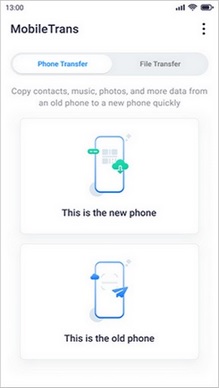
To start with, install and start this app on both phones. Then on the source phone, you have to select the option “This is an Old Phone” and go for “This is the New Phone” on the destination phone. You have to choose from the options of QR Code, Wi-Fi, and iCloud to start the process.
Before installing transfer applications, it is also sensible to consider device security. Choosing the right antivirus software for mobile devices can help protect against certain digital threats, while the Find My Device feature can help locate compatible devices associated with your own account.
Step 2: Transfer Data to Another Phone
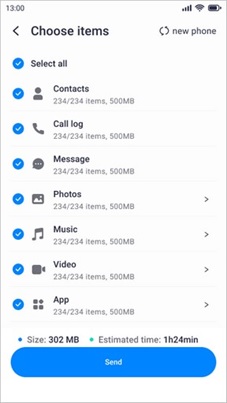
When the phone connection is established, select all files you want to transfer on the source phone. Now, tap on “Send” and wait until the data is transferred to the destination phone.
As smartphones become more capable, the types of data being transferred are also changing. Understanding how AI is transforming mobile technology provides additional context for the intelligent features, personalization, camera capabilities, and software services now found on modern devices.
1.2: Wondershare MobileTrans – Desktop Solution
Wondershare MobileTrans is also available as a phone data transfer software for PC and laptops. It supports Android and iPhone and enables you to transfer messages from Android to iPhone, from your old phone to your new phone. You can also backup WhatsApp/WhatsApp Business and other social apps to your computer or laptop from your phone and later use this backup to restore on the new phone.
To avoid data loss, you can backup all data from Android or iPhone to a PC as well. For that, you will need a data cable to transfer data from old Android/iPhone device to new Android/iPhone device. Follow the steps to transfer data from one phone to another phone:
Step 1: Download Wondershare MobileTrans on Computer/Laptop
The first step is to download Wondershare MobileTrans on computer, and from its home, select the “Phone Transfer” tab. It will open the Wondershare MobileTrans toolkit’s “Phone Transfer” interface.
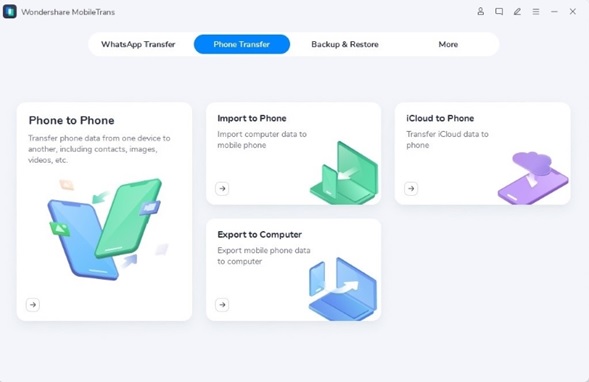
Step 2: Connect Source and Destination Phones to Computer/Laptop
Select “Phone to Phone” options to connect your phone to the computer using USB. Switch the source and destination phones by clicking the “Flip” button if they are not right. The data will be transferred to the destination phone from the source phone.
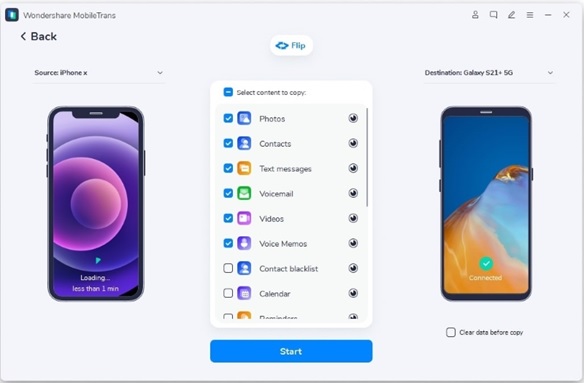
Step 3: Select and Transfer Data
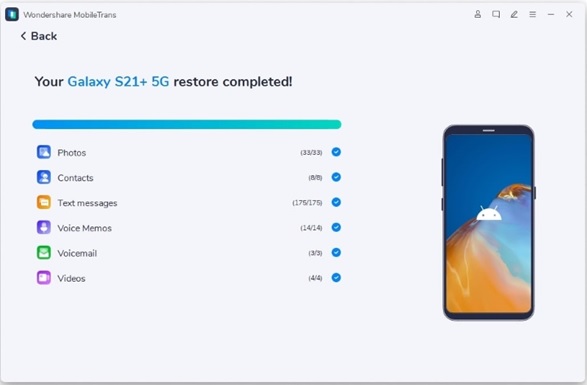
Select the data you want to transfer and click the “Start” button to transfer data. If you want to remove existing data on the destination phone, choose “Clear data before copy.” Your data will be transferred within minutes. Check your destination phone to see if all selected files are transferred.
Changing phones is also a good opportunity to review how phone numbers and online accounts are managed. A reverse phone number lookup can help research an unfamiliar caller using available information, while some users may encounter services that provide a phone number online for specific communication purposes.
Other options include virtual phone numbers for SMS verification, a temporary phone number generator, or a one-time virtual phone number. Users can also learn how virtual phone numbers can be used for online accounts, provided that their use complies with the relevant service’s registration and verification policies.
A virtual number is different from a physical temporary device. Understanding what a burner phone is can help clarify this distinction and the different ways temporary communication may be handled.
Wrapping Up
We all know that manually transferring data is time-consuming. This article introduces the best solution to this problem, a phone to phone transfer app. Wondershare MobileTrans is a data transfer app available for both phones and PCs. It is easy to use and transfer data within minutes. Hopefully, this article will help transfer data from one phone to another.
For families moving data to a child’s new device, the transition can also be a useful opportunity to establish healthier usage habits. Practical strategies to combat children’s smartphone addiction can help parents manage screen time and device use. At the other end of the spectrum, some consumers are questioning whether they need every smartphone feature, contributing to interest in whether dumbphones are making a trendy comeback.
Finally, be careful when transferring or accessing sensitive information. Services that claim to read texts by entering a cell number or are marketed to track another person’s phone involve privacy and authorization concerns. Access to another person’s private messages, accounts, or location should only occur with appropriate authorization and in accordance with applicable laws.