
This Article is a part of
Data Security and Privacy Guide
Backup Windows 10 Computer
Nowadays, Windows 10 becomes the most popular Windows operating system, which occupy 52.68% of desktop & laptop market share according to NetMarketShare. What it means, if there are 10000 computers users, 5268 people will use Windows 10 laptop or desktop, for business use or home use. It shows that Windows 10 has been gradually accepted by many of us since it’s released.
With the change and development of information technology, we will create many data in our daily life and receive many documents from others, like our colleagues, families, and friends, etc. It’s becomes more important to sort all the files and data out and backup to another safe location.
Backing up your Windows 10 computer is an important part of protecting your files, but backup is only one component of a broader data security and privacy strategy. Keeping sensitive information protected requires both reliable backups and appropriate security practices.
This article is part of our Operating Systems and System Software resource section.
Table of Contents
Windows Computer Threats
It’s emergency to backup data in Windows 10 computer, why? Because many threats out there may cause data loss:
- Cyber Attack like denial-of-service (DoS) attacks, Password attack, etc.
- Malware, like virus, worms, spyware, etc.
- Ransomeware will encrypt your files and folders to force you to paid for the decryption.
- System failure, your Windows 10 system files may corrupted or mis-configured somehow, and you will lose the right version of the system files. These files are an essential part of the Windows operating system, so keeping a reliable backup can make recovery much easier when system problems occur.
Hardware failure, once your hard drive failed to boot, it’s possible to lose everything. If you work across different operating systems, comparing Windows 10 and macOS can also help you understand how backup and system-management approaches differ between platforms.
Before choosing a backup method for your Windows 10 computer, it helps to understand the different types of data backup available. Each approach has its own advantages depending on the files you need to protect and how quickly you may need to restore them.
Top 3 Tools to Backup Windows 10 Computer
As a matter of fact, there are 3 Windows backup tools for you to safely backup Windows 10. For organizations using cloud-based Windows environments, it is also useful to understand how Windows 365 changes the way Windows desktops and associated data are accessed. And they provide different backup features for you, choose the right one according to your demands, there is no need to worry about the budgets because it’s free.
If your Windows 10 computer contains work documents, customer information, financial records, or other business-critical files, you may need a more comprehensive business data backup strategy to protect important information from hardware failures, accidental deletion, and other data-loss events.
#1. Backup and Restore (Windows 7)
When it comes to the Windows backup tool, the first option you may evoke is the Backup and Restore (Windows 7).
It will backup data including:
- Windows 10 operating system.
- Users data files
- Partitions.
Here are the steps to backup Windows 10 operating system:
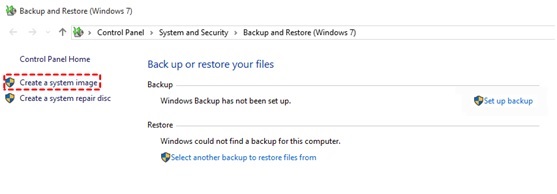
- Please input backup in Windows 10 Search box, and select Backup and Restore (Windows 7) to run.
- Click Create a system image on the left panel.
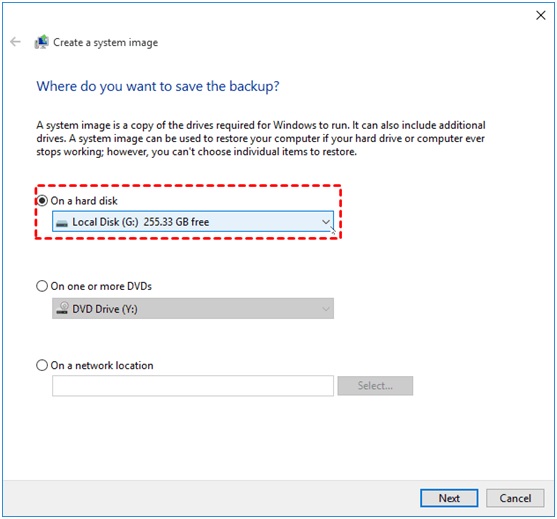
- Select a target for your Windows 10 system image, a hard drive disk, DVD(s) or network location, and hit Next to go on.
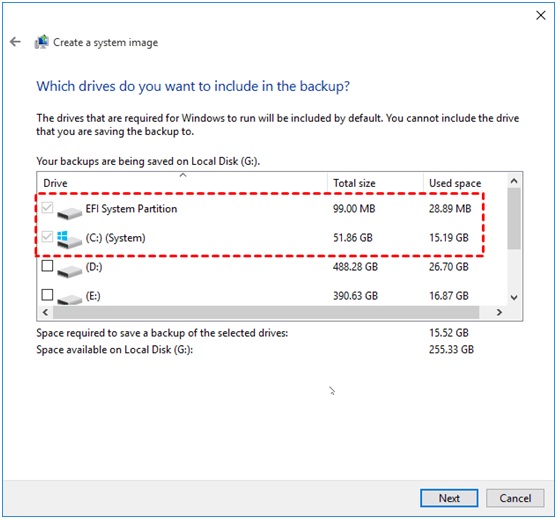
- Backup and restore will choose system partitions by default, including C drive partition, Recovery partition, EFI system partition, etc. And you could add other partitions to backup, then click Next.
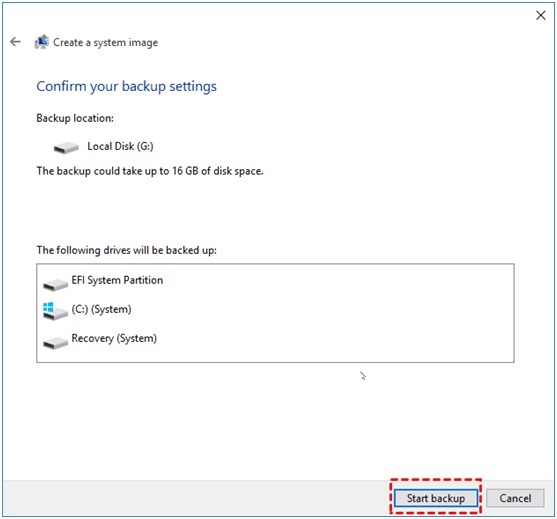
- Review the Windows 10 system backup settings, and click Start Backup to create a system image for Windows 10.
If you would like to backup other data, you could click Set up backup on the Backup and Restore main window to customize a backup according to your needs: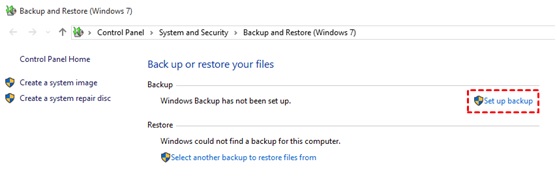
- Choose what data to backup;
- You could change schedule settings to backup, by default, the backup task is running weekly at 7:00 PM every Sunday, change it accordingly;
- If include a Windows 10 system image.
For users and organizations that prefer automated cloud-based protection, Backup as a Service (BaaS) can provide a convenient alternative to managing backup infrastructure and processes manually.
#2. File History
File History only backup your files located in Libraries, Contacts, Favorites and Desktop folders to another location, here are the step-by-step instructions for you to backup files if you want to use it:
Please go to Start -> Settings -> update & security -> Backup -> Back up using File History, click Add a drive as destination or switch on the Automatically back up my files option, Click More Options to configure the settings to backup files and do the following: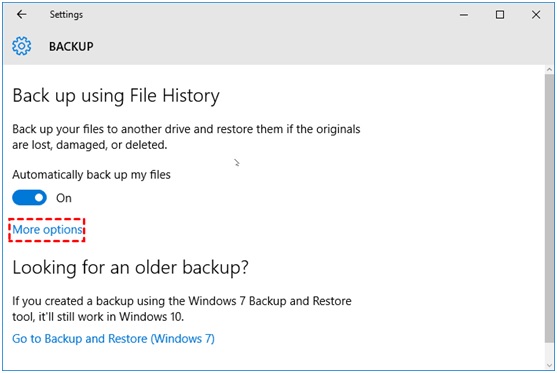
- Set the backup interval for your file backup.
By default, it’s backed up every hour. You could choose every 10 minutes, 15, 20, 30 minutes, every 3 hours, 6 hours, 12 hours, or daily.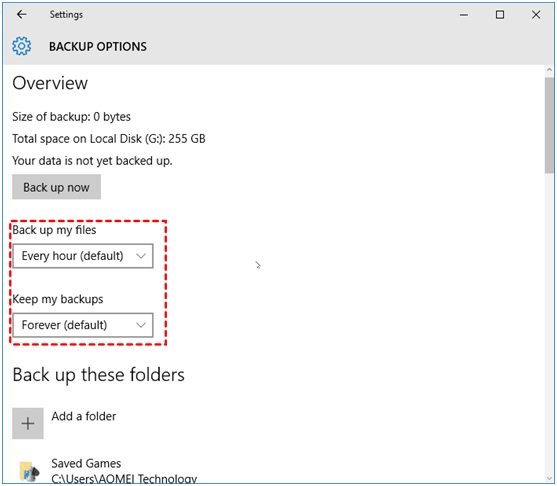
- Set up how to keep your backups.
You could keep backups the latest month, 3 months, 6 months, 9 months, 1 year, 2 year, forever, or until space is needed.
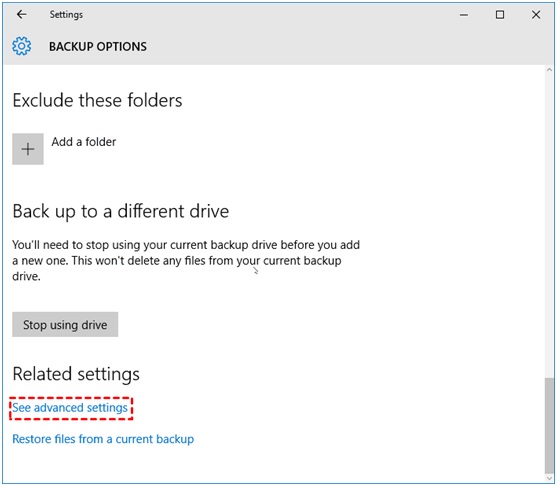
- Choose which folders to backup.
If you would like to backup data not included in these above folders, please create a new folder to one of these folders that already exist, all the data will be backed up.
- Specify the backup destination.
If you create technical guides or user documentation for Windows, Windows help authoring tools can make it easier to document backup procedures and other system tasks.
Click See Advanced Settings -> Select Drive on the left panel to choose a target for your backups. You could backup to the following destination:
- Local hard disk.
- External hard drive.
- USB flash drive.
- Network location.
#3. AOMEI Backupper Standard
AOMEI Backupper Standard as a free Windows backup software, which provides you professional features to backup Windows 10 OS, entire hard disk, partitions easily. A complete backup is especially useful before a storage upgrade, and you can follow this guide on migrating Windows 11 to a new SSD when moving a Windows installation to a new drive. In addition, disk clone and partition clone features are helpful especially upgrading Windows 10 hard drive to another one without reinstalling everything. For users who want to manage partitions directly in Windows, a disk management tool for Windows 10 can also be useful when preparing or maintaining storage drives. Before backing up Windows 10 computer, please download it and enjoy.
Here is how to use AOMEI Backupper Standard to backup Windows 10 hard disk:
- Input free backup software AOMEI Backupper Standard in Windows 10 Search box, then run it.
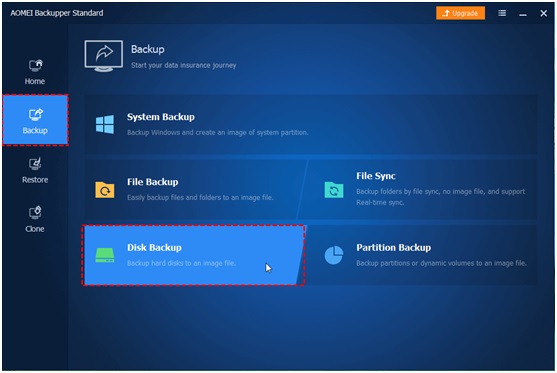
- Click Backup -> Disk Backup on the main interface.
- Tap + Add Disk button to choose Windows 10 hard disk as source disk to backup.
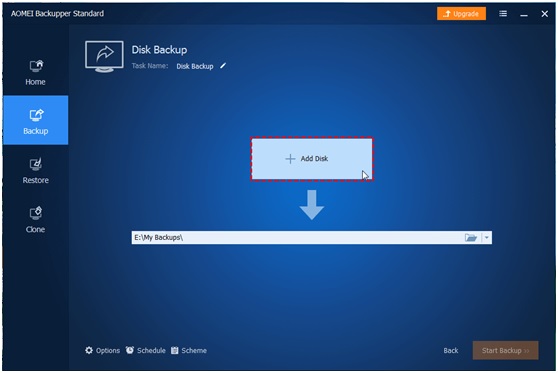
- Select a destination path to save the Windows 10 system image backup file, like external hard drive, local disk, USB flash drive, network share, NAS, CD/DVD, etc.
- Click Start Backup to backup Windows 10 to external hard drive, etc. storage space.
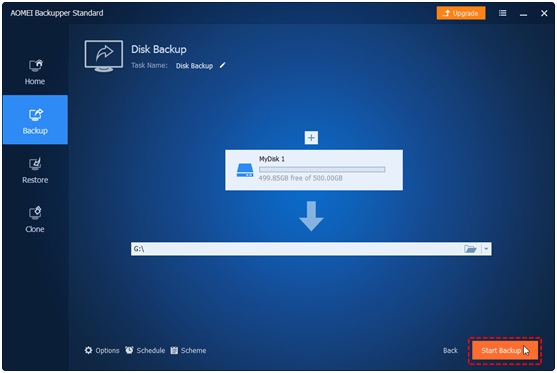
And there are three options you could specify:
- Options: you could comment, split, compress, encrypt the backup image, even enable email or SMS notification, etc. To learn more email notification, please refer to Windows 10 backup notification.
- Schedule: you could create a full backup or incremental backup via daily, weekly, monthly, etc.
Regular backups can help you recover files after accidental deletion or hardware failure, but businesses may also need data loss prevention measures to reduce the risk of sensitive information being exposed, transferred, or deleted improperly.
Warping Things Up
With the three Windows 10 backup tools, it’s quite easy to backup Windows 10 operating system, personal files, system disk, etc. to safe location. After securing your system and personal files, you can also explore these essential Windows 11 apps to improve your everyday Windows experience. All the features provided by the three backup tools could meet most of the demands to protect data. And It’s important for you to backup data regularly, once the data damaged, you could restore to normal state in time to save your time. When documenting your backup procedures or troubleshooting steps, you can also use ScreenshotX to capture screenshots on Windows and keep visual records of important settings.
Creating a backup is not enough if the process fails without you knowing about it. Backup monitoring helps identify failed, incomplete, or outdated backups so that problems can be addressed before you actually need to restore your files.