
This article is part of our Computers, Components & Peripherals resource section
We may at some point notice that our computer is too full of data and that we have to resort to using external hard drives or pen drives to extract data, or that we cannot install applications, games, or work with large files for lack of space.
Maybe it is the best time to consider purchasing a new internal hard drive. These components allow us to expand the storage space of the computer, in many cases, without having to modify anything in the current equipment. Understanding the definition of computer hardware can help you become familiar with the components involved before beginning the installation. We will help you do it step by step.
Table of Contents
How are the internal hard drives and where are they located?
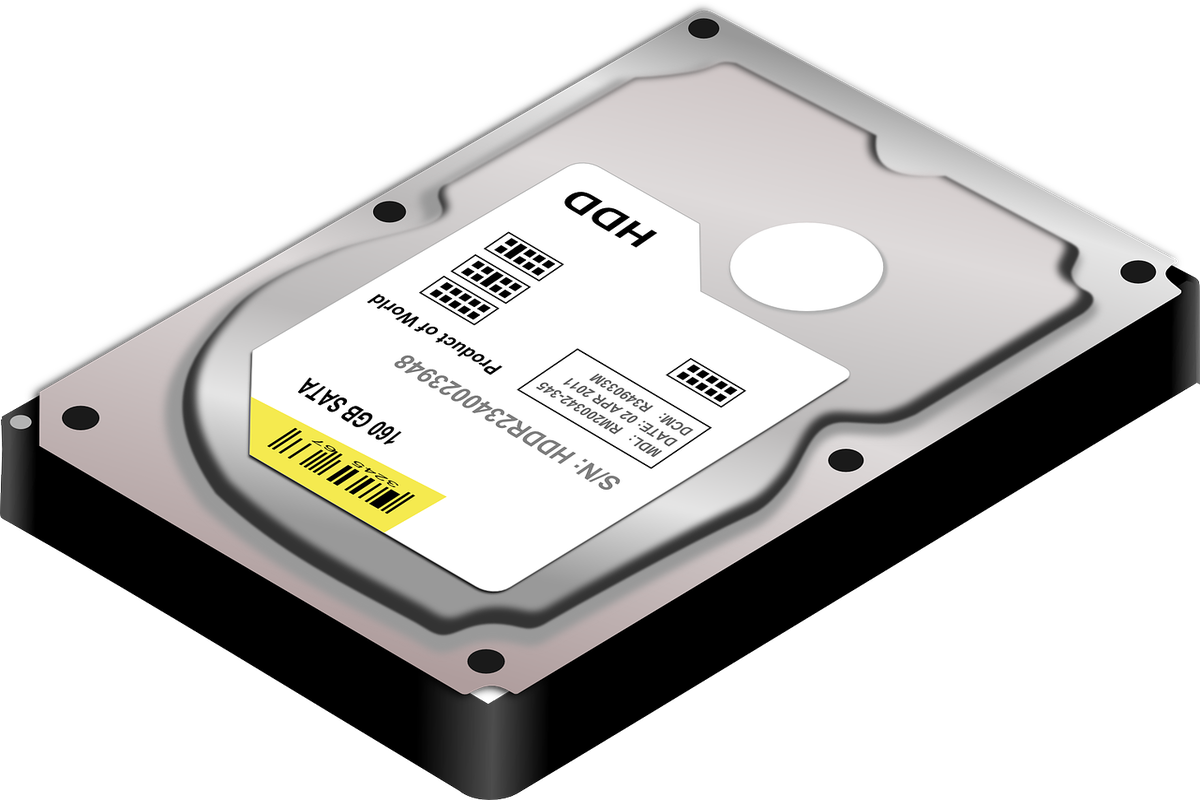
Installing an internal hard drive is simple and can be done by any user who is comfortable working with computer components and has the right tools, which are usually limited to a simple screwdriver.
The current hard disks use a data interface called SATA III, which is capable of reaching a transfer speed of 6 Gbps, that is to say, a theoretical limit of about 700 MB/s of data flow.
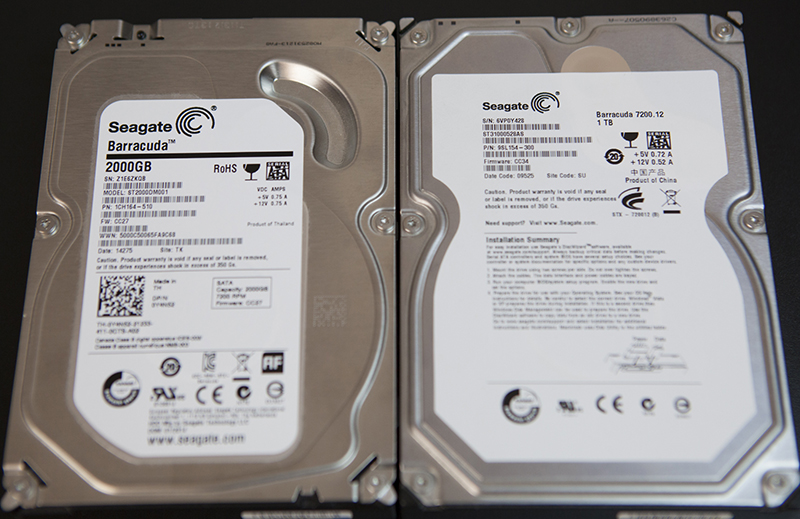
Usually, hard drives have different sizes and capacities, depending on the equipment where we plan to install them. The most popular mechanical hard drives use magnetic plates to store information and typically measure 3.5 inches. Depending on the model, they may offer 1 TB, 2 TB, or more storage capacity.
The internal hard drives for laptops are somewhat smaller in size, usually measuring 2.5 inches. Interestingly, these are also commonly used to make the external hard drives that are popular today.
The capacity can be similar to that of larger internal disks, although the price per unit of storage may be somewhat higher, depending on the model.
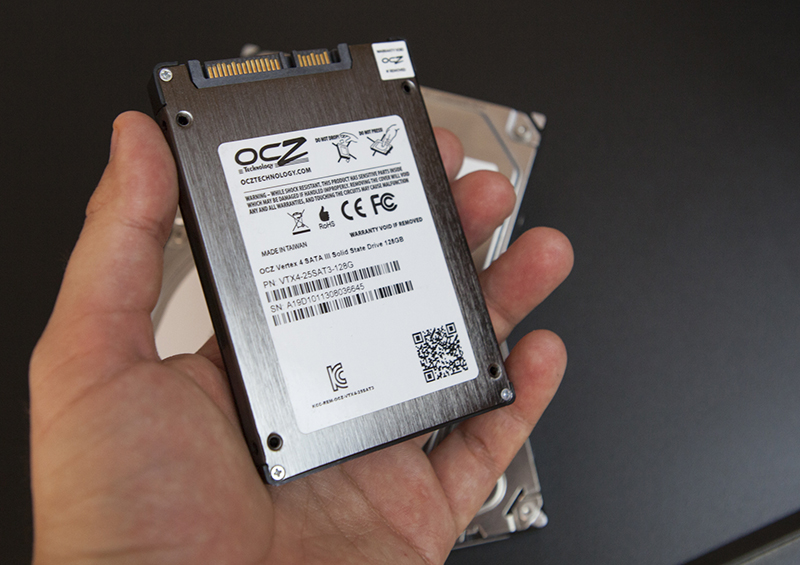
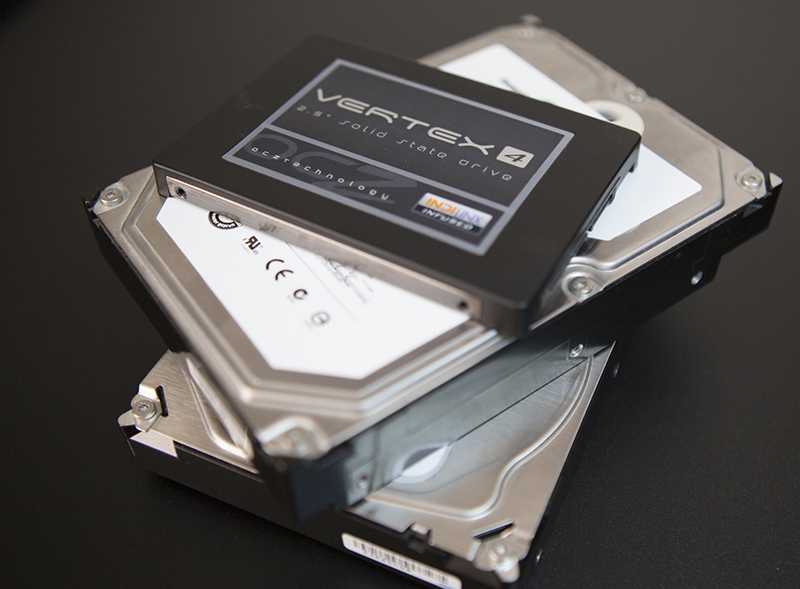
Finally, we find newer types of storage devices, such as SSDs (solid-state drives) and M.2 drives. A SATA SSD resembles a compact drive, but instead of using mechanical disks, it relies on flash memory. When considering hardware upgrades, exploring these computer hardware ideas that highlight Apple’s appeal can offer additional perspectives on hardware design and performance.
SSDs are generally much faster than traditional mechanical disks, have no moving parts, and areF available in different physical formats and capacities. Although they were once considerably more expensive, SSDs are now available in a wide range of capacities and prices.
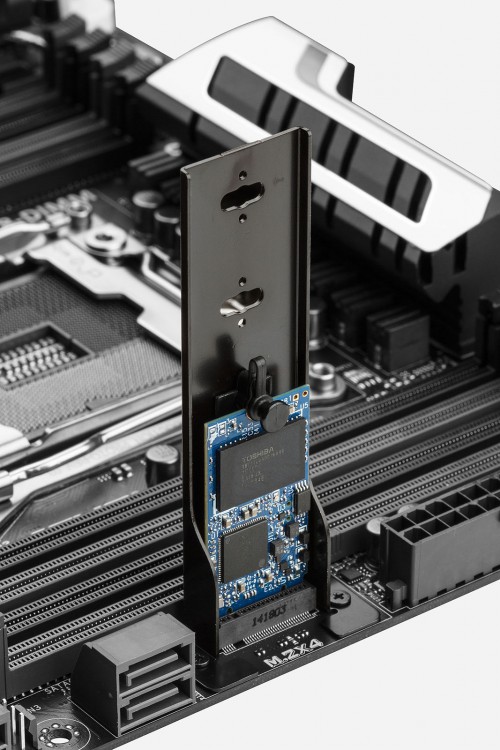
SSDs can be used in desktops and laptops thanks to their compact size. SATA SSDs use a SATA connector, while M.2 drives fit into a compatible M.2 slot. Depending on the drive and motherboard, an M.2 device may use either the SATA interface or PCIe/NVMe.
Before purchasing a drive, check your computer’s specifications to confirm which form factors, interfaces, and capacities it supports. If you are planning to replace an existing drive and move your operating system, this guide to migrating Windows 11 to a new SSD can help you understand the process of transferring your system to newer storage.
There are also hybrid hard drives that combine SSD storage and a mechanical hard disk in a single unit. These drives use solid-state storage to improve access to frequently used data while relying on mechanical storage for additional capacity.
Supercomputers and high-performance workstations may use specialized storage systems and powerful graphics cards to support demanding workloads. However, most home desktop computers can be upgraded with a compatible SATA hard drive, SATA SSD, or M.2 drive.
How to install an internal hard drive
We get to work by reviewing whether we have the right tools and components: a screwdriver, SATA cable, available power connector in the computer’s power supply if it is a desktop, and mounting adapters if the hard disk is too small to fit securely in the computer’s drive bay.
Before getting down to work, it is essential to follow all the steps carefully. Computer components can be damaged by impacts, incorrect connections, and static electricity.
If you are unsure about the installation process, a qualified computer hardware engineer can help you choose compatible components and install them safely. You can learn more about the role through this explanation of a computer hardware engineer.
You should know that you are responsible for what happens during the installation. Back up important data before modifying your computer, shut it down completely, disconnect the power cable, and follow the manufacturer’s safety instructions. Never open the power supply unit itself.
Installing the hard disk in a desktop computer
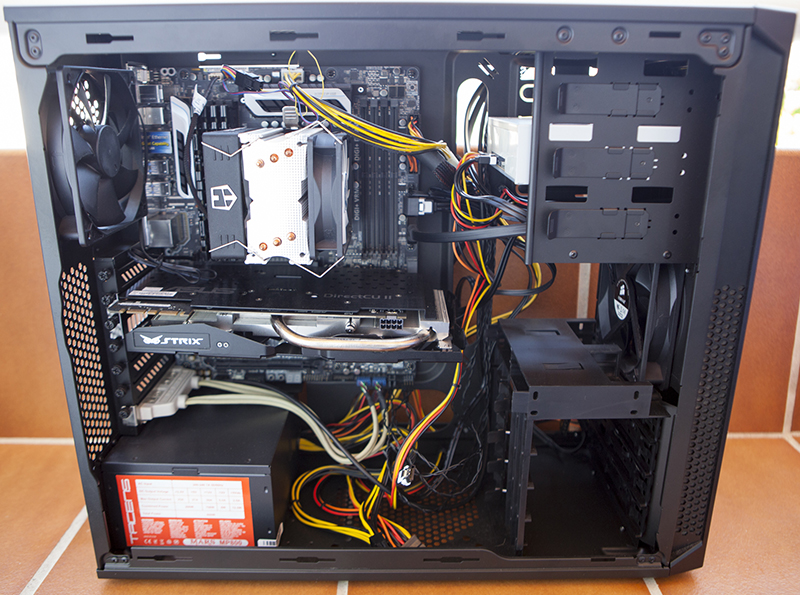
After removing the side panel of the tower, locate the hard drive bays, usually placed in the lower front part of the case, just below the optical drive bays. In the computer used in these example photographs, the tower includes bays adapted to 2.5-inch and 3.5-inch drives, in addition to a screwless installation system.
This arrangement may be found in certain towers or higher-end cases. In more affordable towers, the installation method can be different.
You will usually find bays where screws are needed to secure the drive. Some cases also use individual mounting plates so that 2.5-inch hard drives, such as SATA SSDs, fit properly in a 3.5-inch bay.
Once you have fixed the hard disk in a free bay, you will have to connect the necessary cables.
First, look for a free SATA power connector from the computer’s power supply. These connectors are typically wide and flat, with a distinctive L-shaped notch. Next, connect the SATA data cable from the hard disk to a compatible SATA port on the motherboard.
If the new hard disk is the computer’s only SATA drive, consult the motherboard manual to identify the recommended SATA port. If you are installing it as additional storage, you can usually use any available compatible SATA connector. The precise port arrangement depends on the motherboard.
In the computer shown in the example, three drives are installed: an SSD as the primary drive for the operating system because of its fast data-transfer performance, and two mechanical hard drives as secondary storage, one with 1 TB and another with 2 TB of capacity.
If the drive you want to install is an M.2 model, locate the compatible M.2 slot on the motherboard. Insert the drive at the recommended angle and secure it with the appropriate screw or retention mechanism. Make sure you follow the motherboard manufacturer’s instructions and confirm that the slot supports the drive’s interface.
Some motherboards do not include an M.2 slot. Depending on the drive and system, an appropriate PCIe adapter may provide another installation option. Compatibility must be checked before purchasing an adapter.
Installing the hard drive in a laptop
To install a hard drive in a laptop, you will need a suitable screwdriver to open the service cover or the laptop casing. The process can be straightforward on models designed for storage upgrades, but the procedure varies considerably between manufacturers and models.
It is rare to see a modern laptop with several internal drive bays unless it is a specialized model or supports multiple storage formats. Check the manufacturer’s service manual to confirm whether your laptop supports a 2.5-inch SATA drive, an M.2 SSD, or both.
Once you have safely opened the appropriate cover, locate the drive bay or M.2 socket. Install the drive carefully and connect it to the appropriate connector. Some laptops require a mounting bracket or cable for a 2.5-inch drive, while M.2 drives generally fit directly into a compatible socket.
After installing the drive, close the casing and reconnect the power. Turn on the computer and check whether the BIOS/UEFI recognizes the new storage device. If the drive is new, you may need to initialize and format it through your operating system before using it for file storage.
If you are replacing the primary drive, you can install the operating system on the new drive or migrate your existing installation, provided the hardware and software support the chosen method. If the drive is intended as secondary storage, format it with a suitable file system, such as NTFS for many Windows installations or exFAT when cross-platform compatibility is needed.
External drives and USB flash drives can also be useful when transferring files or creating backups. These are examples of removable storage devices, which can be connected and disconnected without installing them inside the computer.
Conclusion
Installing an internal hard drive can be a practical way to increase your computer’s storage capacity or replace an aging drive. Before purchasing a replacement, check the supported drive size, interface, capacity, and available connections.
For a desktop computer, the installation usually involves securing the drive in a bay and connecting its power and data cables. For a laptop, you may need to access a dedicated drive bay or M.2 socket, depending on the model.
Always back up important files, disconnect power before opening the computer, and follow the manufacturer’s instructions. Once the drive is installed, verify that the system recognizes it and initialize or format it if necessary. With the right preparation and compatible hardware, you can expand your storage space and keep your computer ready for everyday tasks.