
Document to Video AI Explained
Document to video AI runs five stages: it parses the file’s logical structure, plans a scene sequence, writes a narration script, assigns visuals to each scene, then synthesizes speech and renders the result. Each stage fails in its own way, and almost every disappointing output can be traced back to one of them. Document-to-video systems are one application of generative AI, combining language understanding, content generation, visual synthesis, speech generation, and media rendering in a single workflow.
The distinction matters: the phrase covers two different products. Some tools screenshot each page, add a transition and layer text to speech on top, which gives you a slideshow with a voice. Others read the document as a structured object and rebuild it as scenes. Both look fine in a demo. They diverge once the source gets complicated.
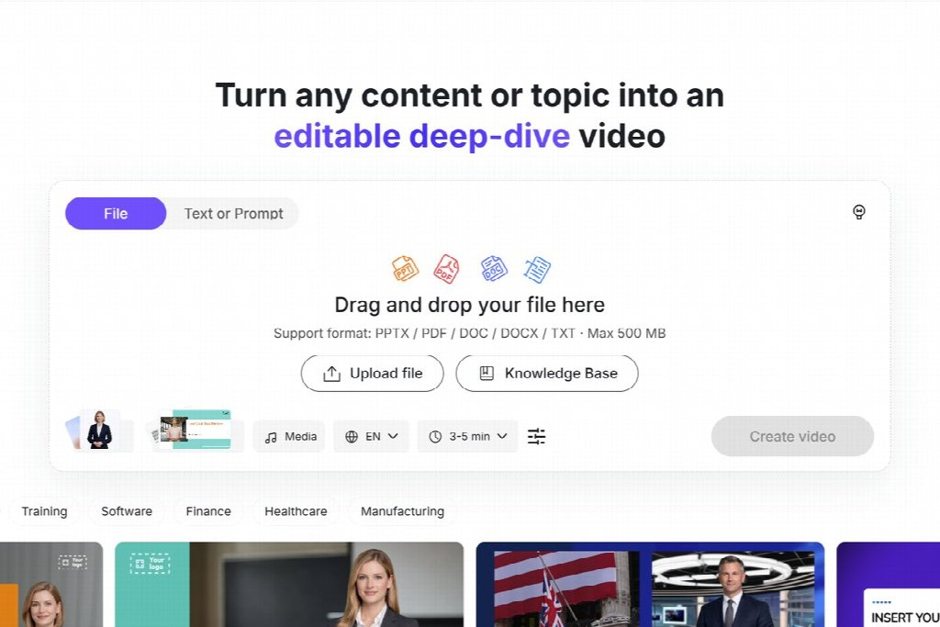

Table of Contents
What does document to video AI actually do?
It converts a written source into a narrated timeline, deriving structure first and generating media second. Nothing records a screen or plays the document back page by page.
| Stage | What it produces | How it fails |
| 1. Parse | Headings, section boundaries, list and table relationships | Scanned files, flattened tables, skipped charts |
| 2. Plan | An ordered scene list sized to a target length | Drops the detail you needed |
| 3. Script | Spoken narration per scene | Paraphrase erodes precise wording |
| 4. Visuals | A layout, image or template per scene | Your figures replaced by generic media |
| 5. Speech and render | Timed audio plus the finished file | Mispronunciation, narration outrunning the screen |
Read the table as a diagnostic: when a finished video is wrong, the symptom usually points at one row.
Stage 1: it parses structure, not just text
The first stage extracts the document’s logical structure: heading hierarchy, section boundaries, and relationships inside lists and tables. It is not reading a flat character stream. This parsing step overlaps with natural language processing, where AI systems analyze language and its structure so that later stages can work with meaning rather than treating a document as an undifferentiated block of text.
You can see this before any video exists. In a September 18, 2026 run on a platform’s own sample finance report, the project it created was not named after the uploaded file. It was named FY2025 Annual Financial and Operating Performance Report, a title that appears inside the document body and nowhere in the filename. The parser had found the real heading and used it.

Document parsing is only as good as the structure a file carries. The W3C’s guidance on information and relationships in document structure makes the point in a different context: structure implied by visual formatting has to be preserved programmatically, or it disappears when the presentation format changes. Headings and table cells are the cases it names. A bold, oversized line is a heading to a reader and a paragraph to a parser.
So the failures here are structural. Scanned PDFs carry no text layer, only a picture of text, and OCR recovers the characters without the logic around them. Tables collapse into unordered text, headers separated from the rows they describe. Headings lose their rank, so a chapter title and a figure caption look alike. Charts get skipped, because they are images. The cause is the format: PDF was designed for presentation, never for carrying the metadata a parser needs.
Stage 2: it plans a scene sequence under a length budget
The second stage turns the parsed structure into an ordered set of scenes, and the compression ratio is set by the length you pick.
That selector is not a cosmetic preference. Setting a balanced three to five minutes for a thirty page report instructs the model to discard most of it, and the model decides what survives. TechRadar’s test of Google’s NotebookLM video overviews landed on “usefully informative, but rather dull PowerPoint presentations”, which is what heavy compression leaves behind: the shape of the argument holds and the specifics thin out.
Scene segmentation is also the cheapest stage to correct, which is why the generated outline is worth reading before anything renders. Restoring a section there costs a click; noticing the same gap in a finished video costs the render.
Stage 3: it writes narration, and paraphrase is the risk
The third stage writes a narration script scene by scene. It rewrites; it does not read the document aloud.
Rewriting is necessary, because written prose rarely survives being spoken: a sentence carrying subordinate clauses and cross references works on a page and collapses in audio.
It also costs precision, which is the part worth watching. A reference such as “Section 4.2” becomes “the policy”. Thresholds, figures and conditional statements are the first things a paraphrase smooths over, so compliance and safety documents need the script checked line by line.
So treat the script as a deliverable in its own right. Tools that turn documents into narrated video return it as editable text before rendering, and that pass is where you put back wording the paraphrase dropped.
Stage 4: it assigns visuals to each scene
The fourth stage attaches something to look at, in rough order of preference: images the document carries, then layout templates and stock media, then generated imagery.
When the workflow needs a visual that does not already exist in the source document, text-to-image AI can generate imagery from the scene description or narration instead of relying entirely on stock media.
Template libraries tend to be sorted by context: education, training, software, finance, healthcare, manufacturing. Fifty of them is a normal library size. Picking one is a decision about information density: a briefing layout that holds two lines per scene will not carry a specification that needs six.

This stage inherits whatever stage one lost. If a diagram never made it through parsing, there is nothing here to place and generic footage fills the space. The output looks finished while no longer holding the evidence the document was built around, which for a technical reader separates an explainer from a decorated summary. Where a page argues through a figure, put the figure back by hand.
AI image generation can provide an alternative when original visual material is unavailable, although generated imagery should not be treated as a substitute for source figures that carry factual or technical evidence.
Stage 5: it synthesizes speech, then renders
The last stage generates audio through text to speech, aligns it to the timeline and renders the file. Those are two operations, not one.
The status messages make the split visible: a run moves through creating your video, then rendering preview. Because the two are decoupled, a one line script fix does not force a rebuild.
Pronunciation is the usual defect here. Acronyms and product names get read as ordinary words, and script review misses it, because the spelling is correct. Timing is the other: a dense page pushed into a short setting produces narration that outruns the screen.
Problems that survive the automated render may still need manual video editing, particularly when narration timing, transitions, visual duration, or other production details need correction before publishing.
How should you check the output before publishing it?
Watch it once with the source open beside you, and work backwards through the stages when something looks wrong.
- Numbers, thresholds and dates from the source still appear in the narration, unrewritten.
- Every scene maps to a section you can point at in the document.
- Figures the document owns were not replaced by generic media.
- Acronyms and proper nouns are read correctly.
- Nothing that had to stay ended up in what got compressed out.
Used this way, the tooling is a production shortcut and not an editorial one. It removes the recording, the timing and the assembly. It does not remove the review, and the five stages map where that review has to happen.