
This article is part of our Operating Systems and System Software resource section.
Disk Management Tool for Windows 10
Are you suffering from bulky file and data in Windows 10 PC? Or don’t know what to do with unallocated space? Or wondering about how to set up a new disk? If the answer is “Yes”, you might just need a tool to manage your disks and partitions.
A disk management tool should have the ability to setup a disk easily, and give full management of a disk to users, even some computer beginners. Since the disk works alongside the software that controls your computer, it is useful to understand the role of an operating system before making changes to your storage configuration. For instance, such a tool can help you to partition a disk rationally and you can keep system and other applications, files on different partitions, so that the disk can stay at the best performance.
Table of Contents
Features of the Best Disk Management Tool-AOMEI Partition Assistant
You may know the Windows 10 built-in Disk Management utility, which provides some basic functions to manage a disk. Understanding the basics of the Windows operating system can also help explain how its built-in storage management features work. It can help you to create a partition, delete partition, format a partition. But it is not recommended here due to its limitations making it not that easy-to-use. Like it would erase data when converting partition table of a disk.
Actually, many people turn to AOMEI Partition Assistant that can be the best Windows 10 partition manager. It comes with a wide variety of features including create/merge/delete/format/split a partition to efficiently manage your HDD or SSD. And thanks to its users-friendly interface, all operations can be simplified to a few clicks.
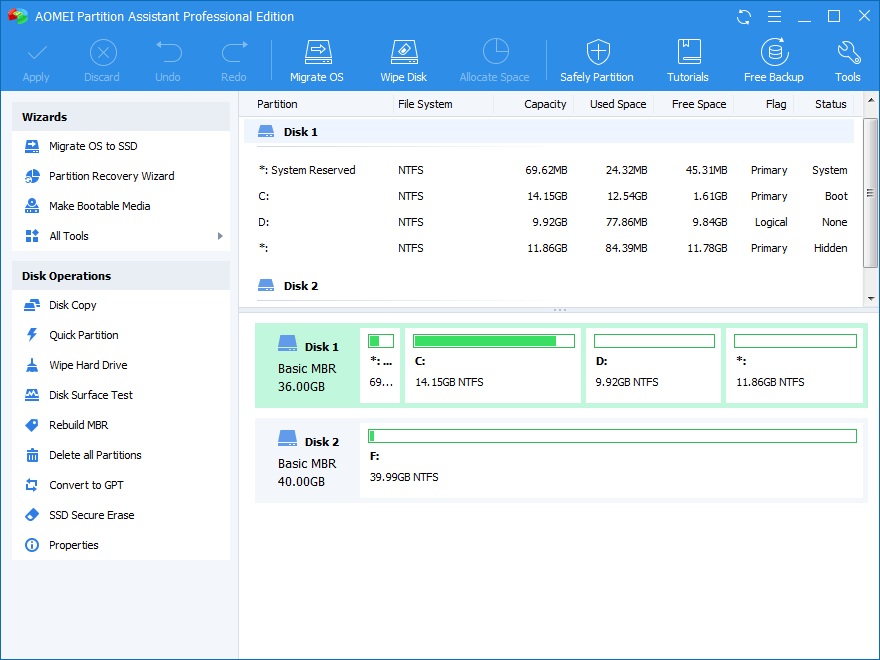
Next, we will introduce some of the features that helps you manage disks to you.
Create Partition
Creating partition is one of the most important functions for a disk management tool. Only after creating a partition on a disk can you store any data on it. And in this way,a HDD or SSD would be divided to several sectors, you can manage your disk separately.
When you create a partition, AOMEI partition Assistant would set all physical parameter, build up file system, and other necessary data very quickly. Besides, it allows you to directly create a partition on free space or unallocated space, but for many other disk management tools, like Disk Management tool, unallocated space is a requirement to create a partition.
Resize/move partition
Sometimes, you might find one of partitions on a disk is out of space, and you can’t save data on it any more. And if it is the system partition, the running speed of your PC will be drastically slowed down. In this circumstance, you can resize or extend your partitions to solve this problem. If your goal is to upgrade your storage rather than simply resize an existing partition, this guide on migrating Windows 11 to a new SSD explains how to move your Windows installation to a new drive.
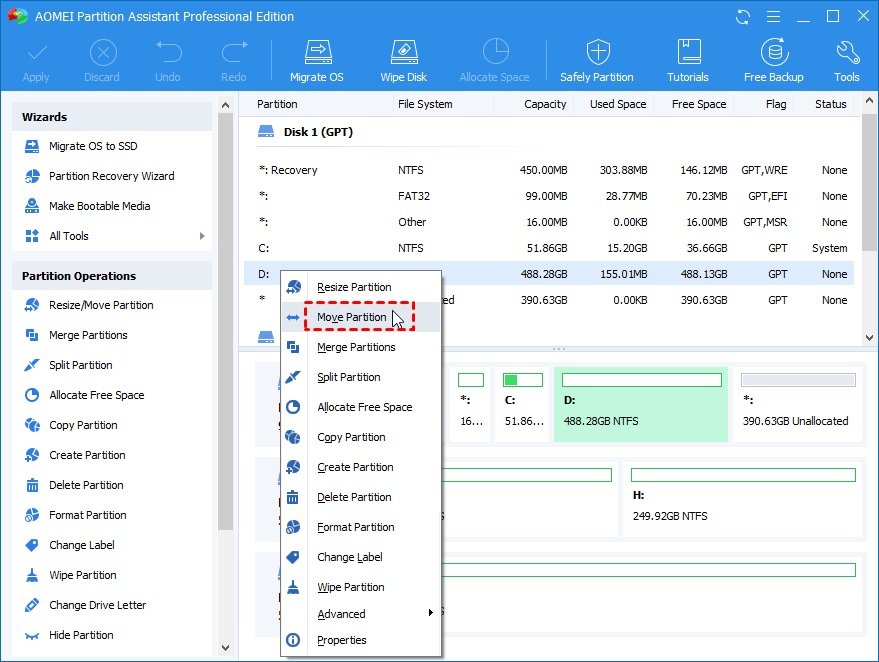
A partition can be extended on a premise that there has to be an adjacent allocated space after it. Thus other tools would ask you to delete the partition that is close to it, which makes you lose data. Fortunately, with Windows partition manager AOMEI Partition Assistant, you can shrink a partition to generate an unallocated space. And it can be moved to a partition you want by “Moving Partition” feature.
Convert MBR GPT without Data Loss
MBR (Master Boot Record) and GPT (GUID Partition Table) are two types of partition table that decide the way of partitioning a disk. Generally speaking, MBR partition table works with BIOS boot mode while GPT is with UEFI. And MBR has more limitations than GPT. For example, it can only create a partition no more than 2TB.
Due to the difference between MBR and GPT, sometimes, you need to convert a MBR to GPT disk or GPT to MBR disk. Considering that you might have lots of data on a disk, AOMEI Partition Assistant supports converting partition table without data loss. Even when a tool supports operations without data loss, it is still a good practice to back up your Windows 10 computer before making major changes to a disk or partition table.
Create Bootable Media
“Create Bootable Media” is another amazing feature of AOMEI Partition Assistant. A hard drive is vulnerable to computer and the Internet conditions. For users who access Windows through a cloud-based environment, learning about Windows 365 can also provide useful context on how Windows desktops can be delivered without relying entirely on local storage. You don’t know when and how your computer can’t boot up successfully, and it can show some message “operating system not found” or something like that.
How can you manage your disk in Windows 10 and troubleshoot the issue without booting up the PC? If you work with more than one desktop platform, you can also compare Windows 10 and macOS to see how the two operating systems differ in their approach to everyday computer management.
When documenting disk errors or troubleshooting steps after returning to Windows, you can use ScreenshotX to capture and annotate screenshots for easier reference. The Answer is creating a bootable media that boots your computer into Windows Pre-Installation environment, which is also called as Windows PE, to run AOMEI Partition Assistant. Then you can manage and fix your disk by its“Check Partition”, “Rebuild MBR”, and “Wipe Disk”. If you are documenting these troubleshooting procedures for other users, Windows help authoring tools can help you create clear step-by-step technical guides.
Note:
- Checking partition: Checking partitionsby CHKDSK is the first solution you can adopt. It scans through a drive for error, and fix it automatically after it.
- Rebuilding MBR: Corrupted MBR result in a good number of problems. This feature rebuild the MBR data on the Windows PE environment.
- Wiping Disk: It could be the last solutions to fix a boot problem. And it is necessary if you want to abandon the disk to protect your personal file from being stolen. AOMEI Partition Assistant erase all data completely and permanently on a HDD or SSD by 4 methods: Zero-filling, Filling sector with random data, DoD 5220.22-M, Gutmann.
Conclusion
With AOMEI Partition Assistant, you have the control over your disks and partitions. And it owns high flexibility to meet different demands of managing a disk. Besides features mentioned above, it also can copy disk or partition, recover deleted partition, and so on. Once your storage is properly organized, you can also explore these essential Windows 11 apps to get more from your Windows setup.