


Choose a Digital Display for Your Store – Choosing a digital display for a small shop does not have to be complicated. Start with the place where the screen will sit, the people who need to read it and the job you want it to do. Then check the model’s exact specifications, installation requirements and ongoing costs before you order.
This guide explains the main choices for one or a few screens: indoor, window-facing or outdoor; wall-mounted or floor-standing; standard or touch-enabled; and simple USB playback or networked content management.
Table of Contents
1. Choose the right display for its location
The most important decision is the environment. A screen used inside a shop has different needs from one placed behind a sunny storefront window or installed outside in the weather.
| Display type | Best suited to | What to check before buying |
| Indoor | Inside the store, away from direct weather exposure; for offers, product details, menus or queue information. | Indoor brightness, viewing angle, operating hours, screen size and whether glare from nearby windows affects visibility. |
| Window-facing / semi-outdoor | Behind storefront glass, facing pedestrians outside. It must remain readable through daylight and reflections. | Confirm that the exact model is designed for window-facing use. Check brightness, anti-glare treatment, heat management and whether it is intended to sit behind glass. |
| Weather-exposed outdoor | On a pavement, exterior wall or other position exposed to rain, dust, heat and direct sunlight. | Choose a true outdoor model and verify its IP rating, brightness, operating-temperature range, enclosure, mounting and service requirements. |
Do not treat window-facing and fully outdoor installations as the same job. A window display sits behind glass; an outdoor display is exposed to the elements. Ask the supplier to confirm the intended installation environment in writing for the exact model and configuration.
Digital signage is one example of how technology is changing the physical retail environment. Retailers evaluating in-store technology can also explore the latest retail technology trends shaping customer experiences and connected shopping environments.
2. Select a screen size people can read
Measure the distance between the screen and the farthest customer who needs to read it. A screen near the entrance may be viewed briefly from several metres away, while a screen beside a counter can show more detailed information to someone standing close.
Use these practical rules:
- Farther viewing distance needs larger text and usually a larger screen. Test the actual message from the customer’s viewing position.
- Short promotional messages need fewer words, strong contrast and large type. Detailed product information is better placed where shoppers can stop close to the screen.
- Resolution should be judged together with screen size, viewing distance and text size. Higher resolution can help with fine detail, but it will not make tiny text readable from far away.
- Use the display’s native resolution when preparing artwork, and preview the finished content at its intended size.
MWE’s published floor-standing kiosk information describes a 32–65-inch range with FHD IPS panels and a 178-degree viewing angle for the relevant floor-standing series. Do not assume those specifications apply to every MWE display: confirm the exact model number and datasheet before relying on them.
3. Decide between wall-mounted and floor-standing
Wall-mounted
A wall-mounted display can save floor space and work well above a counter or beside a product area. Before ordering, check that the wall can support the display and its mounting bracket. Confirm the VESA or other mounting pattern, bracket compatibility, cable route, power outlet and access for maintenance. Avoid placing the screen so high that customers cannot comfortably read it.
Floor-standing
A floor-standing display can work near an entrance, at a promotional point or in an open area where shoppers naturally pause. Measure the footprint and leave clear access to aisles, doors and emergency exits. Check the unit’s weight, base stability, floor surface and whether it needs to be fixed or secured.
MWE lists floor-standing digital signage kiosk options. Available sizes, panel specifications, operating system and playback features vary by series and configuration; request the datasheet for the specific unit you are considering.
View MWE floor-standing digital signage kiosks
4. When do you need a touchscreen?
A non-touch display is usually enough when the screen plays promotions, product videos, prices or announcements. Choose touch only when customers need to search, browse a catalogue, compare products, select options or use an interactive directory.
Touch adds cost and creates extra work. Decide who will update the interactive content, test the screen and keep it working. If customers will use it, place the touch controls within comfortable reach for the people expected to use the display. Check applicable local accessibility requirements for reachable controls; do not rely on a single height range as a universal rule.
Digital displays can also form part of a retailer’s wider in-store customer experience, connecting physical shopping with other customer touchpoints. This is one aspect of omnichannel retail strategies, where businesses aim to provide a consistent experience across online and offline channels.
5. Check the space, power and network before ordering
Measure the installation area and plan the cable route before the display arrives. Check the following:
- Space: screen dimensions, stand or bracket footprint, doorways, customer circulation and access for servicing.
- Mounting: wall strength, compatible bracket, fixing points, floor stability and any required professional installation.
- Power: the required voltage, plug type, power consumption and distance to a suitable outlet. Avoid loose cables across walkways.
- Airflow: leave the clearances specified by the manufacturer. Do not cover vents or place the unit in an enclosed space unless the model is designed for it.
- Network: confirm whether the chosen model uses Wi-Fi, Ethernet or neither. Check signal strength at the installation point if remote content updates are required.
Ask whether the display is supplied with a stand, wall bracket, power cable, remote control, media player, mounting hardware and any required software. Do not assume accessories are included. Confirm what assembly is required, whether a technician is needed and whether installation is included in the quoted price.
6. Understand how you will update photos and videos
For one screen that changes occasionally, USB playback may be enough if the exact model supports it. Staff prepare compatible image or video files, copy them to a USB drive and follow the model’s instructions to play or replace the content.
For frequent updates or several screens, ask about the model’s content-management system (CMS). A CMS may let an authorised user upload content, schedule campaigns and update screens over a network. Confirm whether the service is included, whether it needs a separate account, and whether there is a recurring subscription or per-screen fee.
Retailers can also use information from different customer touchpoints to understand which promotions and products attract attention. Understanding how data is used in retail can help businesses make more informed decisions about their in-store content and customer engagement strategies.
Do not assume every model has the same ports or wireless features. Before ordering, ask the supplier to confirm for your model:
- Whether USB playback is supported and which file formats, codecs and USB capacities are accepted.
- Whether Wi-Fi is built in, optional or unavailable; whether Ethernet is supported; and whether network setup is included.
- Whether content can be updated locally, through an app, through a browser-based CMS or by another method.
- Whether the display continues playing saved content if the internet connection drops.
- Whether software, CMS access, cloud storage, remote monitoring, updates or support carry one-time or recurring charges.
MWE’s indoor signage pages describe USB playback and cloud remote-control options for some products, while outdoor models may offer separate management features. Availability depends on the selected model and configuration. Ask for the relevant Quick User Guide and written confirmation of any software fees.
Explore MWE outdoor digital signage
Advanced RDM/OMC monitoring and maintenance functions may be available on supported models. For a small store using one screen, these are usually secondary to confirming straightforward content updates, playback and support.
7. If you need an outdoor display
For a display exposed to weather, check the full outdoor specification rather than choosing on brightness alone. The enclosure’s ingress-protection (IP) rating, thermal management, operating-temperature range, anti-glare glass, mounting method and service access all matter. Match the rating to the actual exposure at your site.
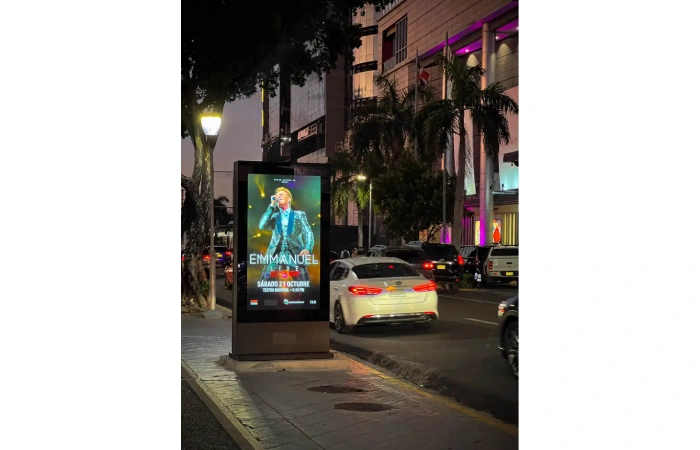
MWE’s outdoor range includes different models and configurations. Brightness and weather-protection specifications are not universal across the entire range. Confirm the exact model’s brightness, IP rating, temperature limits, size, resolution and installation requirements on its datasheet. For window-facing use, ask specifically for a window or semi-outdoor model rather than assuming a weather-exposed outdoor unit is the best fit.
8. Work out the full cost
Compare the complete cost of ownership, not just the screen price. Ask the supplier to itemise:
- Display, stand or bracket, media player and any accessories.
- Delivery, assembly, wall mounting, electrical work and commissioning.
- CMS licence, cloud service, app access, remote monitoring or other software charges.
- Network cabling, Wi-Fi improvements or other site work.
- Warranty coverage, service response, spare parts, repair costs and any travel charges.
- Power use and expected maintenance over the period you plan to keep the display.
Warranty terms can differ by model, destination and order. MWE’s after-sales information says products have at least a one-year warranty, with some models offering up to three years. Treat that as general range information only: obtain the exact warranty period, coverage, exclusions, start date and claim process for the model and purchase in your quotation or order confirmation.
Choosing technology that simplifies everyday store operations is also important for controlling costs and improving efficiency. Retailers can explore these e-commerce productivity tips for additional ideas on improving business workflows.
9. First-use and support checklist
- Unpack the display and check the screen, cabinet, stand, accessories and packaging for transit damage before installation.
- Compare the delivered model and serial number with the order documents.
- Follow the model-specific Quick User Guide for assembly, mounting, power-up and initial settings.
- Connect USB, Wi-Fi or Ethernet only as described for that model; test playback with one real image and one video.
- Set the correct date, time, orientation, volume and playback schedule if those options are available.
- Check that the content is readable from the customer’s actual viewing position.
- Save the invoice, order number, model number, serial number, datasheet, Quick User Guide and warranty terms.
- When contacting support, provide the order details, model and serial number, a description of the issue and photos or a short video where useful.
10. Pre-purchase checklist
☐ Have I chosen indoor, window-facing/semi-outdoor or weather-exposed outdoor for the actual location?
☐ Can customers read the screen at the real viewing distance, with text large enough for the message?
☐ Is the screen size and resolution suitable for the content I plan to show?
☐ Do I need touch, or will a standard display do the job?
☐ Have I measured the space and confirmed mounting, power, airflow and cable routing?
☐ Do I know which USB, Wi-Fi, Ethernet and CMS features this exact model supports?
☐ Are the included accessories, assembly and installation responsibilities clear?
☐ Have I confirmed software and subscription charges, warranty terms and support arrangements?
☐ Do I have the model-specific datasheet and Quick User Guide before placing the order?
Frequently asked questions
How bright should my store display be?
There is no single brightness figure for every store. Normal indoor lighting, bright window conditions and direct outdoor sunlight are different environments. Choose a model intended for the location and confirm its brightness and anti-glare specifications on the exact datasheet.
Can I use an indoor display in a shop window?
Only if the manufacturer confirms that the model is suitable for that window-facing environment. Daylight, reflections and heat behind glass can make an ordinary indoor screen difficult to read or operate reliably.
What screen size should I buy?
Start with the distance from the screen to the viewer and the size of the text or images. Use larger text for people passing at a distance; detailed information can be shown on a screen viewed close up. Test sample content from the actual viewing position.
Do I need a touchscreen?
No. Touch is useful when shoppers need to search or interact with information. For promotions and videos that play automatically, a non-touch display is usually simpler.
What sizes and specifications are available from MWE?
Specifications vary by series. MWE’s floor-standing kiosk information describes 32–65-inch options with FHD IPS panels and a 178-degree viewing angle for that relevant series. Confirm the model number and current datasheet; do not apply these specifications to every MWE product.
How do I update photos and videos?
The method depends on the model. It may support USB playback, network updates or a CMS. Confirm the supported file formats, ports, network options and any software fees, then follow the model-specific Quick User Guide.
What warranty does the display include?
Check the written warranty for the exact model and order. Confirm the duration, what is covered, exclusions, who provides service in your region and how to make a claim. Do not rely on a general range statement as the warranty for your purchase.
How should I clean the screen?
Switch the display off and follow the cleaning instructions supplied for that model. Use only the manufacturer-approved cloth and cleaning solution, if one is specified. Apply any approved solution to the cloth, never spray it directly onto the panel. Do not use household cleaners unless the manufacturer expressly permits them.
Choose for the store you have
The right digital display is the one that suits your location, viewing distance, content and day-to-day staffing. Before you order, confirm the exact model’s specifications, what is included, how it will be installed, how content will be updated and what support will cost. Keep the datasheet, Quick User Guide and order details so your team can set up the screen and get help when needed. Explore MWE Display’s commercial display range