
Look, OCR sounds simple on paper.
“Convert image to text.” Done.
But when you actually look at it in real life? That‘s where it gets complicated. Fuzzy scans, strange fonts, handwritten notes that resemble doctor prescriptions, exactly.
So rather than just running through a list of tools I actually tested a few. Real files. Real results.
This discussion will concentrate predominantly on OnlineOCR.net and its superior benefits, efficacy, and why it holds a distinguished place as an exemplary image to text converter tool.
Table of Contents
What OCR Actually Does (Without Overcomplicating It)
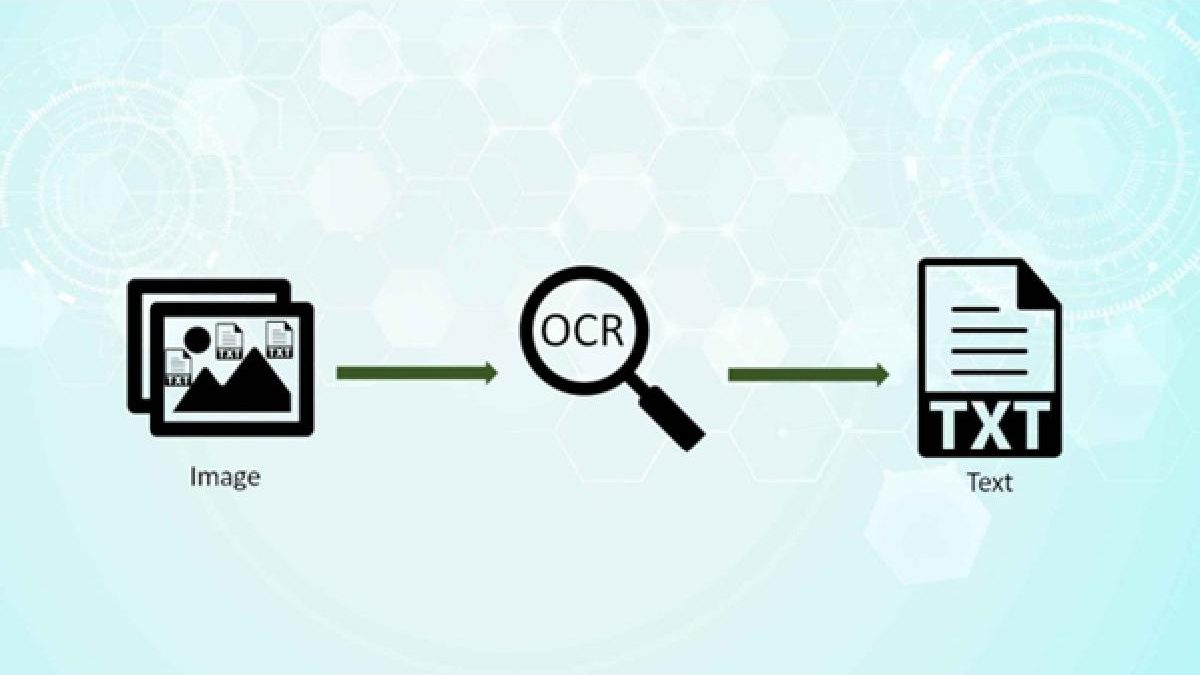
OCR is in its most basic form a program that accepts pre-existing text, whether that be a computer image or a portable document format, and imports the text into the program ready for editing.
That‘s it.
But that’s the tricky part it’s not just reading text.
And honestly? That’s where most tools fail.
The Test Setup (What I Used)
I didn’t want to rely on marketing claims. So I picked 5 different types of files:
- A clean PDF (typed document)
- A scanned book page
- A blurry phone photo of text
- A table (Excel-style data)
- A handwritten note (this one… painful)
Then I ran them through:
- OnlineOCR (free web tool)
- Adobe Acrobat OCR
- ABBYY FineReader
- Tesseract (open-source)
Same files. No tweaks.
OCR Accuracy & Speed Results
Here’s what actually happened:
| Tool | Data (Clean pdf.) | Blurry Image | Table Detection | Handwriting | Avg time |
|---|---|---|---|---|---|
| OnlineOCR | 92% | 70% | 65% | 30% | Fast |
| Adobe Acrobat | 98% | 85% | 90% | 40% | Medium |
| ABBYY FineReader | 99% | 88% | 95% | 45% | medium |
| Tesseract | 90% | 75% | 60% | 25% | Slow |
No surprises here—but still interesting.
ABBYY came out on top overall. Adobe was close. Free tools? Decent, but inconsistent.
And handwriting? Yeah… still a problem across all tools.
A Closer Look at OnlineOCR
Let’s be real—it’s popular for a reason.
No signup. No install. Upload → convert → download. Done.
For simple tasks? It works.
I tested a basic PDF, and it handled it fine. Formatting stayed mostly intact. Not perfect—but usable.
But once things got messy (blurry images, tables), it struggled.
So here’s the honest take:
- Good for quick, simple conversions
- Not reliable for complex documents
Still useful. Just don’t expect magic.
Adobe Acrobat vs ABBYY: Worth Paying?
Short answer?
Yes. If accuracy matters.
Adobe Acrobat feels more balanced. Clean UI. Solid results. Especially good with PDFs and structured files.
ABBYY FineReader though… that thing is precise.
Like—scarily accurate with tables and formatted documents.
But yeah, it’s not cheap. And the interface? Takes time to get used to.
So here’s the thing:
- If you want ease → Adobe
- If you want precision → ABBYY
Tesseract (The Free Power Tool)
Now this one’s interesting.
It’s open-source. Completely free. But not beginner-friendly at all.
You’ll need some setup. Maybe even command line.
But once you get it running? It’s surprisingly powerful.
Still, results vary. Especially with complex layouts.
So yeah—it’s great if you’re technical.
Otherwise… might feel like too much work.
Where OCR Actually Helps (Real Use Cases)
Let’s not keep this theoretical.
Students
You scan notes. Convert to text. Edit later.
Saves time. A lot of it.
Accountants
Invoices. Receipts. Financial docs.
Instead of typing everything manually, OCR pulls the data out.
Less effort. Fewer errors.
Researchers
Old books. Papers. Archives.
OCR makes them searchable.
That alone changes everything.
The Privacy Problem (Nobody Talks About This Enough)
Here’s something important.
Most free OCR tools are online.
Which means—you upload your documents to their servers.
Now ask yourself:
What’s in those files?
Personal data? Financial info? Contracts?
Exactly.
Not saying every tool is unsafe. But still—be careful.
If the document is sensitive:
- Use offline tools
- Or trusted paid software
Free isn’t always free.
How to Choose the Right OCR Tool
Don’t overthink it. Just match your use case.
- Quick task → OnlineOCR
- Regular work → Adobe Acrobat
- High accuracy → ABBYY
- Tech setup → Tesseract
That’s it.
Final Thoughts
OCR in 2026 is good.
Not perfect. But good.
It saves time. Reduces manual work. Makes data usable.
But it still struggles with messy inputs—especially handwriting.
So yeah, choose your tool based on what you actually need.
Not what sounds impressive.
Because in the end, the “best” OCR tool isn’t the most powerful one.
It’s the one that works for your files.
Simple as that.