
Your VPN Is Connected but the DNS Test Looks Wrong
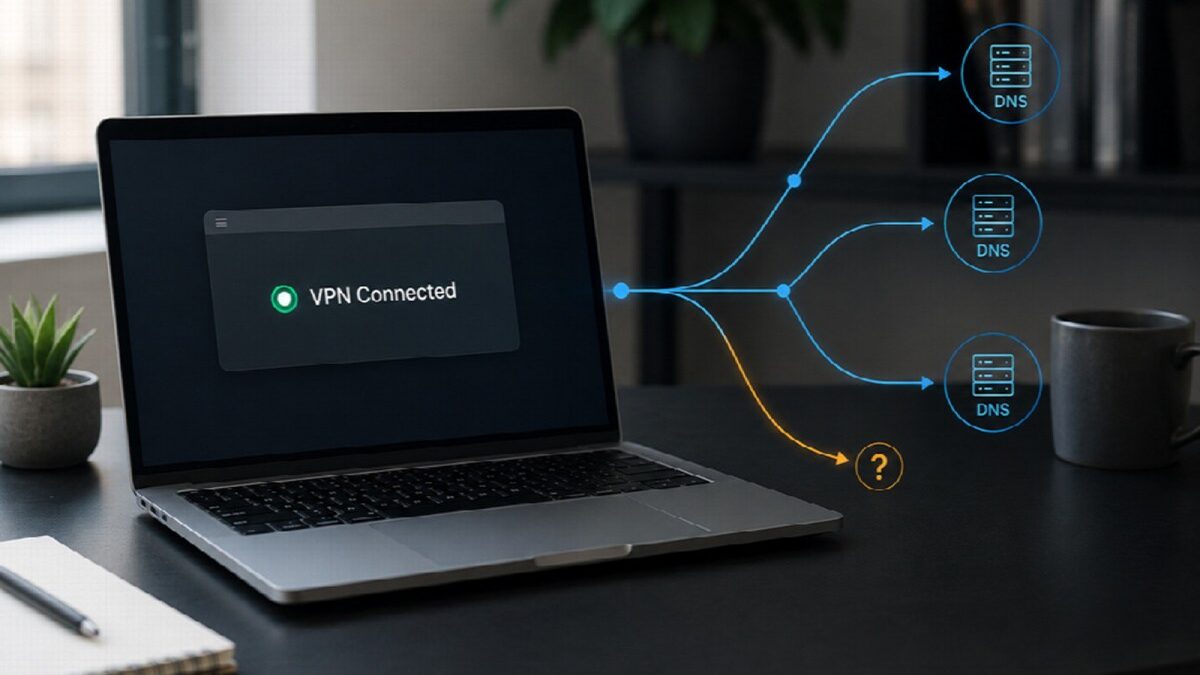
Your VPN says it is connected. Your public IP address has changed, and its location matches the server you selected. Then you run a DNS test and see Cloudflare, Google, or a network company you have never heard of.
It is easy to assume that something is leaking.
A DNS test does not always show the name of your VPN provider. It shows the resolver handling your requests for website addresses. A VPN may operate its own resolver, use outside infrastructure, or route requests through a partner. Your browser may also use a separate encrypted DNS service.
An unfamiliar company name is not enough to diagnose a leak. Compare the result with what you see before connecting to the VPN.
Table of Contents
Run a Test on Your Normal Connection First
A test performed only after the VPN connects gives you one list of names with no point of comparison. You cannot tell which resolvers are new and which ones were already in use.
Disconnect the VPN and open a DNS leak test. Record three details:
- The name of your internet service provider
- The DNS providers or server names shown by the test
- The country or region listed for each server
A screenshot works well.
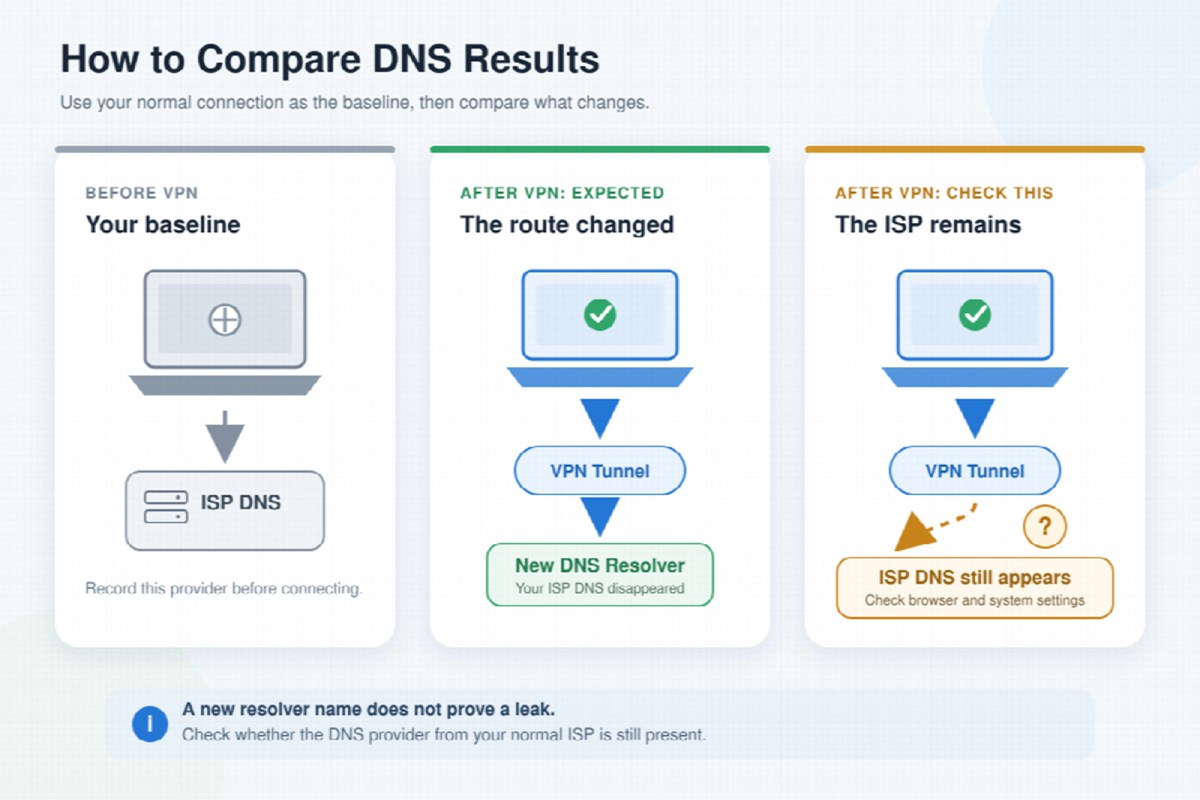
Suppose your home internet comes from a local ISP, and the DNS test also shows that company. You now know what your normal connection looks like.
You may see something different. The test could show Cloudflare, Google, or another third-party resolver before the VPN is connected. Your browser, operating system, or router may already be configured to use custom DNS.
That detail changes how you should read the next test. If the same third-party resolver appears after the VPN connects, the VPN did not necessarily cause it.
Compare What Changes After the VPN Connects
Reconnect your VPN and check your public IP address. Make sure both the address and its approximate location have changed.
Now repeat the DNS test in the same browser.
Do not focus only on whether the DNS server is in the same city or country as the VPN server. DNS companies often use infrastructure in many locations, and IP location databases are not always exact.
The names that disappeared are usually more useful than the map location.
If your ISP’s DNS disappears and a new set of resolvers takes its place, the DNS path has changed. The new resolver does not need to carry the VPN provider’s brand name.
If the test still shows the same ISP you recorded earlier, take a closer look. Some DNS requests may still be using your local network instead of the route you expected.
You might also see both groups at once. New resolvers appear, but one or more servers from your ISP remain. That can happen when different requests are handled by different browser, system, or network settings.
Before changing anything, run the same test in another browser. The result may explain where the unfamiliar resolver came from.
The Browser May Be Choosing Its Own DNS Provider
Firefox, Edge, and other modern browsers can use encrypted DNS. The feature is often called DNS over HTTPS, or DoH.
With traditional DNS, the browser usually relies on the resolver selected by the operating system or router. When DoH is enabled, the browser can send its DNS requests through an encrypted HTTPS connection to a provider of its choice.
Mozilla explains that Firefox may send DoH requests to an approved resolver partner. Microsoft Edge also includes a Secure DNS setting. A third-party name in the results may therefore belong to the browser’s DNS provider rather than your ISP.
Testing in two browsers can make this easier to spot.
For example, if Firefox shows one provider while another browser shows a different result, check Firefox’s DoH settings. If the pattern is reversed, inspect the Secure DNS settings in the other browser.
A browser using third-party encrypted DNS is not the same as sending plain DNS requests to your home ISP. However, it may mean that DNS is being handled by the browser’s chosen provider instead of the resolver supplied by the VPN.
If you want the VPN to handle every DNS request, check the provider’s documentation or ask whether browser-based DoH is included in its protected route.
Your Usual ISP Is the Result That Needs Attention
The clearest warning sign is a familiar one: the VPN is connected and the public IP has changed, but the DNS test still shows the same ISP as the baseline test.
Start by disconnecting and reconnecting the VPN. A brief network interruption may have left the device using an older DNS route.
Run the test again. If the ISP remains, switch to one other VPN server and repeat the test. There is no need to try ten countries. One different server is enough to show whether the result is tied to the current connection.
Update the VPN application and browser as well. An old version may still contain a networking bug that has already been fixed.
If two browsers produce different DNS results, inspect their Secure DNS or DoH settings. If every browser shows the ISP, check whether the operating system or router has been given a fixed DNS address.
Split tunneling is another common source of confusion. This feature allows selected applications to use the regular internet connection instead of the VPN. If your browser has been excluded, both its web traffic and DNS requests may continue through the ISP.
That result follows the split-tunneling rule you selected. Add the browser back to the VPN route, then test again.
Change one setting at a time and retest after each change. If you reconnect, change servers, disable custom DNS, update the browser, and alter split tunneling all at once, you will not know which action fixed the problem.
If the ISP continues to appear, contact the VPN provider. Include:
- Screenshots from before and after connecting
- Your operating system
- Browser name and version
- VPN server location
- Any custom DNS or split-tunneling settings
This information is more useful than a message that only says, “The DNS test failed.”
A Clean DNS Result Does Not Test Everything
A DNS test identifies the resolvers handling domain-name requests. It does not inspect every possible privacy issue.
It cannot tell you whether WebRTC exposes another IP address. It does not fully test IPv6 routing, applications excluded through split tunneling, or what happens during a brief VPN disconnection. It also cannot prove whether a provider stores activity logs.
A clean result supports a narrower conclusion: during this test, the browser did not appear to send DNS requests through the ISP shown in the baseline.
The next time an unfamiliar DNS provider appears, do not judge the result by whether you recognize the company. Check whether it was present before the VPN connected. Then look for the ISP you normally use.
That before-and-after comparison tells you far more than the server name alone.