
What Android Users Should Check Before Installing a Free VPN
Table of Contents
Understand what a VPN can and cannot protect on Android
Android VPN security begins with a realistic view of the technology. A VPN creates a protected route for traffic, but it does not make every app, website, or download safe. Before installing one, decide which risk you are trying to reduce and who you are prepared to trust instead.
Which traffic the VPN actually encrypts
When Android connects through a VPN, traffic selected for the VPN profile is routed through an encrypted tunnel to a VPN server. That can make it harder for someone on the same public Wi-Fi network to inspect the contents of that connection. It does not mean the traffic is encrypted all the way to every website; the VPN server becomes the next important point in the route.
The exact coverage depends on the app’s configuration and Android’s VPN settings. Split tunnelling, excluded apps, private DNS choices, and failures in the VPN connection can all affect what travels through the tunnel. Check those settings rather than assuming that one tap covers every packet.
Why a VPN does not replace HTTPS or malware protection
A VPN is not antivirus software and it cannot repair a compromised phone. It also does not replace HTTPS, which protects the connection between your browser or app and the destination service. If you enter credentials into a convincing fake website, a VPN generally cannot tell you that the site is fraudulent.
Keep Android updated, use reputable security tools where appropriate, and check the domain before signing in. Some listings make broad claims about malicious-site protection, but you should verify exactly what is included rather than treating a VPN as a complete security suite.
What the VPN provider can still see
Your provider can potentially observe connection metadata such as the time you connect, the server you use, your account details, and the destination information visible to its infrastructure. The provider may not be able to read HTTPS content, but that does not eliminate all visibility. Its privacy policy should explain collection, retention, sharing, and deletion in plain language.
A no-logs statement is only useful when you can understand its scope and find evidence supporting it. Trust must be earned through clear policies, independent scrutiny, and consistent ownership information, not through a badge or a dramatic slogan.
When Android apps may bypass or limit VPN protection
Some apps may be excluded from the VPN, use their own networking methods, or stop working when a VPN is active. Android can also allow a local VPN profile to be replaced or disconnected, and battery-management settings may affect an app that needs to remain active. These are practical limitations, not necessarily signs of malicious behaviour.
Review the app’s VPN configuration and test the services you actually use. If banking, work, messaging, or authentication apps behave differently, find out whether the issue comes from routing, DNS, an excluded app, or the service itself.
Investigate the provider behind the free VPN
The download price tells you little about the provider’s incentives. A free VPN still needs servers, staff, development, and support, so you should ask how those costs are covered. Look for a legal entity, a reachable support channel, a coherent privacy policy, and a history that can be checked outside the app’s own advertising.
Verify the developer’s identity and ownership
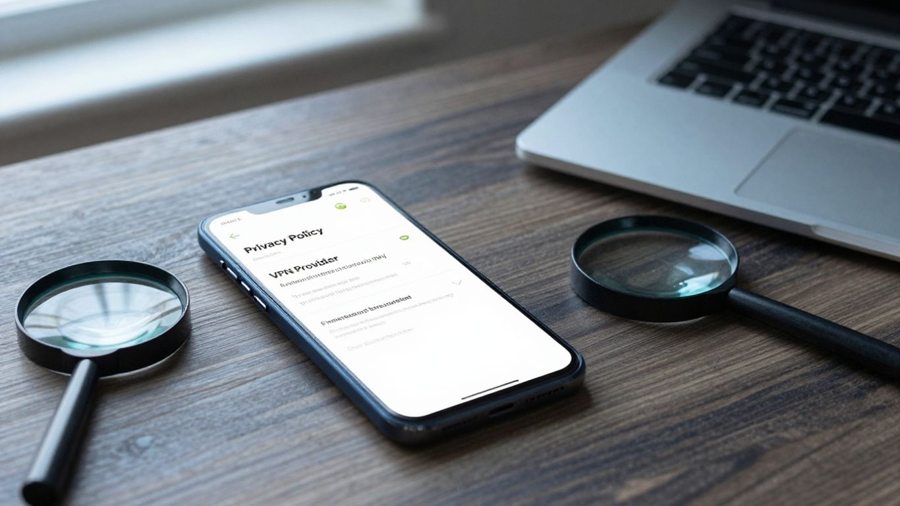
Start with the developer name shown in Google Play, then compare it with the service’s website, privacy policy, support address, and any company details. Names that change between pages, generic email addresses, or a website with no accountable owner deserve caution. Search for consistent evidence of who operates the service and where user requests should go.
You can also compare the app’s stated function with an independent Android VPN guide, which explains how Android VPN clients and VPN services work. That guide does not validate a particular provider, but it helps you separate a normal VPN implementation from vague technical language.
Read the privacy policy for collection and retention claims
Read beyond the headline. Check whether the policy distinguishes connection logs, usage data, device identifiers, advertising identifiers, crash reports, payment information, and support messages. Pay attention to retention periods and the circumstances in which information may be shared with service providers or authorities.
The Google Play Data safety section is a useful starting point, not a substitute for the full policy. Claims such as “no data collected” should be read alongside the app’s behaviour, login requirements, advertising technology, and permissions.
Identify how the service makes money
A free service may be funded by paid upgrades, advertising, partnerships, donations, or a limited plan designed to convert users. None of those models automatically makes an app unsafe, but each creates questions about data use and commercial incentives. If the business model is invisible, your uncertainty is greater.
Before accepting an offer, check whether the free tier has advertising, a data allowance, restricted locations, or account requirements. A clear limitation is easier to assess than a promise of unlimited privacy with no explanation of how the service operates.
Look for independent audits, transparency reports, or a credible track record
Independent audits can test a defined part of a service, but they are not proof that every app version or every privacy claim is safe forever. Read what was examined, when it was examined, and whether the scope matches the claim you care about. Transparency reports and a stable public history can add useful context.
Editorial testing can also help you form questions; for example, a tested Android VPN comparison may discuss performance and privacy criteria. Treat outside coverage as evidence to weigh, not as permission to skip your own checks.
Scrutinize the Google Play listing
The Google Play page is the first public record you can inspect, and it often reveals inconsistencies before installation. Compare the listing with the provider’s website and privacy policy. A polished description is not evidence by itself, especially when the app asks for more access than its core function appears to need.
Compare the app name, developer, website, and support details
Check the exact spelling of the app name, the developer account, the linked website, and the support contact. Look for copied branding, unusual punctuation, mismatched domains, or a support link that leads only to a social channel. The listing should make it reasonably clear who is responsible for the app.
Do not confuse a familiar-looking icon with an established service. A legitimate provider can still have a basic listing, while an untrustworthy app can look professionally designed.
Check update history, download numbers, and review patterns
Review the last update date and the pattern of changes. An app that has not been maintained may have compatibility or security problems, while sudden bursts of generic five-star reviews can indicate manipulation. Read recent low-rated reviews for recurring reports about connection failures, intrusive advertising, billing, or unexplained permissions. Looking through a VPN Reddit thread may reveal recurring complaints, but anonymous reports should be checked against the app’s current listing and policies.
Download numbers provide context, not a safety certificate. A popular app can still have privacy weaknesses, and a newer app may simply lack enough history to evaluate.
Treat vague privacy labels and exaggerated security claims as warning signs
Claims such as “military-grade,” “100% anonymous,” or “complete protection” are too broad to guide a technical decision. Ask what protocol is used, what traffic is covered, what data is collected, and what happens after disconnection. The listing should not require you to translate slogans into security properties.
Compare the claims with the policy and the Android settings the app actually exposes. Contradictions matter more than a single impressive phrase.
Avoid APK downloads and unofficial installation links
Install the app through the verified Google Play listing whenever possible. An APK from a forum, file host, messaging group, or shortened link may have been modified, repackaged, or paired with a different developer. Sideloading also removes some of the context and review signals available on Google Play.
If the listing is unavailable in your region, do not rush into an unofficial mirror. Choose whether the service is worth the additional installation risk, and keep the source and file provenance verifiable.
Check the app’s permissions and Android behaviour
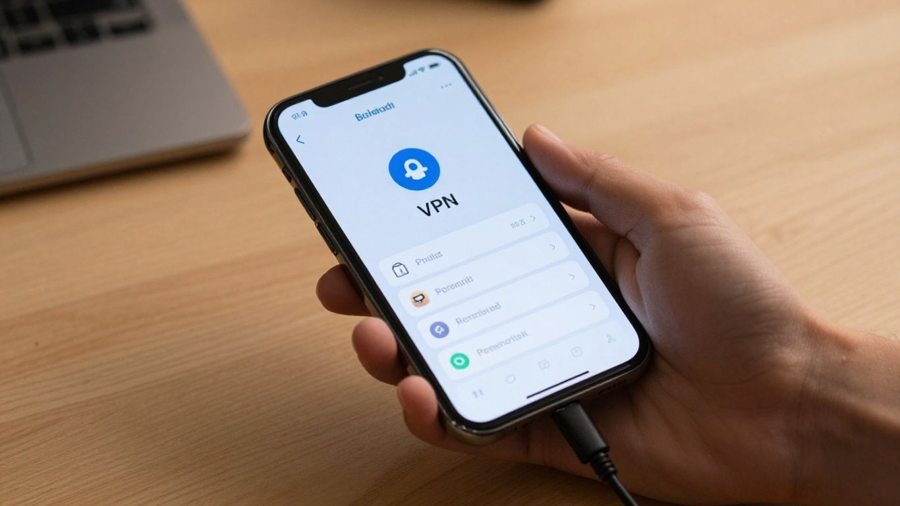
A VPN app normally needs Android’s permission to create and manage a VPN connection. That does not automatically justify access to contacts, SMS, accessibility services, or device administration. Review what the app requests, when it requests it, and whether the explanation matches the service’s stated purpose.
Question requests for contacts, SMS, accessibility, or device administrator access
Contacts and SMS are not inherently required to route network traffic. Accessibility access can allow an app to interact with what appears on screen, while device administrator access can make removal more difficult. A request for any of these should have a specific, credible explanation unrelated to generic “security.”
If you cannot identify a clear reason, deny the request or stop setup. You can revisit permissions later, but granting broad access first creates unnecessary exposure.
Understand the Android VPN permission and local VPN profile
Android shows a system prompt when an app asks to establish a VPN connection. Read it carefully: the app can route network traffic through the local VPN profile, and you should recognise the provider before accepting. A VPN icon in the status bar indicates a connection, but it does not prove that every app is covered.
The permission is different from access to your files, contacts, or microphone. Still, the traffic-routing capability is sensitive because the VPN app sits in a central position between your device and the internet.
Check whether the app runs continuously in the background
A persistent notification or background process may be normal for a VPN that maintains a connection and reports its status. Check Android’s battery and background-usage screens to see whether the app consumes more resources than expected. Unexpected restarts, overlays, or attempts to prevent removal are more concerning than ordinary background activity.
Android’s battery restrictions can also interrupt the connection. If the VPN disconnects repeatedly, investigate the system setting before assuming the provider is deliberately dropping protection.
Review data usage, battery impact, ads, and in-app tracking
Watch the app’s data consumption after installation, particularly if the free plan displays ads or loads content inside the app. A VPN should not need unexplained amounts of mobile data beyond the traffic it routes and the app functions it provides. Review advertising and analytics disclosures as part of the privacy decision.
A small battery cost can be expected when encryption and a persistent connection are active. A large or sudden increase, especially while you are not using the phone, calls for a closer look and possibly removal.
Evaluate the free plan’s technical security
A free plan may use the same basic tunnel as a paid tier, or it may omit important controls and restrict the infrastructure available to you. You need to test the actual plan, not infer its protection from premium marketing. Protocol support, fail-closed behaviour, DNS handling, and practical capacity all affect the result.
Confirm support for modern VPN protocols and strong encryption
Look for a clear explanation of the protocol and encryption used by the Android app. Terms such as “secure connection” without technical detail are difficult to assess. Prefer documentation that explains how the connection is authenticated, how keys are handled, and whether the app supports current, maintained protocols.
Avoid treating a protocol name alone as a guarantee. Configuration, implementation quality, updates, and the provider’s handling of credentials matter too.
Check for a kill switch and Android’s always-on VPN options
A kill switch is intended to block traffic when the VPN connection fails, while Android’s always-on VPN and block-without-VPN settings can provide system-level safeguards. Availability and behaviour vary by Android version and app. Test what happens when the connection is interrupted rather than assuming the label tells the whole story.
A fail-closed setup can be inconvenient if it blocks access during an outage, but that trade-off may suit you when accidental exposure is unacceptable. Keep a recovery route available so you are not locked out of essential connectivity.
Test for DNS, IPv6, and other traffic leaks
Use reputable leak-testing services before and after connecting, and repeat the test after switching networks. Check the visible IP address, DNS resolvers, IPv6 behaviour, and whether excluded apps still reach the internet directly. Testing from one network gives you only a snapshot.
Record the result while disconnected, then compare it with the result while connected. If your real IP address or unexpected DNS provider remains visible, review the configuration and stop using the service until you understand why.
Assess server limits, congestion, speed restrictions, and data caps
Free plans often limit server locations, simultaneous connections, data volume, or available bandwidth. Those limits can affect reliability as much as raw encryption quality. A congested server may lead you to disconnect the VPN when you need it most, while a restrictive data cap can make regular use impractical.
Use the plan at the times and locations that matter to you. A service that is technically sound but unusable for your normal connection pattern is not a good fit.
Match the service to your actual use case
Your decision should follow the risk and task, not the word “free.” Protecting traffic on airport Wi-Fi is a different requirement from accessing work systems, managing financial accounts, travelling, or transferring large files. Write down the situation first, then compare the plan against it.
Decide whether you need protection on public Wi-Fi
A VPN can be useful when you do not fully trust the local network, particularly if you are connecting from a hotel, café, airport, or conference venue. HTTPS still matters, and you should avoid unknown networks when a safer option is available. A VPN does not make a fake hotspot legitimate.
If public Wi-Fi is your only concern, prioritise dependable connection handling, leak protection, and a clear privacy policy over a long list of server locations.
Consider the risks of using a free VPN for sensitive accounts
Signing into banking, email, or work accounts through a provider you have not researched simply moves trust from the network operator to the VPN operator. That may still be useful, but it is not automatically safer. Use multifactor authentication, keep recovery details secure, and do not ignore warnings from your bank or employer.
For sensitive activity, the provider’s ownership, logging position, technical controls, and support history deserve more weight than unlimited access or an attractive interface.
Check whether streaming, torrenting, gaming, or travel access is supported
Do not assume that every free VPN supports streaming platforms, peer-to-peer traffic, gaming, or access from a particular country. Services may block those activities, throttle them, or offer them only on selected servers. Check the provider’s current terms and test within lawful and contractual limits.
Latency matters for gaming, sustained bandwidth matters for large transfers, and consistent regional routing matters when travelling. One successful connection does not establish reliable support for all of these uses.
Compare the provider’s limitations with a reputable paid alternative
A paid plan may offer clearer accountability, more capacity, and additional controls, but price alone does not prove quality. Compare the policies, technical documentation, audit scope, support, and cancellation terms. For perspective, Proton VPN documents a free Android offering with unlimited bandwidth and speed, while separately describing premium features; use such claims as a model for the level of detail you should expect, not as a substitute for your own assessment.
The right choice is the one whose limitations you understand and can accept. If a free plan cannot meet a core requirement, paying for a suitable service may be more sensible than repeatedly working around it.
Set up and verify the VPN safely
Installation is only the beginning of the check. Set up the app on a network you trust, read each system prompt, and verify the result before using the VPN for sensitive tasks. A short test now can expose a misleading listing or a configuration problem early.
Install only from the verified Google Play listing
Open the provider’s official website and follow its link to Google Play when possible, then confirm that the developer and package details match. Do not rely on a search result with a similar icon or name. You can also compare the listing with documented service information such as Advanced Android Security VPN, while checking that the app you install is actually the same product.
Keep Google Play Protect enabled and update Android and the VPN app through normal channels. If installation instructions require disabling security controls, stop and reassess.
Review account, permission, and privacy choices during setup
Read the account fields, consent screens, advertising choices, and permission prompts one by one. Decline optional access that does not support the VPN’s stated function. If an app asks for information before it explains why it needs it, pause setup and read the privacy policy first.
Use a unique password if an account is required, and avoid submitting unnecessary personal details. The setup flow should leave you with a clear record of what you accepted.
Confirm the connection, IP address, DNS routing, and leak protection
Connect, visit an IP-checking service, and compare the displayed address with your normal connection. Run DNS and IPv6 leak checks, then disconnect and confirm that the address returns to your ordinary network. Repeat after changing between Wi-Fi and mobile data.
Also test a few apps you rely on. If one bypasses the tunnel or stops working, inspect split-tunnel and per-app settings before using the VPN for important activity.
Enable Android’s always-on and block-without-VPN settings when appropriate
Android may let you keep the VPN active automatically and block connections that do not use it. These options are useful when you would rather lose connectivity than send traffic outside the tunnel. They can interfere with captive portals, local devices, or emergency troubleshooting, so enable them only after you understand the trade-off.
Keep the provider’s recovery instructions available. If the app fails, you should be able to disable the setting safely and regain normal access.
Revoke access and uninstall the app if its behaviour changes
A VPN app should not receive new sensitive permissions or become unusually intrusive without a clear explanation. Recheck its Play listing, privacy policy, update notes, and Android permissions after major changes. Rising battery use, unexplained data traffic, aggressive overlays, or resistance to removal are reasons to investigate promptly.
Revoke optional access, disconnect the VPN, remove the local VPN profile if Android leaves one behind, and uninstall the app when trust cannot be restored. Then change important passwords if you entered them while the app’s behaviour was in doubt.
Conclusion
A free VPN can be reasonable for a defined purpose, but Android VPN security depends on more than an encrypted connection. Check who operates the service, what it collects, how the app behaves, and whether the free plan passes practical leak and reliability tests. If the evidence is unclear, do not trade control of your traffic for a vague promise of privacy. A comparison of free VPNs for Android can help narrow the field, but you still need to test the shortlisted apps on your own device.
Frequently Asked Questions
Is a free VPN safe to use on Android?
It can be, but safety depends on the provider’s ownership, privacy practices, technical implementation, permissions, and business model. Review those factors before trusting the service with your traffic.
Does a VPN protect every Android app?
Not necessarily. Split tunnelling, excluded apps, app-specific networking, system settings, and connection failures can affect coverage. Test the apps and routes that matter to you.
Can a VPN provider see my browsing history?
A provider may see connection metadata and destination information available to its infrastructure. HTTPS can protect content from the provider in some situations, but you should still examine the provider’s logging and retention policy.
Does a VPN protect me from malware?
No. A VPN does not replace Android updates, careful downloading, safe browsing, or malware protection. It mainly changes how selected network traffic travels between your device and the VPN server.
What permissions should a VPN app need?
The Android VPN permission is central to routing traffic. Requests for contacts, SMS, accessibility, microphone, or device administrator access need a specific explanation and should be denied when they are not necessary.
How can I test whether a VPN leaks data?
Check your public IP address, DNS resolvers, and IPv6 status while disconnected and connected. Repeat the checks on Wi-Fi and mobile data, and investigate any result that exposes your ordinary network details.
Should I use a VPN for banking on public Wi-Fi?
A researched VPN may reduce some local-network risks, but it does not make banking automatically safe. Use HTTPS, multifactor authentication, trusted networks where possible, and a provider whose privacy and security practices you understand.