
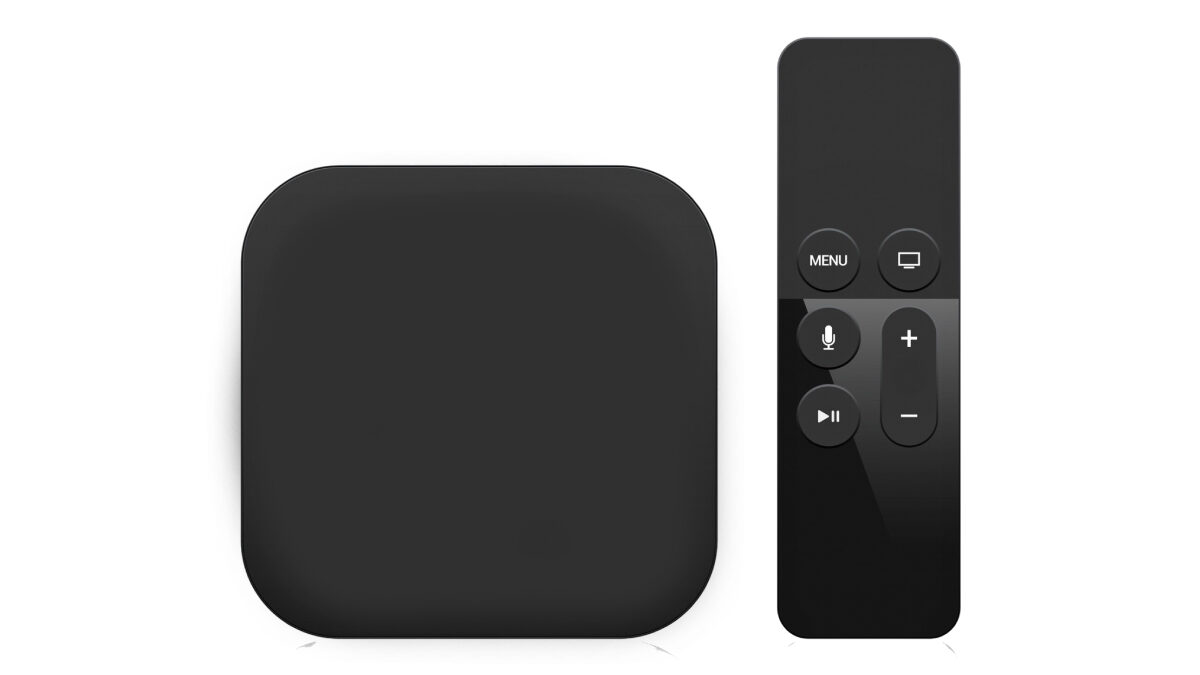

Set Up Android Box & Firestick for Multi-Language TV in Canada
In the age of global content and diverse audiences, setting up your Android Box or Amazon Fire TV Stick for multi-language TV feels like unlocking a passport to worldwide entertainment. Whether living in bilingual Québec or enjoying global cinema from home, watching TV in multiple languages is no longer a luxury; it’s becoming normal viewing behavior.
This guide walks step-by-step through configuring Android Boxes and Firesticks for multilingual streaming, ensuring viewers can easily switch between English, French, Spanish, Arabic, Hindi, or other preferred languages. By the end, your TV setup will feel smarter, smoother, and a little more world-connected than before.
Table of Contents
Why Multi-Language TV Matters in Canada Today
Canada’s culture is a mosaic of languages and traditions. Statistics Canada notes that more than 200 languages are spoken across the country, while French and English dominate official communications. Québec alone reports nearly 78% of residents using French at home, with English strongly present in metropolitan areas.
This diversity influences viewing habits:
- Families want bilingual children’s content.
- Immigrant households seek programming from home countries.
- Multilingual viewers enjoy switching languages for entertainment or learning.
Cable providers often limit language choices or charge extra packages, but modern streaming devices solve that problem with flexibility and affordability.
Devices Needed for Multi-Language Streaming
Before setup begins, ensure your essentials are ready.
Required Hardware
- Android TV Box
- Amazon Fire TV Stick (preferably 4K model)
- Stable internet connection
- TV with HDMI port
Helpful Add-Ons
- Wireless keyboard for faster typing
- Ethernet cable for smoother streaming
- USB drive for media storage
- VPN for privacy and geo-access flexibility
A good foundation avoids future headaches.
Setting Up an Android Box for Multi-Language TV
An Android Box works like giving your television a fresh brain, adaptable, fast, and customizable.
Step 1: Connect Device
Plug into HDMI, power on, and switch TV input.
Step 2: Connect Internet
Navigate to Settings → Network and connect via Wi-Fi or Ethernet.
Step 3: Choose System Language
Go to Settings → Language & Input and select preferred languages. Multiple languages can be stored.
Step 4: Install Streaming Applications
Install apps supporting multilingual content:
- Netflix
- YouTube
- Plex
- VLC Media Player
- Regional TV apps
Users may also sideload applications unavailable locally.
Installing & Optimizing Amazon Firestick
Firestick offers simplicity but powerful streaming when properly configured.
Step 1 Plug & Power
Connect Firestick to the HDMI and power outlet.
Step 2 Network Setup
Connect to Wi-Fi and confirm speed.
Step 3 Language Settings
Navigate to Settings → Preferences → Language and pick your preferred language.
Step 4: Install Streaming Apps
Install major platforms and IPTV players via Appstore or sideloading tools.
Apps Supporting Multi-Language Viewing
Many streaming platforms now include audio and subtitle choices.
| App | Language Support | Content Type |
| Netflix | Multiple audio & subtitle languages | Movies & Series |
| Prime Video | French, Spanish, multilingual dubbing | Series & Films |
| YouTube | Caption translation | Video content |
International broadcasters often provide apps or streams through browser players, making multilingual access easier.
IPTV as a Flexible Multi-Language Option
Internet Protocol Television allows viewers to watch channels through the internet rather than cable or satellite. IPTV packages frequently include channels in multiple languages across regions, making them especially attractive for multicultural households.
In Canada, many viewers compare options among various IPTV Quebec providers to find channel lineups matching local French-English viewing habits, along with international programming.
These services often integrate smoothly into Android Boxes and Fire TVs, giving viewers access to live TV, sports, and global entertainment without complicated installations.
Adding IPTV to Android Box or Firestick
Android Box Installation
- Install the IPTV player app.
- Add playlist or credentials.
- Load channel categories.
- Organize channels by language.
Firestick Installation
- Install the Downloader app.
- Enable third-party apps.
- Install IPTV player.
- Enter playlist information.
- Begin streaming.
Channels often appear categorized by country or language for easy navigation.
Subtitles and Alternate Audio Setup
For multilingual households, subtitles are vital.
- Netflix & Prime Video allow language switching mid-playback.
- YouTube captions can auto-translate.
- IPTV players sometimes download subtitle files automatically.
Installing apps like VLC or MX Player helps when subtitles need manual loading.
Performance Optimization Tips
Smooth playback depends on stable performance.
Network Optimization
- Use wired Ethernet when possible.
- Limit heavy downloads while streaming.
- Ensure a minimum of 25 Mbps for HD or 4K content.
Device Maintenance
- Clear app cache monthly.
- Restart devices weekly.
- Remove unused apps.
Small tweaks prevent buffering frustrations.
Streaming Behavior in Canada: Data Snapshot
Market studies show Canadians strongly prefer home streaming over traditional broadcasting.
Key findings:
- Over 90% of Canadian households use streaming platforms regularly.
- Multilingual households increasingly demand international channels.
- Live TV streaming continues to rise across Québec and Ontario.
The numbers show streaming is no longer secondary; it’s primary viewing.
Practical Setup Checklist
Preparation Stage
- Choose Android Box or Fire TV Stick.
- Confirm internet speed.
- Update firmware.
Setup Stage
- Configure system language.
- Install streaming apps.
- Load IPTV playlists.
Optimization Stage
- Arrange channels by language.
- Activate subtitles.
- Test playback quality.
Smart Viewing Future for Canadian Homes
Modern streaming devices have changed how households experience television. Instead of flipping through limited cable channels, viewers now choose languages, genres, and countries instantly. Proper setup of Android Boxes and Fire TV sticks ensures entertainment becomes inclusive for everyone in the household.
As multilingual viewing grows across Canada, many users also explore reliable platforms like iptvcanavia.ca to simplify channel access while maintaining flexibility across devices.
With everything configured, languages set, apps installed, and channels organized, your television becomes more than a screen; it becomes a window to cultures, stories, and conversations from around the world, so what language will your next movie night speak?
FAQs: Multi-Language Streaming Setup
Which device is better for multilingual TV?
Android Boxes allow greater customization; Fire TV Stick offers simpler installation.
Can I watch free multilingual channels?
Yes, but channel selection is limited compared to paid streaming packages.
Is IPTV legal?
Licensed IPTV providers operate legally; users should verify that services comply with local laws.
Do subtitles work on live channels?
Some IPTV streams support subtitles; availability varies by broadcaster.