


Guide to Downloading Apple Music for Offline Use on PC
For millions of music lovers, Apple Music offers an unparalleled listening experience with its vast catalog of over 100 million songs, expertly curated playlists, and high-quality audio. However, a significant limitation remains: you can’t truly own or freely use the music you stream. Songs downloaded via the Apple Music app are protected by DRM (Digital Rights Management), tying them exclusively to the Apple ecosystem. This means you can’t transfer those tracks to an MP3 player, burn them to a CD, or listen to them on non-Apple devices. If you’ve ever wanted to break free from these restrictions and build a permanent, portable music library on your Windows PC, you’re in the right place. The solution is simpler than you think: ViWizard Apple Music Converter.
Table of Contents
Why Can’t I Simply “Download” Apple Music Normally?
When you click “Download” in the Apple Music app (or iTunes on PC), the files are saved in a protected AAC format (M4P files). These files are locked with Apple’s FairPlay DRM. Your authorization to play them is constantly verified by your Apple ID and subscription status. If your subscription lapses, you lose access to all your downloaded music. Furthermore, these files are invisible in your computer’s folders and cannot be recognized by other media players like VLC, Windows Media Player, or uploaded to cloud services like Google Drive for safekeeping.
This is where the concept of “downloading” shifts. To genuinely download Apple Music to your PC as universal MP3, M4A, or FLAC files, you need a two-step process: 1) Record and convert the audio stream into a DRM-free format, and 2) Save the converted files to your computer’s hard drive. This process, often called “recording” or “converting,” is what gives you permanent ownership. And for this, ViWizard Apple Music Converter is the most efficient and user-friendly tool available.
ViWizard Apple Music Converter: Your Gateway to True Music Ownership
ViWizard Apple Music Converter is a powerful, desktop-based software designed specifically for Windows PCs (a macOS version is also available) to legally convert and download Apple Music songs, playlists, albums, and even audiobooks to DRM-free formats. It works by playing the music through the official Apple Music web player (or iTunes) on your computer and then converting it in real-time at an incredibly high speed, all while preserving the original 100% quality.
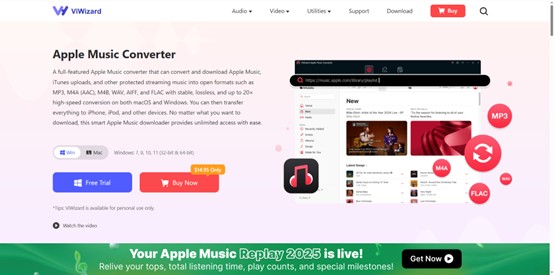
Here’s your simple, step-by-step guide on how to download Apple Music to MP3 on your PC using ViWizard:
Step 1: Download and Install
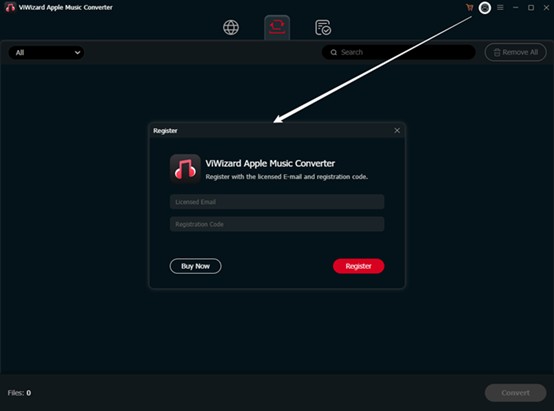
Visit the official ViWizard website and download the Apple Music Converter installer for Windows. Follow the straightforward installation wizard. Once installed, launch the ViWizard program. The built-in Apple Music web player opens automatically, and you just need to log in to your account.
Step 2: Add Apple Music Tracks to ViWizard
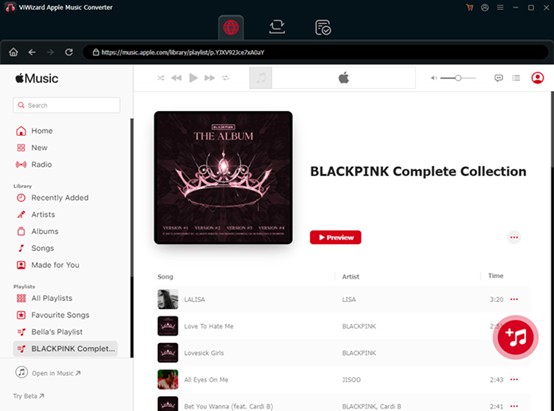
Navigate within the ViWizard interface. You’ll see all the songs in your Apple Music library. Then, select the tracks you want to play freely and import them into ViWizard by clicking the + button or dragging and dropping the selected tracks. The software will quickly list all the tracks.
Step 3: Configure Your Output Settings (The Power of Customization)
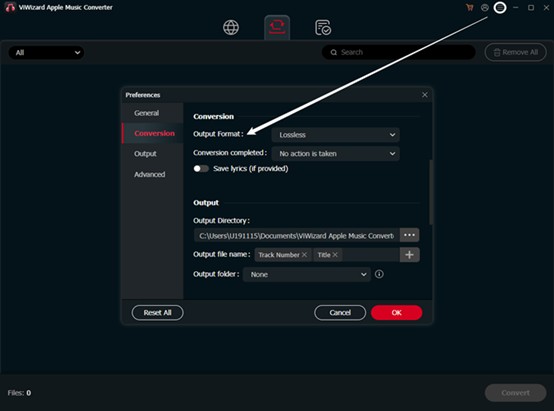
Before converting, click on the menu to choose your preferred output format. ViWizard supports a wide range, including:
- MP3: The universal standard, compatible with every device.
- M4A: High-quality AAC audio without DRM.
- FLAC/WAV: Lossless formats for audiophiles.
- Other formats: Like M4B for audiobooks.
You can also customize the bit rate, sample rate, and channel to balance file size and fidelity. Need to organize your growing library? ViWizard lets you automatically tag converted files with ID3 information (title, artist, album, artwork, etc.) and sort them into folders by artist, album, or genre.
Step 4: Convert and Download Apple Music
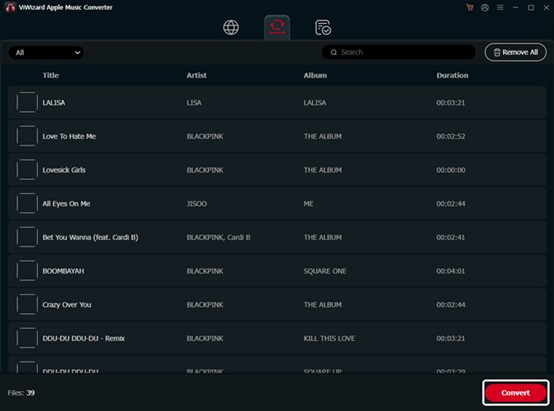
Choose an output folder on your PC where you want the downloaded music saved. Finally, click the “Convert” button. ViWizard will start the process. Thanks to its advanced acceleration technology, it can convert songs at up to 30X speed without any quality loss. Within minutes, your entire playlist will be downloaded as regular audio files to your specified folder.
Step 5: Enjoy Your Music Anywhere!
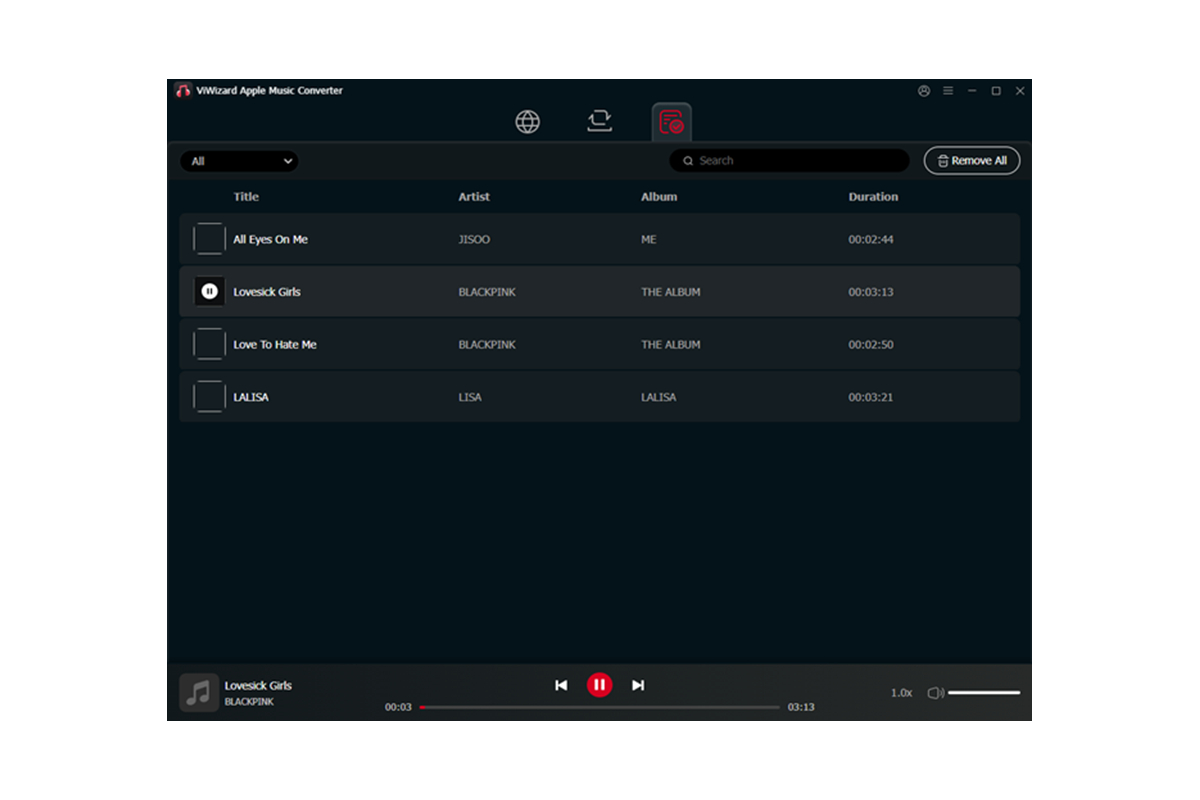
Once the conversion is complete, navigate to the output folder on your PC. You’ll find your fully tagged, high-quality music files. Now, you are free to:
- Transfer them to any smartphone, Android device, or MP3 player.
- Burn custom CDs for your car.
- Back them up to an external hard drive or any cloud storage.
- Play them on any media software without needing an Apple Music subscription.
Why Choose ViWizard Over Other Methods?
While other converters or sketchy “stream ripper” websites exist, ViWizard stands out for its reliability, quality, and safety. It ensures a lossless conversion, keeping the original sound quality and all metadata intact. It’s an offline desktop tool, meaning no privacy risks from uploading data to unknown servers. Its batch conversion feature handles large playlists effortlessly, saving you hours of manual work.
Break Free from Streaming Limits
Don’t let your favorite music be held hostage by a subscription. Whether you’re an avid music collector, a DJ looking for tracks, or someone who wants to ensure access to their curated playlists forever—especially in areas with spotty internet—downloading Apple Music to your PC is the ultimate solution.
Take control of your music library today. Download ViWizard Apple Music Converter and transform your streaming experience into a lasting personal collection. Your music, your rules—now truly yours to keep.