

Building a ten-slide deck the old-fashioned way steals four to six hours of your day (textdeck.com). That’s half a workday spent nudging text boxes, hunting icons, and second-guessing colors—before rehearsal even begins.
Plus AI cuts that grind. The Google Slides and PowerPoint add-in drafts slides inside the tools you already use, preserves your exact wording, and frees you to refine the story instead of battling layouts.
Professionals have installed Plus AI in more than 1 million decks since its 2023 launch, from board-room consultants to classroom educators, all chasing faster deadlines without losing their voice.
In this review you’ll see how Plus AI performs on speed, design quality, pricing, and security so you can decide whether it deserves a spot in your workflow—or the recycle bin.
Table of Contents
What is Plus AI?
Think of Plus AI as a co-pilot that sits inside PowerPoint and Google Slides. Instead of pulling you into another web app, it shows up in the sidebar you already use. Type a prompt or paste a full report, and the add-in turns that text into a slide-by-slide deck without changing your wording.
Plus AI launched in 2023, created by ex-consultants and AI engineers who wanted to erase presentation busywork. They began with Google Slides, refined the workflow, then brought the same approach to PowerPoint. The ai presentation maker now appears in more than 1 million decks across marketing, education, and sales teams that need faster, on-brand drafts.
In short, Plus AI moves raw ideas to polished slides with no extra software and almost no learning curve.
Why traditional slide creation is challenging
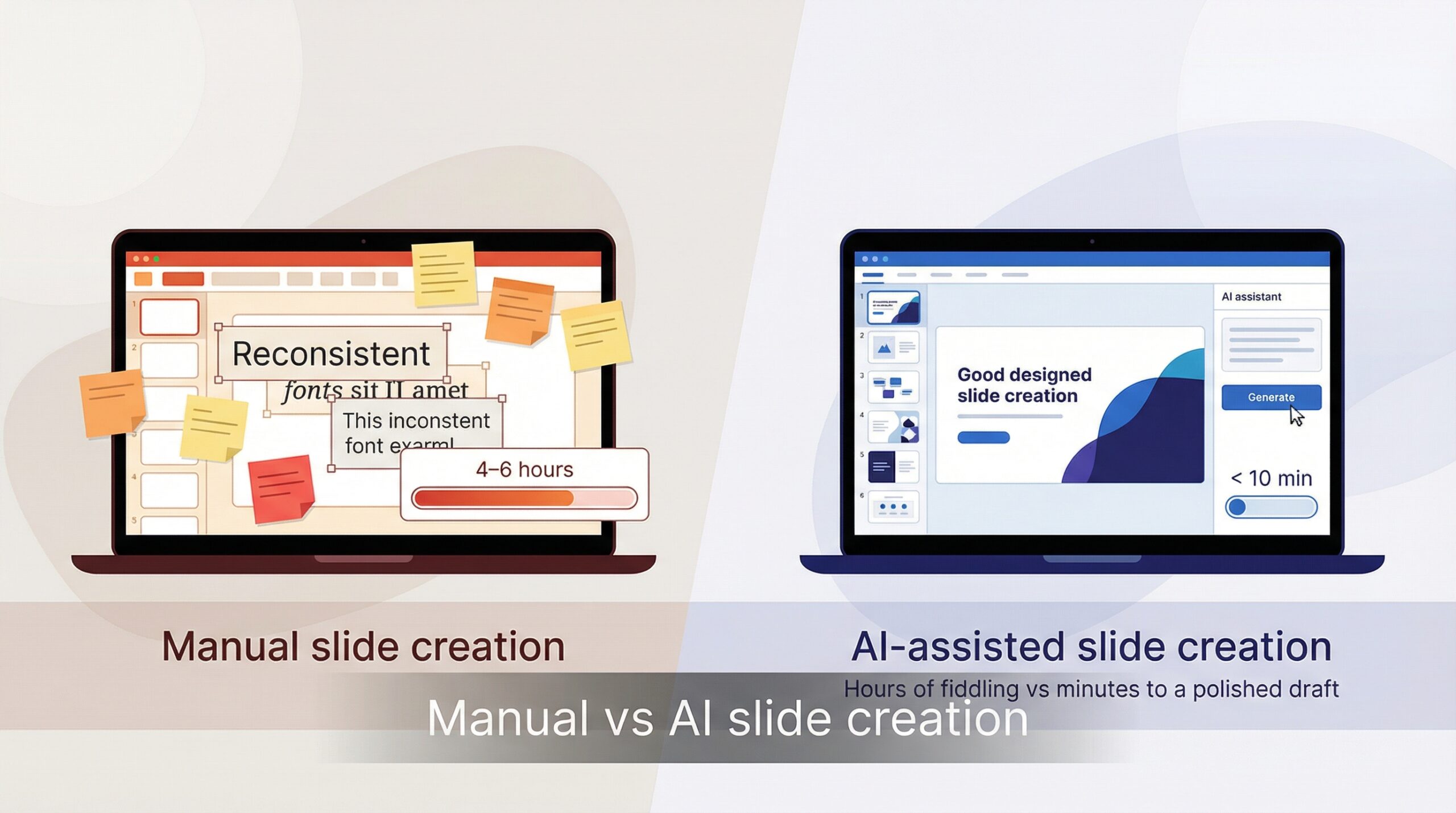
The blank slide stare is real. Hours vanish while you nudge text boxes, resize images, and chase a consistent color palette. Even a ten-slide deck can absorb four or five hours, pulling attention away from the story you want to tell.
The cost is more than time. Rushed edits invite typos, mismatched fonts, and charts that feel slapped together. Consistency slips, credibility sags, and your message shows up in last year’s design clothes.
AI tools promise help, yet many overwrite your language along with the layout. Plus AI takes a different path, automating structure, spacing, and visual polish while your words stay intact. You remain the author; the software holds the ruler.
Key features and capabilities of Plus AI
1. Draft entire decks from a single prompt or document
Type “Quarterly product roadmap for investors” in the sidebar prompt, click Generate, then sip coffee while Plus AI builds an outline, titles every slide, and places the right bullets. The engine treats your words as instructions, not hints. It selects slide types, groups ideas logically, and keeps language crisp. In about two minutes you get a draft that is roughly 80 percent complete, letting you focus on insight instead of layout work.
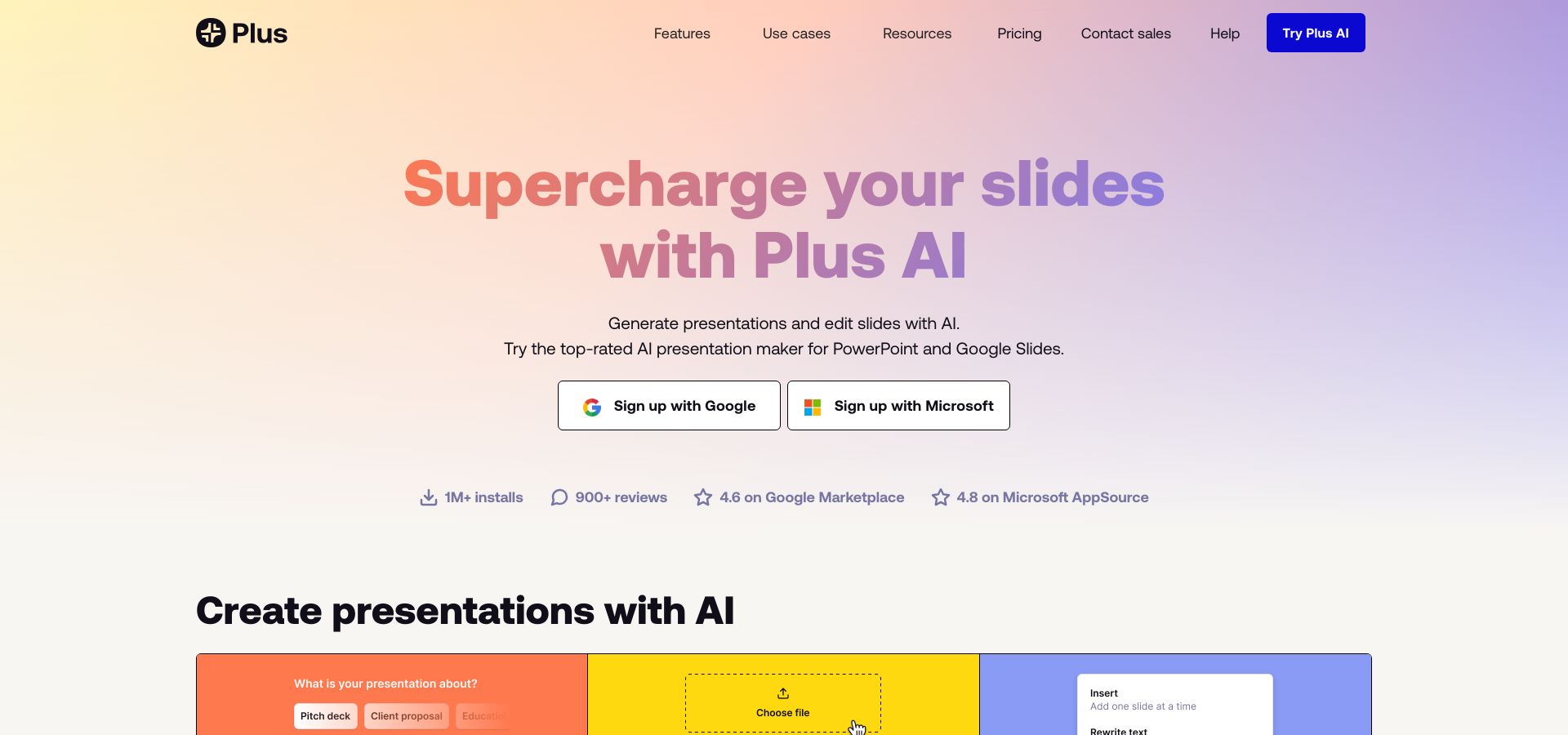
Have an existing report? Upload the doc, PDF, or an early PowerPoint. Plus AI reads each heading, preserves your phrasing, and spreads content across slides. Quotes stay verbatim, technical terms remain intact, and long paragraphs shrink to speaker-friendly bullets. Your voice stays at the center while the software handles structure.
The deck it produces is fully editable. Delete, rearrange, or add flair whenever you like. The time-consuming part is done, and you become the presenter who never misses a deadline.
2. Refine slides on command, not by surprise
Generation is only half the job. After the draft appears, Plus AI remains in the sidebar as an editor. Highlight a clunky line, choose Polish, and watch it tighten the prose while keeping your message intact. Need a friendlier tone or a shorter bullet? One click handles it.
The tool always waits for your cue. Nothing changes until you ask, so no unwanted rewrites, no mystery synonyms, and no lost nuance. You steer; the AI offers instant options that would otherwise take minutes to craft.
3. Tap into a library of polished templates and on-brand themes
Plus AI provides more than 100 professionally designed layouts that auto-fit whatever text you add. Drop a paragraph onto a slide and the tool decides whether a two-column or image-plus-bullet format suits it. The result feels cohesive, with no random font sizes or lopsided charts.
Teams on higher plans can upload a brand kit. Add your colors, fonts, and logo once, and every generated slide follows those rules. No midnight hunt for the right hex code and no off-brand teal sneaking into the sales deck.
In practice, you gain a silent designer in the toolbar. We still add personal touches, a hero image here or an animation there, but the baseline look arrives presentation-ready.
4. Work natively in Google Slides and PowerPoint
Installation takes under a minute. In Google Slides, open the Workspace Marketplace. In PowerPoint, choose Insert → Get Add-ins and search for “Plus AI”. After installation, a button opens a right-hand sidebar where all AI commands live.
Because the add-in edits the live deck, collaboration stays the same. Teammates without Plus AI can open, comment, and adjust the file like any other. You just work faster while they wonder how.
5. Keep data fresh with live “Snapshots”
Static screenshots age quickly. The Snapshot feature lets you embed a live chart from a web dashboard, such as HubSpot revenue or Google Analytics traffic, directly into a slide. When the source data updates, your deck reflects the change with no copy-paste.
Recurring business reviews benefit most. Build the deck once, reopen next quarter, and every KPI slide greets you with current numbers. You avoid outdated graphs and redundant busywork.
6. Speak to any audience with built-in translation
For global teams and events, click Translate and Plus AI rewrites the entire deck into Spanish, Japanese, or dozens of other languages. It also resizes text boxes so longer sentences still fit.
Because translation happens in context, headings stay headings, bullets stay bullets, and brand terms remain unchanged. You deliver the same story in the language your audience prefers without hiring a translator or rebuilding slides.
Enterprise-grade security and privacy
Trust matters when you share next-quarter forecasts. The platform holds SOC 2 Type II certification, an external audit that validates its encryption, access controls, and data-handling procedures, according to Plus AI’s security page.
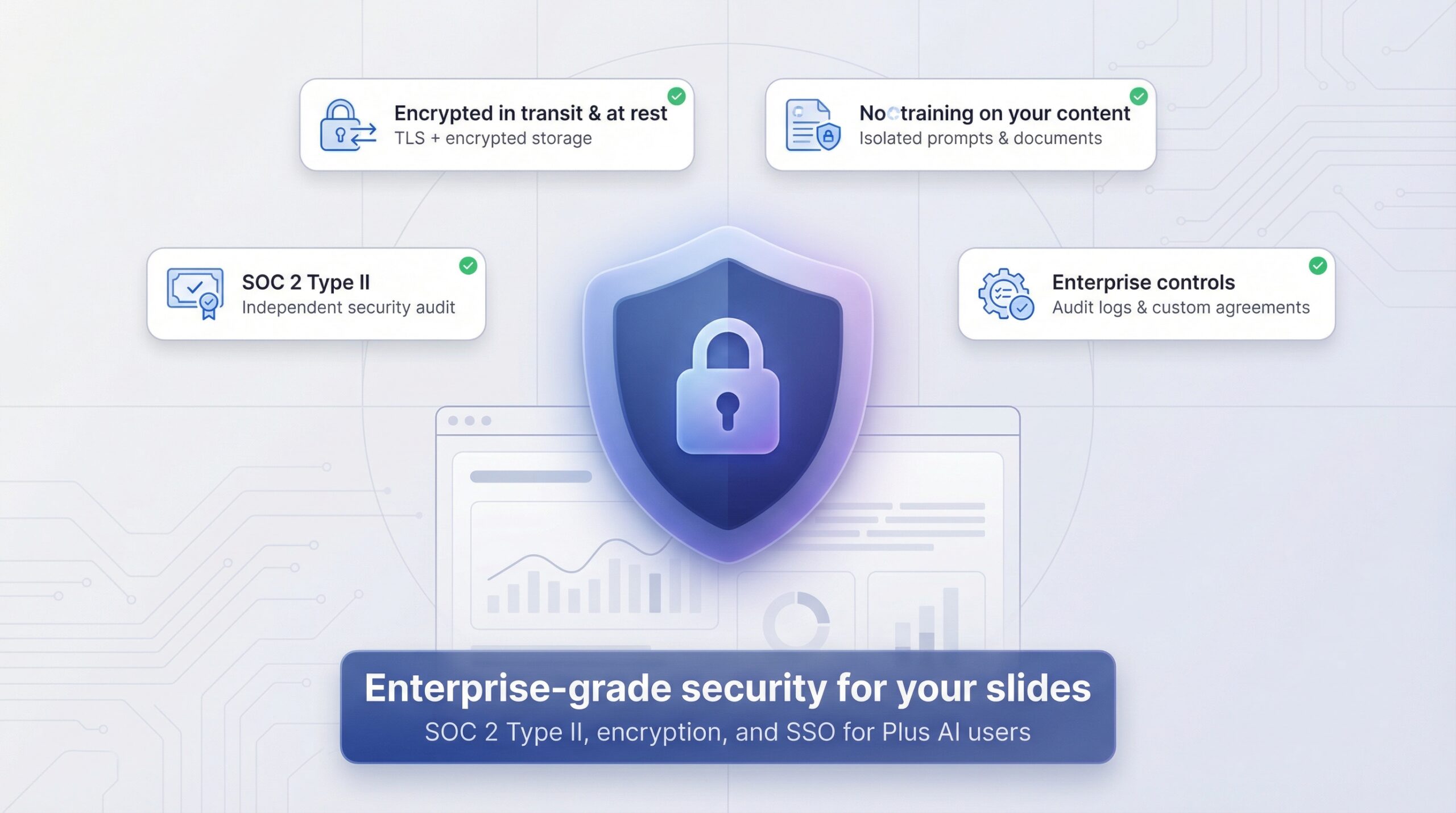
Every prompt travels over TLS encryption, rests in encrypted storage, and disappears when you delete the deck. Your words never train public models, never appear in another user’s prompt, and never linger beyond their purpose.
Single sign-on with Google or Microsoft keeps logins simple, while enterprise plans add audit logs and customized agreements. Your confidential roadmap stays private.
Plans and pricing
You can try every feature free for seven days, no credit card required. A week is long enough to run a real project and judge whether the saved hours justify the cost.
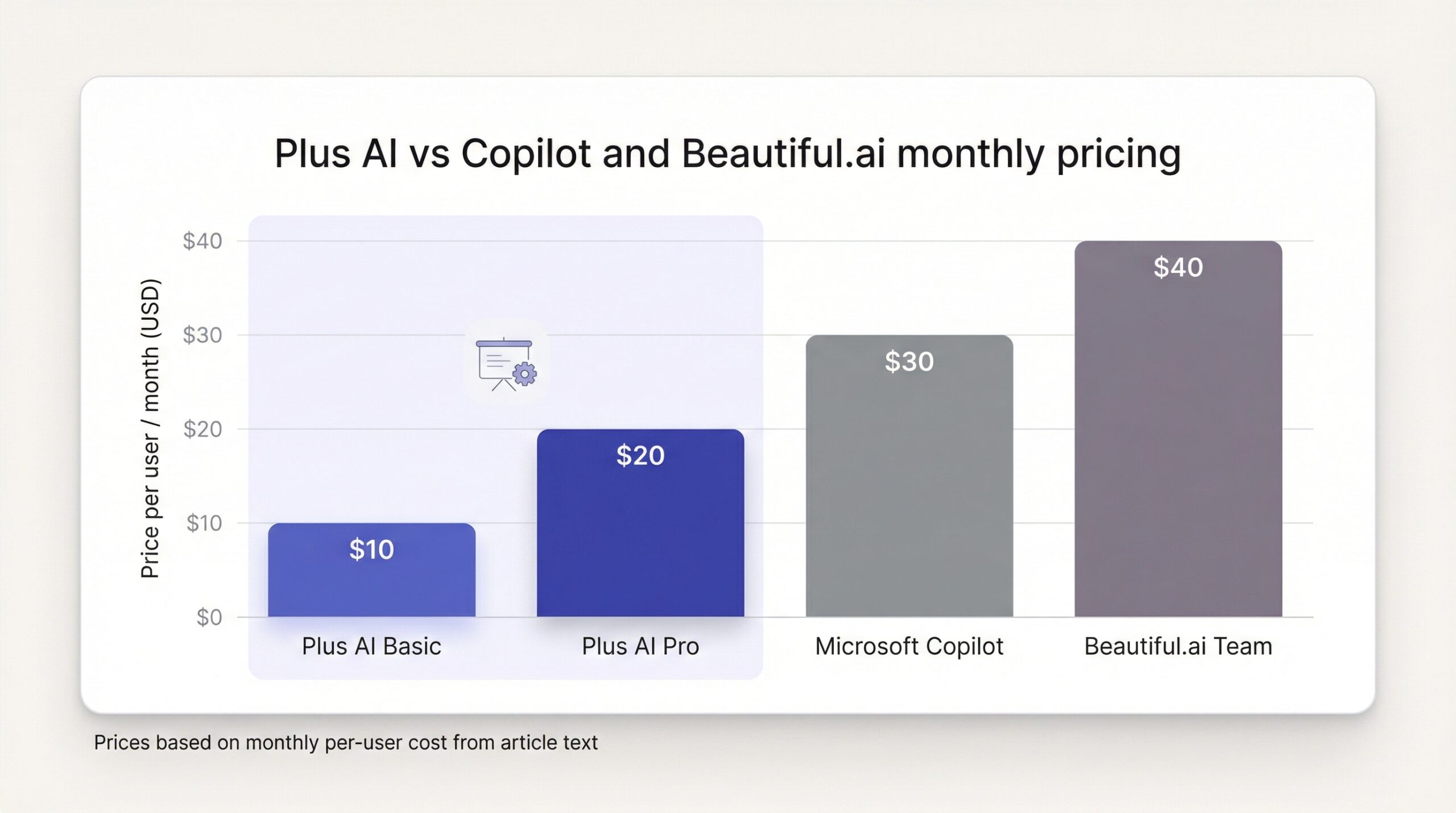
After the trial, the Basic plan costs about $10 per user per month when billed annually. It includes unlimited draft generation, core templates, and the sidebar editor.
Teams that care about branding or shared assets often choose Pro at roughly $20 per user per month on an annual contract. This tier adds brand kits, shared themes, and priority support, useful when several people refine the same deck.
Large organizations can arrange Enterprise licenses. Pricing varies with seat count and security options and can include single sign-on, audit logs, and a dedicated success manager.
For context, Microsoft Copilot for Microsoft 365 costs $30 per user each month, and Beautiful.ai’s Team plan runs $40. Plus AI lands between budget slide plug-ins and full AI packages; building even one client deck a week can cover the subscription.
Performance and user experience
Speed and draft quality
Plus AI proves its value the moment you click Generate. A ten-slide outline appears in less than two minutes, work that once consumed half a day. The slides follow a clear flow: title, agenda, content, and wrap-up. You focus on sharpening insight, not aligning margins.
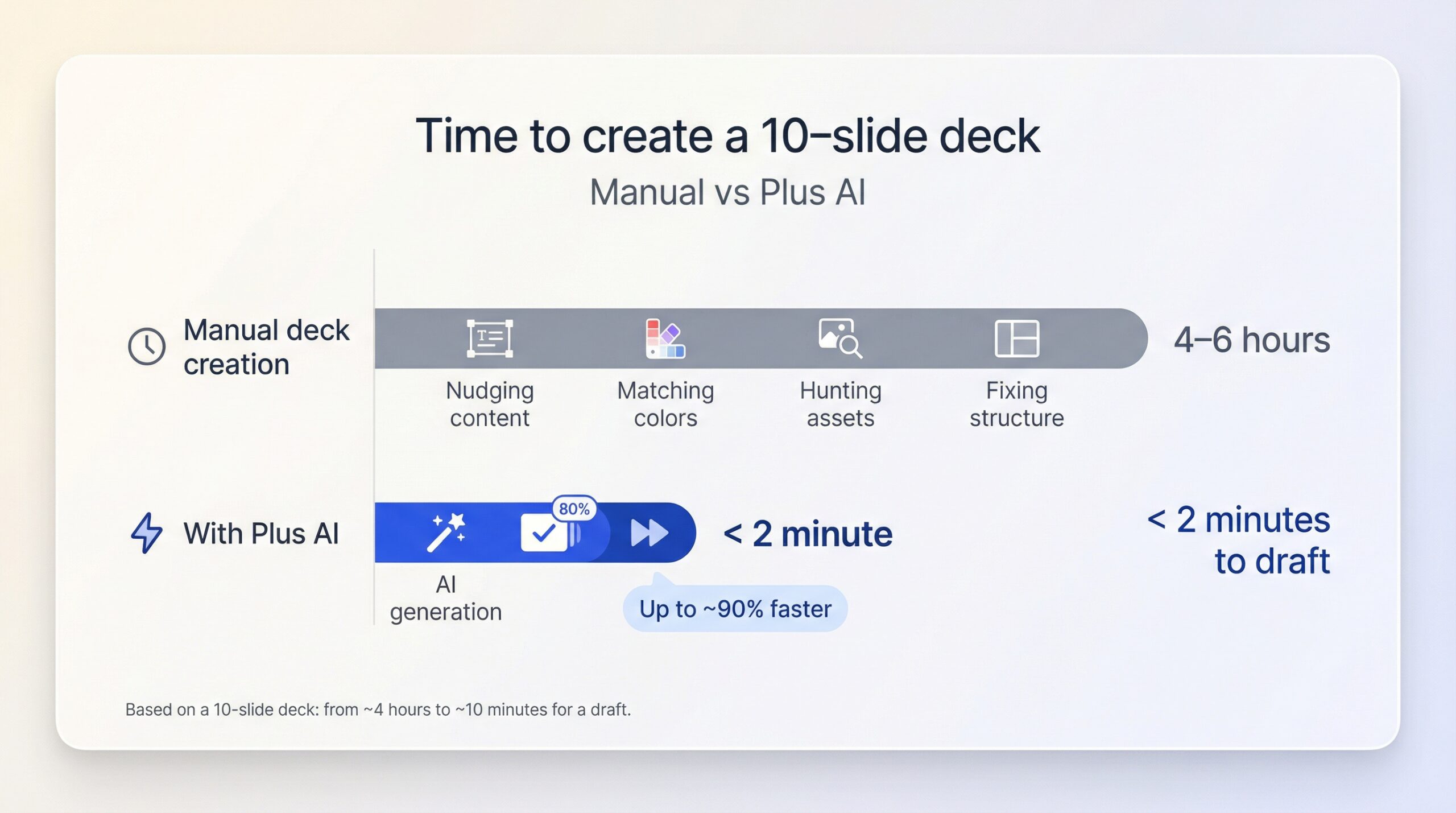
For routine business topics, the draft is nearly presentation-ready. Bullet points read logically, technical terms stay intact, and the design looks polished enough for the boardroom. You still review for nuance, but instead of starting from zero you refine an 80 percent solution.
Pros and cons at a glance
Here is a quick verdict on Plus AI before we compare competitors.
Pros
- Works inside Slides and PowerPoint. You stay in familiar apps, and teammates without the add-in can still edit the file.
- Cuts deck creation time by about 90 percent, turning a four-hour task into a ten-minute draft.
- Keeps your wording intact. The AI formats and trims but never rewrites unless you ask.
- Template library with brand-kit support (Pro and above) keeps every slide on brand.
- SOC 2 Type II security plus encrypted data handling satisfy corporate policies.
Cons
- PowerPoint version lags behind the smoother Google Slides experience and can feel sluggish.
- No advanced chart builder. Tasks like waterfall or Gantt charts still need manual work.
- Generic output on niche topics forces experts to double-check details.
- Support can be slow, and automatic renewal after the trial annoys some users.
- Paid after seven days; occasional presenters may skip the subscription.
Plus AI vs other AI presentation tools
Microsoft 365 Copilot
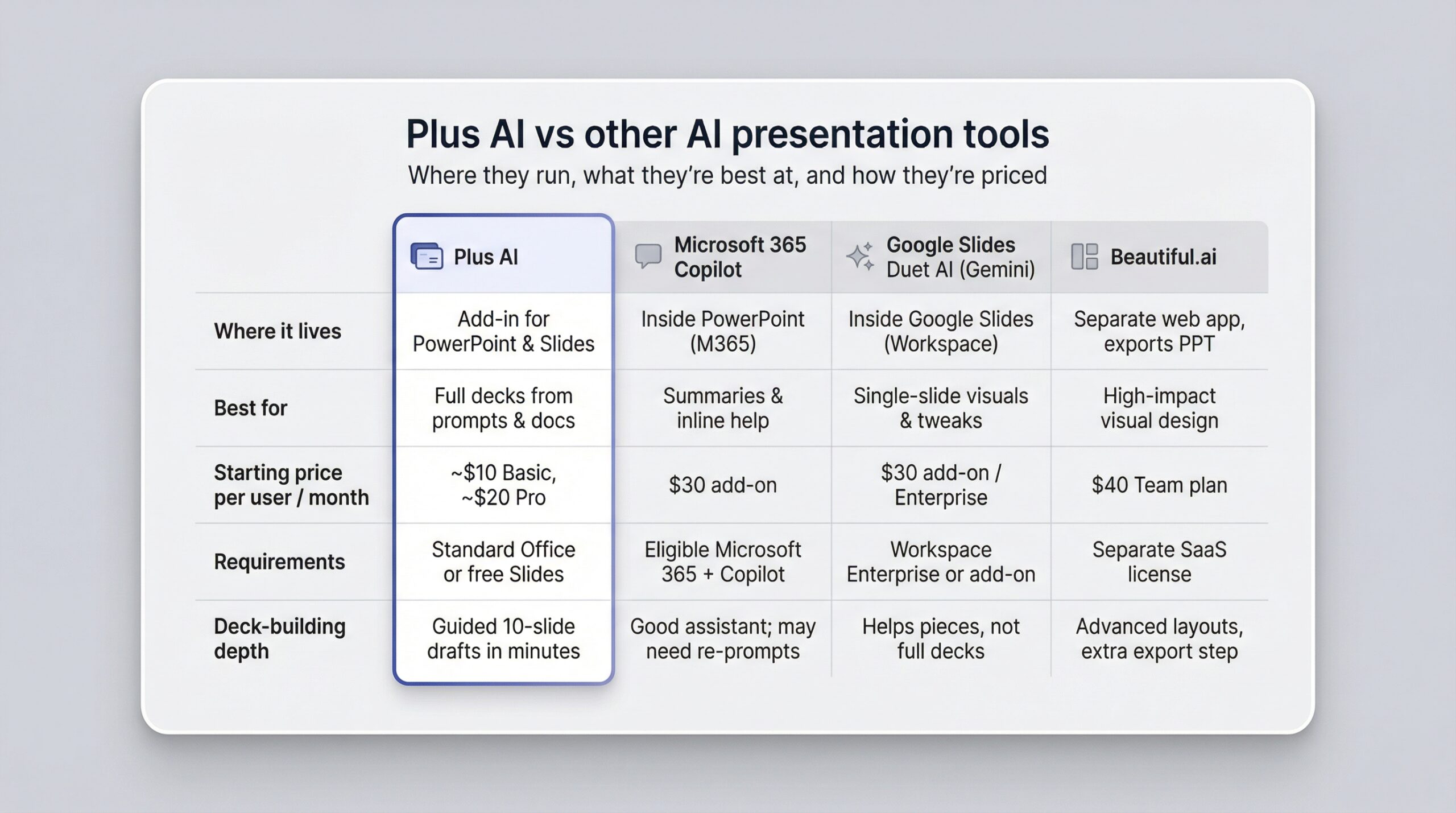
Copilot sits inside PowerPoint, so the matchup looks even at first glance. Open a deck, ask for a summary slide, and Microsoft’s AI produces bullet points. The help is convenient, provided your company already pays for the right Microsoft 365 tier plus the $30-per-user monthly fee.
Plus AI wins on access. Anyone with free Google Slides or a standard Office license can install the add-in and start building. Draft speed is similar, yet Plus AI often delivers cleaner structure on the first try, while Copilot may need a second prompt to reorder slides.
Design is another split. Copilot relies on PowerPoint’s built-in themes, which can feel dated. Plus AI adds a library of 100 templates and brand kits, giving small teams a more polished look without a designer.
Security leans corporate: Copilot inherits Microsoft’s ecosystem controls, while Plus AI relies on its SOC 2 Type II certification and encrypted storage. Both satisfy most IT teams, but Plus AI still edges Copilot on price-to-value unless your firm already budgets for the full Microsoft AI stack.
Google Slides Duet AI
Google’s own Duet AI (now branded Gemini) lives inside Slides for Workspace users. Ask it to “visualize a marketing funnel” and it returns an image or a few layout tweaks. Helpful for single slides, but it stops short of building a full deck.
Plus AI goes further. It guides you from blank canvas to ten-slide draft in minutes, complete with agenda and closing summary. Duet feels more like a set of small assists—great for an icon or background, less helpful for stitching a full narrative.
Pricing tells a similar story. Duet is bundled only with Workspace Enterprise or a $30 add-on. Many small teams stick to the free Google tier, leaving Plus AI as the affordable path to generative help inside Slides. If Google later broadens access, the gap may shrink, but today Plus AI owns the “build my deck for me” job in Google’s own yard.
Beautiful.ai
If visual impact tops your list, Beautiful.ai makes a strong first impression. Paste content into its web app and the engine restyles each element with magazine-level polish, animating charts and balancing white space automatically.
The trade-off is flexibility. You must work inside Beautiful.ai’s interface, then export to PowerPoint if stakeholders need a .pptx file—an extra step that can break formatting. Plus AI skips that detour, operating directly in Slides or PowerPoint, so you avoid export hiccups and keep offline editing.
Cost leans heavier too. Beautiful.ai’s Team plan runs about $40 per user per month, double Plus AI’s Pro tier. The higher fee funds eye-catching templates and slick animations, but for teams that value speed and collaboration over motion graphics, Plus AI delivers more value for less money.
FAQs about Plus AI
Is Plus AI free?
You receive a full-featured seven-day trial. After that, plans start at about $10 per user each month; there is no free tier.
How do I install it?
In Google Slides, open Extensions → Add-ons → Get add-ons, search “Plus AI,” and click Install. In PowerPoint, choose Insert → Get Add-ins, search for “Plus AI,” and install. Sign in with Google or Microsoft, and the sidebar appears.
Does Plus AI change my wording?
No. The default workflow lifts your sentences into slides, trims length, but never paraphrases. You can request tone edits later.
Is my data safe?
Yes. Plus AI holds SOC 2 Type II certification, encrypts data in transit and at rest, and deletes content when you remove a deck.
Can it match my company fonts and colors?
On Pro and Enterprise plans, upload a brand kit once, and every generated slide follows those rules.
What file types can I use?
Paste plain text or upload Word docs, PDFs, or existing PowerPoints. Plus AI reads the headings and builds slides around them.
Conclusion
In short, Plus AI moves raw ideas to polished slides with no extra software and almost no learning curve.