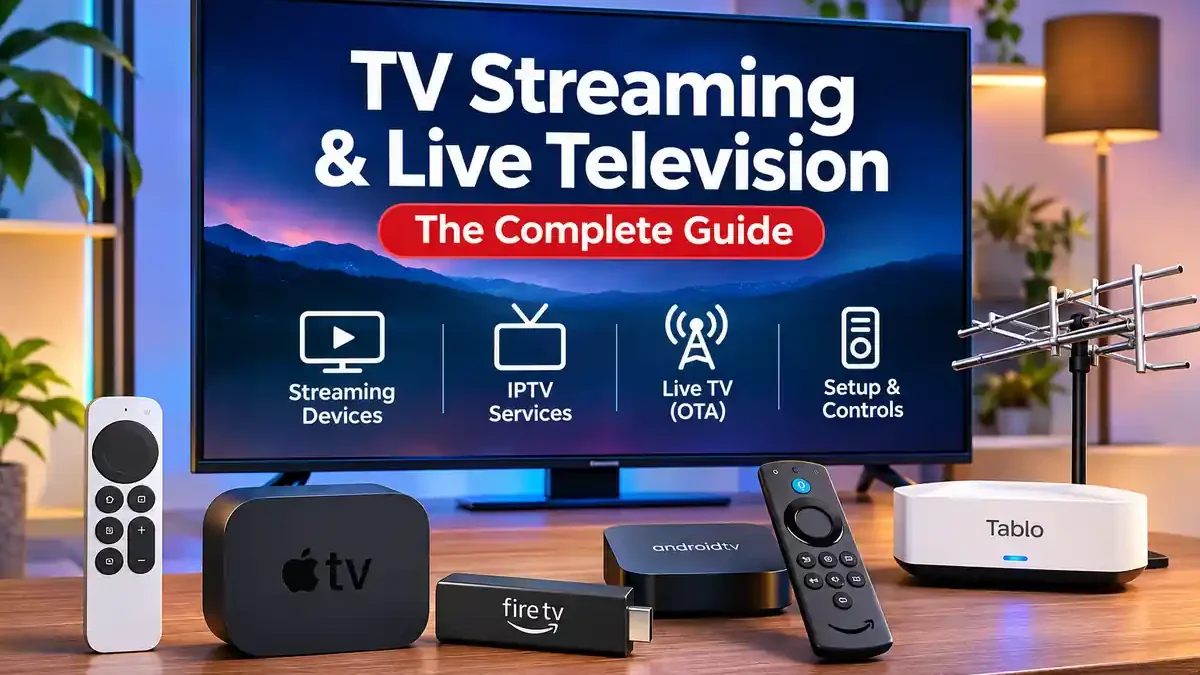

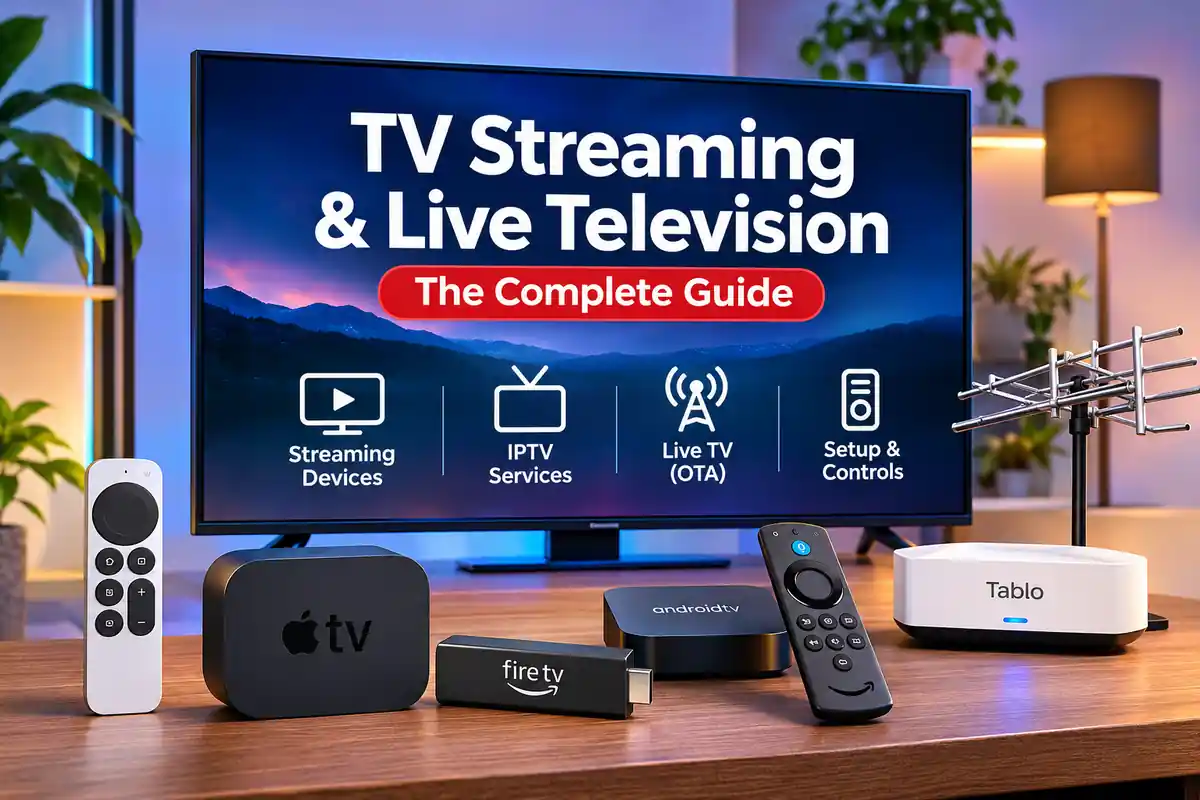
This article is part of our TVs & Home Entertainment resource section
TV Streaming and Live Television
Watching television no longer means relying on a cable connection or a traditional satellite subscription. Today, viewers can choose from streaming sticks, Android TV boxes, IPTV services, smart TV apps and over-the-air television. Each option works differently, and the right choice depends on what you want to watch, the devices you own and how much you want to spend.
Some people want access to international channels. Others want live local news, sports, movies or the flexibility to watch programmes in different languages. There are also viewers who simply want to make an older television more useful without replacing it.
This guide explains the main ways to watch television today, what equipment you need, how the different services work and what to consider before choosing a setup.
Table of Contents
Understanding the Different Ways to Watch TV
Before choosing a device or subscription, it helps to understand the difference between the main television technologies.
1. Internet streaming
Internet streaming delivers video through your broadband connection. You can watch content using an app on a smart TV, streaming device, computer, phone or tablet.
Services such as Netflix, Prime Video and other streaming platforms use this approach. You generally select a programme from a catalogue and play it when you want.
The main advantage is flexibility. You are not tied to a traditional broadcast schedule, although the content available depends on the service and your location.
2. IPTV
IPTV stands for Internet Protocol Television. It describes television content delivered over an internet protocol network rather than through conventional terrestrial, cable or satellite broadcasting.
IPTV can include live television, scheduled programmes and on-demand video. Some established television providers use IPTV technology as part of their subscription services.
The term is also used by third-party providers selling channel packages online. These services are not all equivalent. Before subscribing, check whether the provider has the rights to distribute the channels and programmes it advertises. A large channel list or unusually low price does not establish that a service is legitimate or reliable.
For a closer look at subscription considerations, see our guide to the best IPTV subscriptions in 2026.
3. Over-the-air television
Over-the-air (OTA) television uses an antenna to receive broadcast signals transmitted by nearby television stations. Depending on your location, antenna and reception conditions, you may be able to watch local channels without paying a monthly television subscription.
OTA reception is different from internet streaming: the television signal arrives through an antenna rather than your broadband connection.
Some devices combine OTA reception with recording and network streaming. Tablo is one example. It connects to an antenna and home network, allowing compatible devices to access live and recorded television through an app.
Before buying a separate streaming device, consider whether your television already has the features you need. A modern Smart TV may support your preferred streaming apps, Wi-Fi connectivity and other entertainment features without requiring an additional box or stick. If you are planning to purchase a new television, our Definitive Smart TV Buying Guide explains what to look for, including display technology, operating systems, connectivity and audio quality. If you already own a television, however, a compatible streaming device may be a more practical and affordable way to access additional apps.
Choosing a Streaming Device
A streaming device connects to your television and provides access to compatible streaming apps. Most modern devices connect through an HDMI port and use your home Wi-Fi network or an Ethernet connection.
The main options include:
Amazon Fire TV Stick
A Fire TV Stick plugs into an HDMI port and gives a compatible television access to the Fire TV interface and supported apps.
It can be useful if your television does not have built-in smart features or if you prefer using a separate streaming interface.
Before buying, check:
- Whether your television has an available HDMI port.
- Whether the device supports the streaming services you use.
- Whether your Wi-Fi connection is reliable where the television is located.
- Whether the device supports the video resolution and audio formats you need.
- Whether the apps you want are available in your country.
Fire TV devices also offer language and subtitle settings, although available languages and features vary. Changing the device’s menu language does not automatically change the language of every programme or app.
Android TV and Google TV devices
Android TV and Google TV devices provide access to compatible apps through a television-focused interface. They are available in different forms, including built-in smart TV systems, streaming boxes and compact HDMI devices.
They can be a good option if you want access to a range of streaming apps and prefer the flexibility of a TV-based operating system.
Check the exact device before buying. Not every Android TV box has official certification, access to the same apps or support for the same streaming formats. A device running a modified version of Android is not necessarily equivalent to an officially supported Android TV or Google TV product.
Apple TV 4K
Apple TV 4K is a separate streaming box designed to work with compatible televisions and Apple’s TV software ecosystem.
It is worth considering if you already use Apple devices, want a dedicated streaming interface or prefer Apple’s approach to app and account integration.
Its remote includes navigation, playback and volume controls. Depending on the remote generation and audio setup, it may also include a dedicated mute button. If you are having trouble with that control, see our guide to the Apple TV remote mute button.
Which device should you choose?
There is no single best streaming device for everyone.
| Your requirement | What to consider |
|---|---|
| Basic access to streaming apps | A compatible streaming stick |
| A dedicated TV interface | An Android TV or Google TV device |
| Apple ecosystem integration | Apple TV 4K |
| Recording local broadcast television | An OTA DVR such as Tablo, where supported |
| International or multilingual content | Services with the required language and regional rights |
Do not choose a device based only on advertised storage, processor speed or the number of apps shown on its packaging. App compatibility, software updates, certification and support are often more important for everyday use.
IPTV Subscriptions: What to Check Before Paying
IPTV can provide access to live channels and on-demand programming through an internet connection. However, the quality and legitimacy of services vary considerably.
A responsible comparison should look beyond the number of channels advertised.
Check whether the provider is authorised
A provider should be able to explain which channels and programmes it distributes and whether it has the necessary rights. Be cautious if a service advertises premium sports, films and international channels at a price that seems unrealistic.
Avoid providers that rely on unclear payment arrangements, constantly changing domains or vague company details.
Check device compatibility
Some services work through official applications, while others require a provider-specific app or a compatible media player. Confirm that the service supports your device before paying.
Do not assume that an app being available for Android means it will work properly on every Android TV box.
Understand the subscription terms
Check the following before purchasing:
- Whether the price is monthly, annual or a one-time payment.
- Whether there is a trial period and what happens when it ends.
- Whether refunds are available.
- How many devices can stream at the same time.
- Whether the provider offers customer support.
- Whether the advertised channels are available in your country.
Consider streaming quality
A service’s advertised resolution does not guarantee consistent playback. Actual performance depends on the provider’s delivery infrastructure, your internet connection, the device and network congestion.
If you experience buffering, test the connection on the same device, reduce competing network activity and try Ethernet where possible. If other services work normally but one provider repeatedly buffers, the problem may be on the provider’s side.
Setting Up an Android TV Box or Fire TV Stick
Setting up a streaming device is usually straightforward. The exact menus differ between manufacturers, but the general process is similar.
Step 1: Connect the device
Plug the streaming stick or box into an available HDMI port. Connect its power supply according to the manufacturer’s instructions.
Some televisions have USB ports, but they may not provide enough power for every streaming device. Use the supplied power adapter if the manufacturer recommends it.
Step 2: Select the correct HDMI input
Switch your television to the HDMI input connected to the streaming device. You should see its initial setup screen.
If there is no picture, check the HDMI connection, power supply and selected input. Trying another HDMI port can also help.
Step 3: Connect to Wi-Fi
Follow the on-screen instructions to select your wireless network and enter its password.
For stable streaming, place your router and streaming device where the signal is strong. If the device supports Ethernet, a wired connection can be useful when Wi-Fi is unreliable.
Step 4: Sign in and install apps
Sign in with the account required by your device. Open its app store and install the streaming applications you actually use.
Use official app stores and verify the publisher before installing an application. Avoid downloading unknown APK files from websites simply because they promise access to additional channels.
Step 5: Configure language and subtitles
Check the device’s language settings and the audio and subtitle options within each streaming app.
On Fire TV, for example, the menu language can be changed through Settings and Preferences. The language options available depend on the device and region.
Remember that three different settings may affect what you see:
- Device language: Controls the menus and system interface.
- App language: Controls the application’s interface, where supported.
- Audio and subtitle language: Controls the available language tracks for a particular programme.
Changing one does not guarantee that the other two will change.
For readers setting up multilingual television in Canada, our dedicated guide explains how to set up an Android box or Firestick for multi-language TV in Canada.
Watching Live TV Without a Traditional Cable Subscription
Streaming apps are not the only way to watch live television. Depending on where you live, an antenna-based setup may provide access to local broadcast channels.
What is OTA television?
OTA television is broadcast through radio signals from local transmission towers. A compatible antenna receives those signals, which are then decoded by a television or an appropriate receiver.
The channels you can receive depend on several factors:
- Your distance from broadcast towers.
- The direction and strength of the signal.
- Whether you use an indoor or outdoor antenna.
- Buildings, hills and other physical obstructions.
- The broadcast standards used in your region.
An antenna that works well in one neighbourhood may perform poorly in another. Check local channel availability before purchasing equipment.
What is an OTA DVR?
An OTA digital video recorder captures television broadcasts received through an antenna. Depending on the model, it can allow you to pause, record and watch programmes later.
Some network-connected DVRs distribute the received channels to compatible devices over your home network.
Tablo is an example of this approach. Its network-connected devices use an antenna to receive broadcast television and a home network to deliver live and recorded programmes through compatible apps.
There are important requirements to check. A Tablo setup generally needs an antenna, internet access and compatible viewing devices. Channel reception depends on your location and antenna conditions, while supported features vary by model.
Read our Tablo TV review for a closer look at the device and its features.
How to Improve Streaming Quality
Buffering, low resolution and interrupted playback can make even a good streaming service frustrating. Before replacing your device or upgrading your internet plan, work through these checks.
Check your internet connection
Run a speed test on the device or a phone connected to the same Wi-Fi network. A test performed next to the router may show better results than the connection available at your television.
The bandwidth needed depends on the streaming service, resolution, compression and number of devices using the connection.
Improve Wi-Fi reception
A television is often placed in a corner or behind furniture, where wireless reception may be weaker.
Try moving the router to a more central location, keeping it away from obstructions and reducing interference. If your router offers both 2.4 GHz and 5 GHz networks, test which provides the more reliable connection at the television.
Restart the device and router
Restarting a streaming device can clear temporary software problems. If several devices have connection issues, restart the router as well.
Allow the router to reconnect fully before testing playback again.
Update apps and device software
Outdated applications or system software can cause playback errors and compatibility problems. Install available updates through the device’s official settings or app store.
Check the streaming service
If only one app or service is experiencing problems, the issue may be related to its servers, content delivery network or account. Check the provider’s official status page or support information before making changes to your home network.
TV Remote Controls and Common Problems
A streaming setup can involve more than one remote. You may have a television remote, a streaming-device remote and a soundbar remote.
HDMI-CEC can allow compatible devices to share certain controls, such as power and volume. The feature may have a different name depending on the television manufacturer, and its behaviour varies between devices.
If the volume buttons do not work, check the remote’s configuration and the television’s HDMI-CEC settings. If you use a soundbar or AV receiver, make sure the remote is controlling the correct audio device.
For Apple TV users, the mute and volume buttons also depend on the connected audio equipment. Some setups may require the television’s original remote for volume control.
How to Choose the Right TV Setup
The best setup depends on what you watch and how you prefer to access it. Use the following examples as a starting point.
If you mainly watch movies and series
Choose a streaming device or smart TV platform that supports the apps you use. Check the available resolution, audio formats and subscription costs.
If you want international or multilingual channels
Look for legitimate services that offer the languages and regional content you need. Confirm that the channels are licensed for distribution in your location and that the service supports your device.
If you want local live channels
Check whether OTA broadcasting is available in your area. An antenna may be sufficient for basic reception, while an OTA DVR can add recording and network streaming features.
If you want to use an older television
A compatible HDMI streaming device can add app-based streaming without requiring you to buy a new television. Check the TV’s HDMI compatibility and the streaming device’s requirements before purchasing.
If you want to reduce monthly costs
Compare the total cost rather than looking only at the device price. Include subscriptions, internet service, optional storage, accessories and any recurring fees.
Free OTA broadcasts may be an option where local reception is available. Free streaming apps may also provide content, although their catalogues and availability vary by region.
Frequently Asked Questions
What is the difference between IPTV and regular streaming?
IPTV describes television delivered over internet protocol networks and can include live channels and on-demand programming. Regular streaming is a broader term for watching video over the internet, including movies and series from on-demand services.
Can I use a Fire TV Stick on a non-smart TV?
Yes, if the television has a compatible HDMI input and the device can receive adequate power. The television does not need built-in smart features because the Fire TV Stick provides its own interface and apps.
Do I need a subscription to watch live TV?
Not always. In areas with suitable OTA broadcast reception, an antenna can provide access to free local channels. Some internet-based services also offer free, ad-supported channels. Paid services may be required for particular channels, sports or premium programmes.
Does an Android TV box work with every television?
No. The television needs a compatible connection, usually HDMI, and the box must support the display capabilities of the TV. App availability and performance also depend on the box’s hardware, software and certification.
Can I watch television in multiple languages?
Yes, if the service and programme offer the required audio or subtitle tracks. You should check language availability within the streaming app or programme rather than relying only on the device’s system language.
Is IPTV legal?
IPTV is a delivery technology, not automatically a legal or illegal service. The important question is whether the provider has the necessary rights to distribute the content. Use authorised services and be cautious of providers that cannot explain their licensing or business details.
Does Tablo need an internet connection?
Tablo’s network-connected DVR products require internet access for normal operation and features such as programme guide updates and software updates. The exact requirements and offline behaviour depend on the model.
Why does my streaming device keep buffering?
Common causes include weak Wi-Fi, network congestion, insufficient bandwidth, outdated software or problems with the streaming provider. Test the connection near the television, restart the device and router, and compare playback across different services to narrow down the cause.
Final Thoughts
There is no single television setup that suits every household. Streaming sticks and TV boxes are useful for accessing internet-based apps, IPTV services can provide live channels when properly authorised, and OTA antennas can receive local broadcasts without a conventional cable subscription where reception is available.
Start with the programmes and channels you actually want to watch. Then check service availability, device compatibility, internet requirements and the full cost of ownership. A setup that meets those needs is usually a better investment than buying the device with the longest feature list.