

MP4 is among the most commonly used video formats and is popular across different platforms. However, MP4 videos still encounter issues and are not entirely problem-free. Video playback, sound, and syncing issues can make MP4 files inaccessible or corrupted. Therefore, one should be aware of how to fix MP4 videos without compromising on the quality using repair tools.
Moreover, this MP4 repair guide covers common signs of corruption and solutions to playback problems. With the right repair tools, your MP4 videos can stay safe, sharp, and ready to share.
Table of Contents
Part 1. What Damages MP4 Files and How It Happens
Before we explore repair methods, you should understand the following causes of damage to MP4 files:
- Recording Interruptions: Sudden stops while filming can damage the MP4 structure and leave several parts incomplete. Missing sections disrupt decoding, causing players to fail during normal playback attempts.
- Faulty Storage: Damaged cards or drives create bad sectors, distorting important video data. Corrupted regions interrupt data flow, making the final MP4 file unstable.
- Broken Headers: Corrupted file headers hide essential metadata, causing many players to crash. Without this data, video players crash instantly when attempting to load content.
- Transfer Errors: Unstable connections interrupt copying, producing incomplete MP4 files that never open. These incomplete files lack key data, making them impossible to open normally.
- Power Failures: Device shutdown during saving prevents finalizing indexes, breaking seeking, and playback. Missing index data breaks seeking functions, which stops smooth playback completely.
Part 2. 6 MP4 Repair Methods You Can Try to Fix MP4 Videos on Any Device
The 6 known MP4 repair methods discussed below can help fix MP4 videos on any device:
1. Repairit
A corrupted MP4 can interrupt work, study, or entertainment on any device. Repairit offers a practical way to restore smooth playback and fix MP4 videos without hassle. It supports Windows, Mac, Android, and iOS while handling issues like damaged headers, broken frames, or audio errors. Every repair stays simple, clear, and suitable for everyday users.
Moreover, the process remains direct, making recovery comfortable even for beginners. You can resolve light or severe corruption without entering technical menus or learning advanced tools. Repairit’s balanced workflow helps you restore damaged MP4 files with confidence and regain consistent video performance.
Key Features
- Video Repair: Repairs corrupted MP4 files using samples, restoring their structure and smooth playback quality.
- Batch Processing: Improves multiple damaged videos together, saving time during large media recovery tasks.
- Guided Workflow: Step-by-step interface helps beginners import, scan, preview, and export repairs clearly.
Guide to Fix Your MP4 Videos Using Repairit
The steps given below will help you recover your MP4 videos using the Repairit tool:
Step 1. Import the Corrupted MP4 Files to Repairit
First, access “Video Repair” in Repairit and add your corrupted file. After that, hit the “Start” button to initiate the process.

Step 2. Start the Repair Process
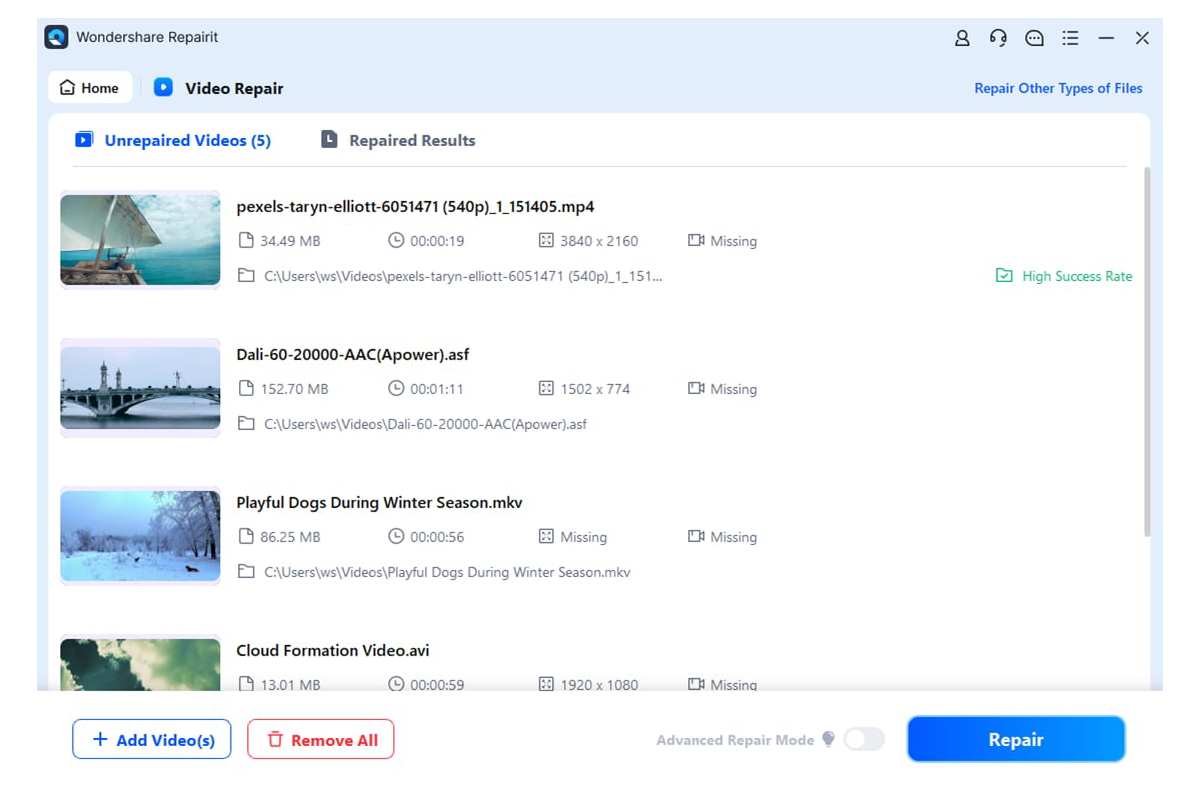
Once the corrupt files are imported, they will appear under the “Unrepaired Videos” tab. After reviewing them, press the “Repair” button to start the repair process.
Step 3. Preview and Save the MP4 Video
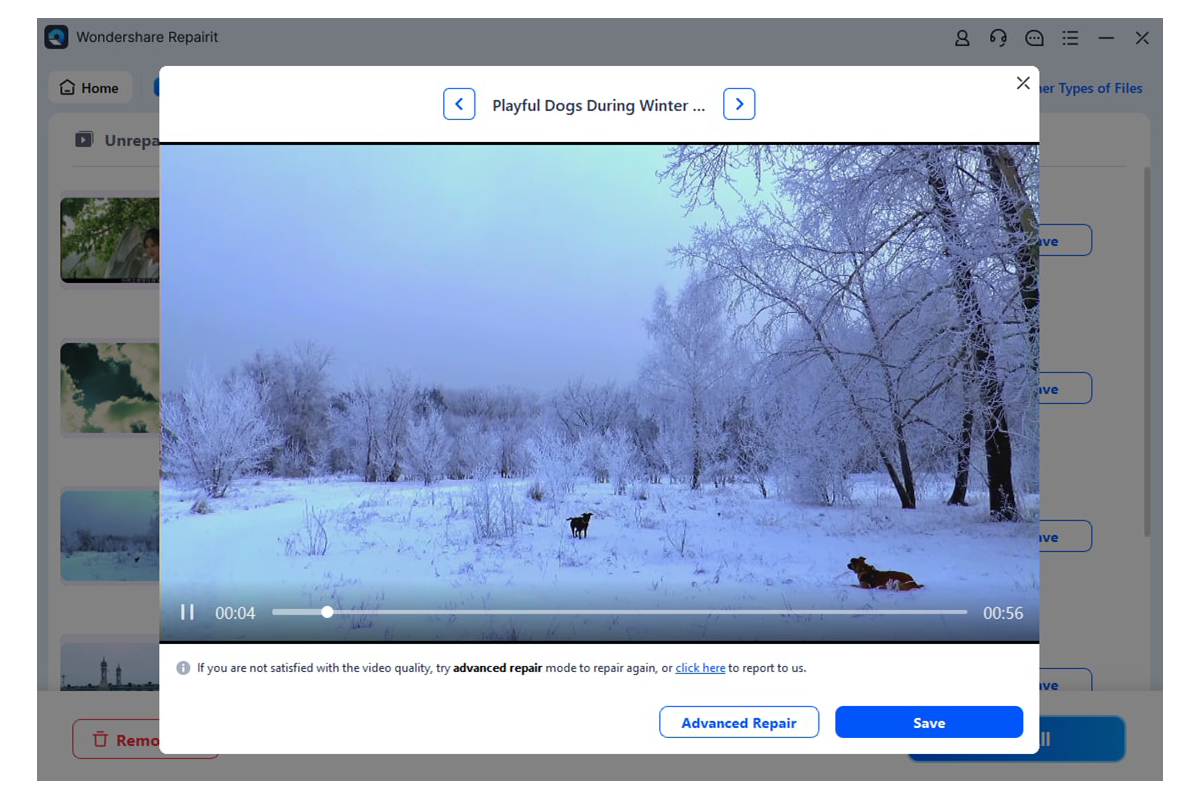
Lastly, preview the repaired MP4 videos and if satisfied, hit the “Save: button to export your final video to your device.
2. Convert the File with VLC
VLC Media Player can repair mildly corrupted video files for free. It includes a built-in feature that automatically fixes broken AVI headers. This method works best for minor playback issues, glitches, or missing frames. Let’s stick to the step-by-step guide below to fix MP4 videos using VLC:
Step 1. Click on the “Media” section at the top of the VLC Media Player. Then choose the “Convert/Save” from the list to start the conversion.
Step 2. Next, click the “+Add” button to choose your file, then press “Open” to import it. After the file appears in the list, hit the “Convert/Save” button to fix MP4 videos.
Step 3. Lastly, select the “Profile” menu and then click “Browse” to set the save location. Here, press “Start” to re-encode and attempt the repair of the MP4 video.
3. Use FFmpeg Command-Line Tool – Re-encode with FFmpeg
FFmpeg is a powerful command-line tool that can fix MP4 videos. It repairs them by re-encoding them into a new, functional file while maintaining video quality. This tool uses appropriate error-handling options to repair minor damage during re-encoding. Now consider using the step-by-step guide below to re-encode and fix your video:
Step 1. First, install FFmpeg, then navigate to the “Command Prompt” and choose the “Run as Administrator” option to proceed further.
Step 2. Afterwards, in the Command Prompt, enter the command “ffmpeg -i corrupted.mp4 -c copy repaired.mp4” and hit “Enter” to proceed
4. Try Online MP4 Repair Services – Repairit Online
Online MP4 repair tools like Repairit Online make it easy to fix damaged videos today. You upload the corrupted file, and their servers scan for common errors inside. Since everything runs in a browser, you avoid complex software downloads or setups. Repairit Online works best for quick fixes when desktop repair programs feel overwhelming. Let’s walk through the simple guide below to use the video repair tool online:
Step 1. Upload Your Video file to the Repairit Online
Upon launching Repairit’s online video repair page, click on the “Add Video” button to upload your corrupted MP4 file.
Step 2. Start the Recovery Process After Uploading the File
After the video appears in the list, click the “Repair” button to begin. Now keep an eye on the progress bar beside the file as the repair runs.
Step 3. Preview the File and Save Repaired Video
In the last step, preview the file and click the “Download All” button to save the file to your device.
5. Repair With VLC Media Player
VLC Media Player offers a simple way to fix minor video corruption issues. This method is helpful when files glitch, freeze, stutter, or fail to play back. Because VLC is free, many users attempt repairs before installing heavier desktop tools. Unlike the VLC conversion, the repair method forces VLC to rebuild the damaged video structure. Adhere to the detailed steps below to repair corrupted video files using VLC today:
Step 1. First, access the “Tools” section in the VLC media player and then click on the “Preferences” option in the drop-down menu.
Step 2. Next, select “Always Fix” in the “Damaged or incompletely AVI file” option of the “Input/Codecs” section. Then click the “Save” button to import the repaired file to your device.
6. Re-encode the File With HandBrake
HandBrake is an open-source transcoder that can easily fix MP4 videos. It works by re-encoding damaged videos into a fresh, stable format. This process rebuilds the video structure and removes minor errors found within broken files. Above all, re-encoding forces HandBrake to rewrite faulty segments, thereby stabilizing overall performance. Now, follow the steps below to repair videos using HandBrake effectively:
Step 1. Install HandBrake and select the corrupted file you want to re-encode. Drop your selected file in the given HandBrake workspace.
Step 2. Choose “Presets” from the menu and click “Browse” to set the save location. Then press “Start Encode” to generate a repaired MP4 video file.
Part 3. MP4 Repair Tips That Help You Avoid Future Corruption and Quality Loss
To prevent issues and quality losses of MP4 videos in the future, follow the tips given below:
- Stable Storage: Always store your videos on reliable drives to prevent data corruption during transfers. Keeping backups on separate devices will also prevent complete data loss.
- Clean Transfer: Use stable cables and trusted ports to transfer files without risking unexpected data breaks. Avoid interrupting transfers, as sudden stops can damage the essential video structure.
- Regular Updates: Update media players and codecs often to maintain smooth compatibility with video files. New updates reduce playback errors that may appear when formats change over time.
- Stable Power: Use a UPS or surge protector to stop power drops from harming active video writes. Unstable power often corrupts files when systems shut down during ongoing recording.
- Proper Closing: Always close recording apps correctly before powering off devices to complete writing tasks. Forcing shutdowns leaves video files unfinished and vulnerable to major corruption.
Conclusion
To conclude, MP4 repair is essential, as corrupted MP4 videos can lose playback stability, freeze during playback, or fail to open. In this guide, we explored several reliable solutions that make MP4 repair easy. Among these, Repairit stands out for delivering deeper structural recovery, supporting many formats, and offering a simple interface that restores videos with minimal quality loss.